
Blog
Data Migration Service for Phones and Computers: What to Prepare Before Moving Your Files
Learn whether you need data migration, backup, or recovery, how to prepare your device, and when Calgary consumers should seek professional help.
If you are replacing a phone, tablet, laptop, or computer, a data migration service can help move personal files and settings to a new device or storage. However, the safest next step depends on the condition of the original device. A working device may only need a straightforward transfer, while a failing, damaged, or inaccessible device may need repair or recovery before migration can begin.
Key facts
- Published: October 23, 2026
- Last updated: October 23, 2026
- Reading time: 8 min read
- Questions about your own device: Call (403) 273-8324
Last updated
Data Migration Service for Phones and Computers: What to Prepare Before Moving Your Files
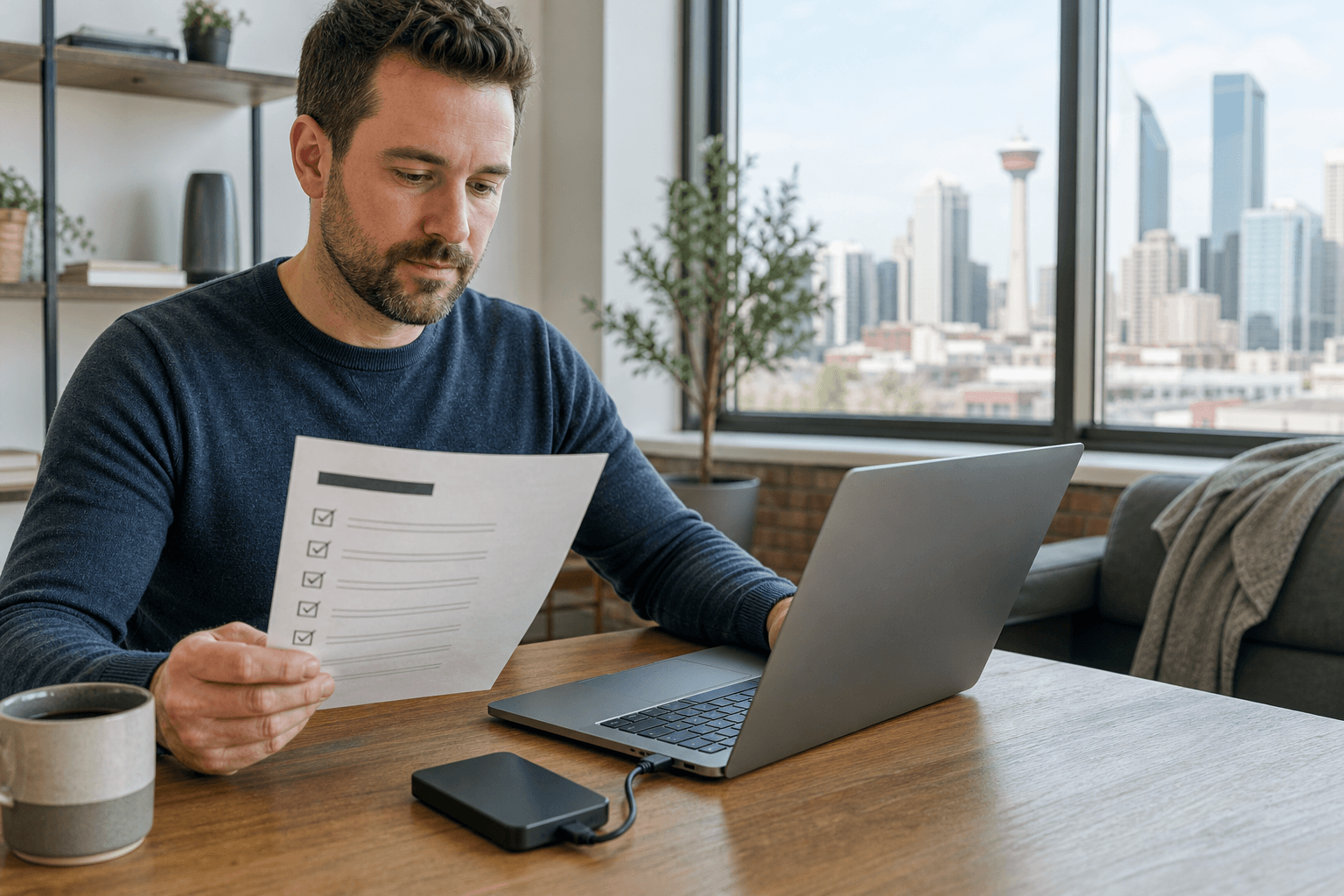
Published by TechBrotherz at TechBrotherz, the walk-in repair Store at 3317 17 Ave SE in Calgary. October 23, 2026.
No article on this site is paid for or sponsored. For a quote on your own device, call (403) 273-8324.
Quick summary

- Back up essential photos, documents, contacts, and other files before starting whenever possible.
- Identify whether you need migration, backup, or recovery based on whether the original device is accessible and working.
- Do not repeatedly restart or continue using a device that is failing, overheating, water-damaged, or disconnecting during a transfer.
- Ask for a written scope covering the source, destination, data categories, exclusions, access requirements, verification, price, and warranty.
- Keep the original device untouched until you have checked important files and accounts on the destination device.
Data migration, backup, or recovery: Which do you need?
These terms describe different problems. Data migration means moving selected or supported data from one working device or storage location to another. For example, you may move photos, contacts, documents, and some settings from an old phone to a replacement phone, or move files from an old computer drive to new storage.
A backup is a separate copy created so you can restore data later. It is a precaution, not a replacement for migration. Data recovery is the attempt to retrieve files from a device that is failing, damaged, corrupted, locked, or otherwise difficult to access. Recovery can be more uncertain than a normal transfer, so do not assume that every file, password, setting, or app can be moved successfully.
| Situation | Likely need | Best first step |
|---|---|---|
| The old device works and you can access your files | Migration | Create a backup, then plan the transfer. |
| You want a safety copy before replacing or repairing a device | Backup | Copy essential data and confirm that it opens. |
| The device will not boot, disconnects, shows drive errors, or has physical or liquid damage | Assessment or recovery | Limit further use and request an evaluation. |
| You can access some files but not others | Migration with possible recovery work | Move readable essentials first and identify missing data separately. |
Compare your practical options

The right option depends on the value of the data, the condition of the source device, and how comfortable you are managing accounts, cables, storage, and verification.
| Option | Suitable when | Main trade-off |
|---|---|---|
| DIY transfer | The source works, you can sign in, and the destination has enough space. | Lower service cost, but you manage compatibility, access, and verification. |
| Repair-shop migration assistance | You want help moving data between a phone, tablet, laptop, computer, or new storage. | Convenience and guided handling, but scope, access, and price must be confirmed. |
| Assessment or recovery help | The device is damaged, unstable, inaccessible, encrypted, or showing storage failure. | More uncertainty, additional work, or data that cannot be recovered. |
Data portability is the ability to move data from one system or storage location to another. The Canadian Centre for Cyber Security recommends considering portability before entering a service arrangement. Read the guidance on data portability.
What to prepare before moving data
Preparation reduces avoidable delays. Before beginning, review the role of migration services, pre-repair backups, and data handling in protecting files and settings.
Use this preparation checklist
- Identify the source and destination. Record device types, models, operating systems, and available storage.
- List what matters most. Prioritise photos, contacts, messages, documents, notes, calendars, and irreplaceable files.
- Back up essential data. Use trusted cloud storage, an external drive, or a computer backup, then open sample files.
- Check account access. Confirm Apple, Google, Microsoft, email, and other credentials. A device passcode and account password may differ.
- Charge and power the devices. Keep both connected to reliable power during a large transfer.
- Gather suitable cables and adapters. Unstable connections can interrupt copying.
- Check capacity. Ensure the destination has enough free space for the intended data.
- Record special requirements. Note encrypted folders, work accounts, two-factor authentication, specialist software, and removable media.
- Document device condition. Record existing screen, charging, battery, boot, or connectivity problems.
Do not erase the old device simply because the new one turns on. Keep it available until you have checked important information, signed into essential accounts, and confirmed that key files open correctly.
Common data migration paths
Phone to phone
A phone-to-phone transfer commonly involves contacts, photos, videos, messages, calendars, and selected settings. Some account-backed information may return after sign-in, while app data, authentication tools, or locally stored files may require separate steps.
If you are changing providers as well as devices, keep the existing service active until the transfer is complete. The CRTC advises customers not to cancel current service before switching if they want to keep their number. Review the CRTC guidance on keeping your number.
Computer to computer
Separate personal files from applications and system settings. Documents, photos, downloads, and project folders may be copied, but installed programs often need to be reinstalled, reactivated, or updated. Check browser bookmarks, email archives, templates, local databases, and files outside standard user folders.
Old drive to new storage
Moving data from an old drive can be straightforward when it is healthy and readable. If it makes unusual noises, disconnects, reports errors, or freezes the computer, stop treating it like a normal file copy. An assessment may be safer than repeated attempts.
When a damaged or inaccessible device changes the plan
Pause DIY migration if the device will not boot, becomes unusually hot, has liquid exposure, shows a swollen battery, has severe physical damage, or disconnects while you try to read data. The same applies if you cannot unlock it or see storage-failure messages.
Do not factory-reset the device, install unknown software, open a swollen battery, or repeatedly retry a failing drive without understanding the risk. A provider may first need to stabilise the device or repair a port, battery, screen, or storage connection.
Recovery is not a guaranteed transfer. Encrypted, corrupted, physically damaged, or inaccessible data may require different tools and may not all be recoverable.
Privacy questions to ask before handing over a device
Your devices may contain photographs, messages, financial records, work documents, saved addresses, and account tokens. The Office of the Privacy Commissioner of Canada notes that sharing personal information with a business does not mean giving up control over it. Review your privacy rights when dealing with a business.
- What access is required, and can you enter passwords yourself?
- Which folders, accounts, or data categories will be viewed or copied?
- How will the source and destination devices be identified?
- What happens if the transfer stops or reveals damaged data?
- Will original devices, copied data, and temporary storage be returned?
- What happens to temporary copies after verification?
Do not share more credentials than the task requires. Before disposing of an old device, ensure personal information has been properly removed.
What to include in a data migration quote
A useful quote should describe the work, not simply say “data transfer.” Ask the provider to identify the source, destination, data categories, exclusions, access needed, verification, and any repair or parts requirement.
Also ask whether the price covers diagnosis, copying, account setup, testing, and temporary storage. Do not assume a repair warranty automatically covers migration work. If your move includes business email or hosted accounts, a business email hosting decision checklist can help you review access, portability, and account ownership before changing services.
TechBrotherz provides free in-store quotes before work begins, with parts and labour combined into one figure for repair estimates. The walk-in shop is at 3317 17 Ave SE in Calgary. Ask specifically how migration or related repair would be scoped, since no fixed migration price or turnaround should be assumed.
How to verify the transfer after it is complete
- Open recent and older photos, videos, documents, and downloads.
- Confirm essential contacts, calendars, notes, and messages.
- Check file names, dates, folders, and document versions.
- Sign in to essential accounts and test two-factor authentication.
- Test Wi-Fi, mobile connectivity, Bluetooth, charging, cameras, and speakers.
- Compare available storage with the expected data volume.
- Keep the original device and backup untouched until verification is complete.
Choosing local data migration help in Calgary
Look for a provider that explains the difference between migration, repair, and recovery, gives a clear scope, and tells you what access is required. Experience with phones, tablets, laptops, and computers matters when a port, battery, screen, operating system, or storage device is also failing.
TechBrotherz supports phones, tablets, laptops, and computers from its walk-in location at 3317 17 Ave SE. No appointment is required for walk-in service, and repair work carries a 60-day warranty. Confirm which parts of your request are repair services and which are migration services before approving the quote.
Frequently asked questions
Can a data migration service move everything from my old phone to my new phone?
Not necessarily. Photos, contacts, documents, and some account-backed information may transfer, but app data, passwords, encrypted content, and device-specific settings may need separate handling.
Should I repair a damaged device before attempting data migration?
If damage affects power, charging, storage access, or stability, an assessment before migration is safer. Do not keep using a device that is overheating, water-damaged, swollen, or disconnecting.
Will my passwords and app logins transfer to the new device?
Do not assume they will. Some credentials synchronise through a password manager, while others require fresh sign-in or multi-factor verification.
How long should I keep my old device after the transfer?
Keep it until you have opened important files, confirmed essential contacts and accounts, and checked the destination device's basic functions.
Does a repair warranty automatically cover data migration work?
No. A repair warranty may cover the fitted part and repair work, but it does not automatically cover every file, account, or transfer outcome. Ask for the terms in writing.
Conclusion: Prepare the source, define the scope, then choose the safest path
Use DIY migration when the original device is accessible, stable, and backed up. Choose professional assistance when it is damaged, unstable, difficult to unlock, or holding data you cannot risk losing. Define the source, destination, data categories, privacy expectations, verification steps, price, and warranty before work begins.
For in-person help with a phone, tablet, laptop, or computer in Calgary, visit TechBrotherz at 3317 17 Ave SE for a walk-in assessment and free quote before repair work starts.
Related pages
Rather just ask a person?
Call (403) 273-8324 and describe the problem, or walk in to 3317 17 Ave SE in Calgary. Every repair is quoted free before any work starts.