
Blog
Computer Repair Costs: 7 Ways to Save on Every Fix
Use this computer repair cost guide to plan smarter repairs in Southview, Calgary—understand key cost drivers, timelines, data safety, and seven proven ways to save.
A computer repair cost guide is a clear framework that explains how technicians estimate the total investment to fix a desktop or laptop, including diagnostics, parts, labor, data protection, and turnaround. For Southview residents in Calgary, it helps you plan, compare options, and avoid surprises while keeping your files safe and your device online.
Key facts
- Published: June 29, 2026
- Last updated: October 2, 2026
- Reading time: 17 min read
- Questions about your own device: Call (403) 273-8324
Last updated
Computer Repair Costs: 7 Ways to Save on Every Fix
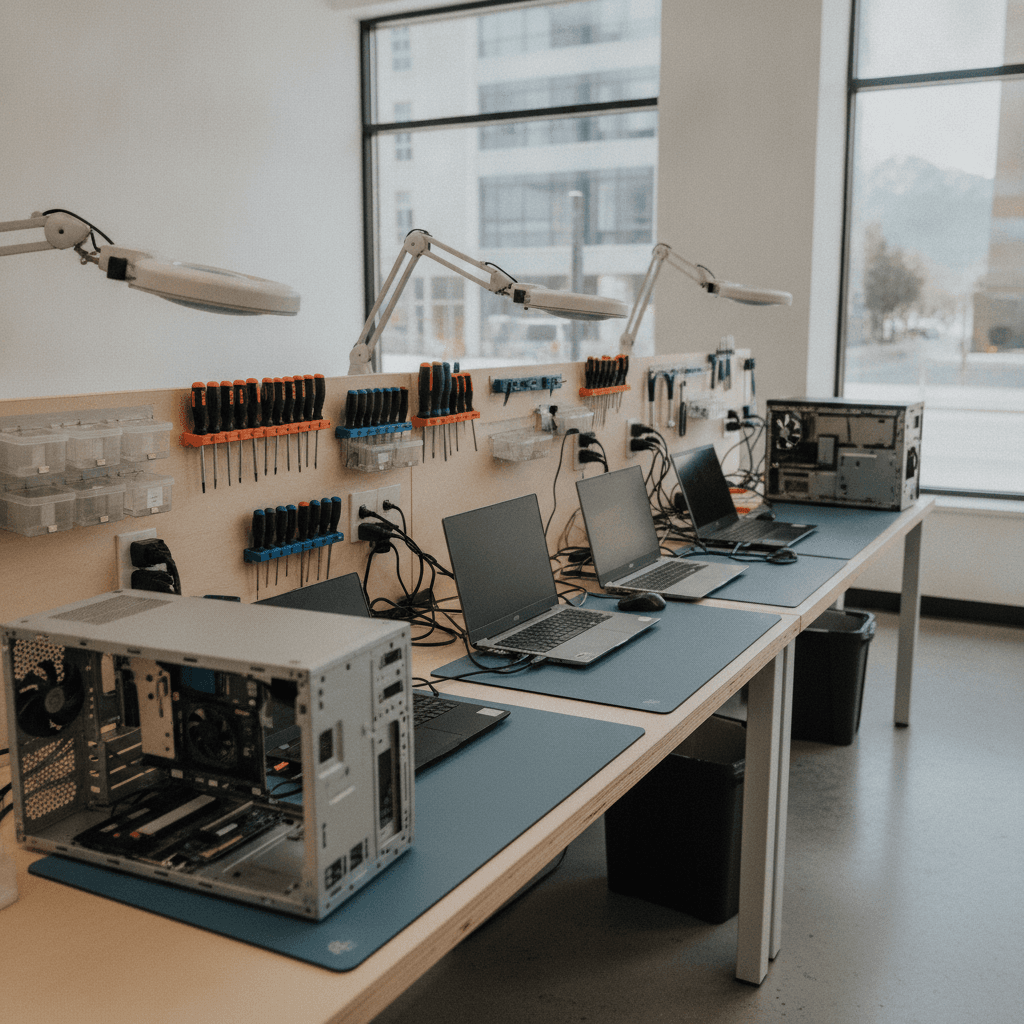
Published by TechBrotherz at TechBrotherz, the walk-in repair Store at 3317 17 Ave SE in Calgary. June 29, 2026, updated October 2, 2026.
No article on this site is paid for or sponsored. For a quote on your own device, call (403) 273-8324.
By TechBrotherz · Last updated: 2026-06-29
Summary
Use this computer repair cost guide to understand what drives repair value, how shops build estimates, and seven practical ways to save without cutting corners. You’ll learn diagnostics basics, repair types, data-safety steps, and when repair vs. replace makes sense in Southview, Calgary.
In this complete guide, we translate repair jargon into plain English so you can make confident decisions before you drop off a device. Expect to learn:
- How diagnostics, parts, and labor combine in a typical estimate
- What influences timelines and success rates for common fixes
- Seven proven ways to save without risking your data or warranty
- Repair vs. replace signals for desktops and laptops
- Local tips for Southview drop-offs and scheduling
Local considerations for Southview
- Time your drop-off to avoid peak traffic near 17 Ave SE; quick errands by Foggy Gorilla Vape Shop | 17th Ave can pair well with diagnostics intake.
- Winter cold can worsen battery and drive issues. Back up before heading out and ask for a warm-start test after repair.
- If you work nearby or visit Valleyview Park Viewpoint, request text updates so you can pick up as soon as testing passes.
What is a Computer Repair Cost Guide?
A computer repair cost guide explains the components of an estimate—diagnostics, parts, labor, data handling, and post-repair testing—so you know what you’re paying for and how to influence the outcome. It helps you compare shops, set expectations, and avoid unnecessary add-ons.
Think of this guide as a translator between technical work and everyday choices. It clarifies what’s essential, what’s optional, and where you have leverage—especially around timelines, data protection, and parts selection.
- Diagnostics: The structured process to confirm root cause before any major work.
- Parts: Components like SSDs, memory, keyboards, screens, fans, and power supplies.
- Labor: The hands-on time to disassemble, repair, clean, and reassemble your device.
- Data handling: Backups and recovery safeguards that protect your files and privacy.
- Validation: Burn-in tests and quality checks that ensure the fix actually holds.
At TechBrotherz, we keep this flow visible during intake so Southview customers understand what will happen to their device and when.
Why Computer Repair Costs Matter
Understanding computer repair costs helps you protect data, reduce downtime, and choose the right fix the first time. When you know the drivers—issue severity, parts availability, and labor complexity—you can prioritize what matters and avoid paying for work that doesn’t serve your goals.
Here’s the thing: not all “cheap” fixes are actually low-cost if they risk your files or lead to repeat failures. Clarity around cost drivers lets you focus on reliability, warranty support, and total time to recovery.
- Downtime risk: Lost work hours often exceed the value of a rushed or corner-cut repair.
- Data integrity: If backups aren’t done, even minor repairs can carry outsized consequences.
- Longevity vs. speed: A durable fix may take a bit longer but lowers future disruption.
- Warranty alignment: Proper parts and documented testing underpin meaningful coverage.
We’ve found that when Southview clients see the full picture, they choose steadier solutions that keep them productive longer. That’s the real win.
How Computer Repair Pricing Works
Repair pricing reflects a repeatable workflow: confirm the issue, quote with parts and labor, protect data, perform the fix, validate with testing, and document results. Your choices—like part tier and timeline—meaningfully influence the final investment and durability.
In our shop, the process below leads to consistent outcomes and fewer surprises. It also shows where you can make informed trade-offs.
| Step | What We Do | What You Control |
|---|---|---|
| Intake & Diagnostics | Check power, storage health, thermals, OS state; document symptoms. | Share history of issues and any error messages; authorize diagnostics. |
| Quote Options | Provide parts choices (OEM/like-for-like), timelines, and risk notes. | Pick the part tier and timeline that balance durability and urgency. |
| Data Protection | Back up (when requested), isolate user data, and maintain privacy controls. | Specify critical folders; confirm encryption or backup preferences. |
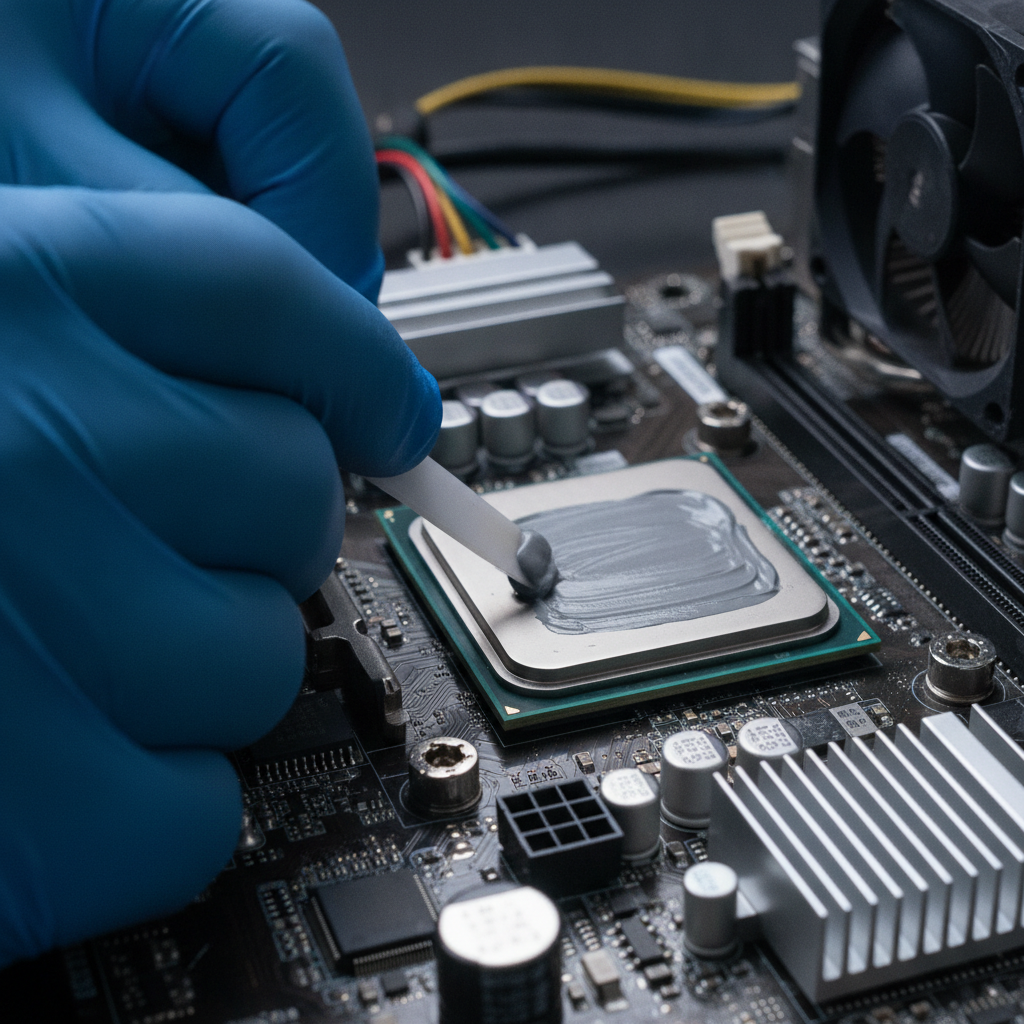
| Repair & Replacement | Execute fix, clean fans/ports, apply thermal compound, cable management. | Approve add-ons like deep cleaning or OS refresh if beneficial. |
| Validation & Burn-In | Stress test components; confirm temps, noise, charging, IO, and sleep. | Request specific tests (e.g., battery runtime, webcam, Bluetooth). |
| Handover & Warranty | Explain findings; document replaced parts; provide 60-day coverage details. | Review care tips; schedule a quick check-in if any symptom returns. |
Want to see how this maps to our service menu? Explore our computer repair service overview for desktops and laptops in Calgary.
Types of Computer Repairs and Methods
Common computer repairs fall into hardware, software, and data categories. Hardware fixes replace failing components; software work restores performance and stability; data services back up or recover important files. The right method depends on accurate diagnostics and your priorities.
Most issues present as slowdowns, boot errors, power faults, noise, overheating, or damaged ports/screens. Here’s how we typically approach them in Southview.
Hardware-focused repairs
- Storage upgrades or replacement: Migrate data to a healthy SSD; verify SMART health and firmware.
- Cooling and thermal service: Clean fans, repaste CPU/GPU, and re-seat heatsinks to restore normal temps.
- Power & charging: Diagnose adapters, DC jacks, batteries, and power rails; confirm correct wattage.
- Keyboard/trackpad/port: Replace worn components; test IO, function keys, and touch accuracy.
- Display assemblies: Address panel, cable, hinge, or backlight failures; check lid sensors.
Software and OS remediation
- OS repair or refresh: Resolve corrupt updates, driver conflicts, and unstable services; preserve user data when feasible.
- Performance tune-up: Remove bloatware, fix startup conflicts, and optimize storage and updates.
- Malware cleanup: Quarantine, remove, and harden with patching and sensible defaults.
Data backup and recovery
- Pre-repair backups: Safeguard key folders before hardware work begins.
- Light recovery: Attempt file retrieval from readable drives; triage severity before escalation.
- Migration services: Move data and settings to new storage or a replacement device if needed.
For tablets and phones, the logic is similar. See our tablet repair and iPad repair pages—many cost factors carry over, especially around screens, batteries, and data.
7 Ways to Save on Every Fix
You can lower repair spend without sacrificing quality by sharing a clear problem history, approving diagnostics first, choosing proven parts, prioritizing data safety, bundling minor fixes, aligning timelines, and confirming warranty coverage. These seven steps consistently prevent repeat visits and hidden costs.
- Describe symptoms precisely: Note when problems appear, recent drops or spills, error messages, and what you’ve already tried. Good context shortens diagnostics and avoids unnecessary part swaps.
- Approve diagnostics first: A structured check often distinguishes failing hardware from a quick software fix. It keeps you from paying for the wrong solution.
- Select proven parts: Ask for like-for-like or trusted-tier components that match your workload. Durable parts reduce repeat failures and second trips.
- Protect your data early: Back up essentials before drop-off. If you can’t, request a shop backup. Data loss is the most expensive “fix” in time and stress.
- Bundle small issues: Combine port cleaning, fan service, and OS tune-ups while the device is open. One bench session beats multiple visits.
- Align timing with your schedule: If you can wait a bit longer, you may get access to standard lead times and wider part options.
- Confirm warranty details: Understand coverage length and what’s included after the repair. Documented testing supports smoother claims if anything resurfaces.
These seven moves reflect what we see daily in Calgary: informed customers get back to work faster and with fewer surprises.
Best Practices for Saving Without Risk
The safest savings come from clarity, cleanliness, and validation: define the problem, keep the device clean and well-ventilated, authorize only necessary work, and insist on post-repair tests. You’ll extend device life without trading away reliability.
- Start with backups: Local plus cloud is ideal. Bring your charger and passwords so testing is thorough.
- Avoid liquid DIY cleaning: Alcohol or household cleaners can wick into keyboards and ports. Dry air and brush tools are safer.
- Request thermal service with fan cleaning: It’s a high-impact maintenance step on aging laptops and desktops.
- Prioritize stability over raw speed: Balanced configurations prevent future conflicts and noisy thermals.
- Ask for a validation checklist: Fans, temps, charging, sleep, webcam, mic, Wi‑Fi, Bluetooth, and external displays.
- Keep repair documents: Notes and part IDs help future technicians build on good work rather than repeat it.
If you’re juggling phones and tablets too, our cell phone repair and Samsung repair teams follow the same best-practice playbook.
Tools and Resources for Smarter Decisions
Use built-in health checks, SMART status readers, and controlled stress tests to gauge device health before committing to a repair. Pair those insights with a reputable local shop and a written validation plan for after the fix.
Here are sanity checks you can do safely:
- OS health checks: Use your operating system’s built-in disk and memory diagnostics to flag obvious faults.
- SMART/drive status: Review storage health indicators to catch failing drives early.
- Thermal & fan behavior: Listen for persistent fan noise and feel for hot spots under light workloads.
- Battery condition: Track charge cycles and runtime drift over a week to spot decline.
- Peripheral sanity checks: Test every port with a known-good accessory; try a second charger if power is flaky.
Repair vs. Replace: Quick Comparison
Choose repair when the device meets your needs after the fix, data is safe, and parts are readily available. Consider replacement when critical parts are unavailable, the device can’t meet current workloads, or repeated failures suggest deeper platform limits.
| Factor | Signals to Repair | Signals to Replace |
|---|---|---|
| Performance Fit | Meets daily apps after cleanup or SSD/memory swap. | Can’t run required apps reliably even after refresh. |
| Parts Availability | Reliable, like-for-like parts in reasonable lead times. | Critical parts discontinued or unreliable substitutes only. |
| Platform Stability | Single clear fault; no cascading issues. | Multiple subsystems failing over short intervals. |
| Data Risk | Backups intact; drive readable or easily migrated. | Drive severely failing with no backups and urgent deadlines. |
| Total Downtime | Repair window fits your schedule. | Replacement device can be ready faster with required apps. |
Not sure which side you’re on? Bring your device to intake and we’ll model both paths with pros and cons for your specific workload.
Case Studies: Real Scenarios from TechBrotherz
Local examples show how small choices change outcomes. Clear histories shorten diagnostics, proven parts reduce repeat visits, and validation prevents callbacks. These quick stories illustrate how Southview customers saved time and stress without compromising data.
Scenario 1 — The vanishing USB ports (laptop): A Southview customer arrived with intermittent USB failures and random disconnects. We gathered history, tested with known-good peripherals, and found a fatigued IO board. Replacing the board and cleaning dust from fans restored stability. Documented testing verified ports, thermals, and sleep.
Scenario 2 — “My desktop is screaming” (overheating): Intake notes mentioned recent fan noise and thermal throttling during video calls. After cleaning, repaste, and cable tidying, temps normalized and performance stabilized under stress tests. The client left with care guidance for seasonal dust and ventilation.
Scenario 3 — Slow boot, possible drive failure (desktop): SMART checks flagged deteriorating sectors. We migrated data to new storage, validated file integrity, and returned the device with a clean OS and backup plan. The user’s project deadlines stayed on track, which mattered more than any spec sheet win.
Scenario 4 — Laptop battery surprise: A commuter noticed rapid drain and unexpected shutdowns. Diagnostics showed a worn pack and outdated power plan. After battery replacement and power calibration, runtime returned to normal and idle temps dropped.
When we work with Calgary neighbors, the pattern is consistent: precise intake, sensible parts, and thorough validation produce confidence—and fewer return trips.

Free walk-in diagnostics assessment: If you’re in Southview, bring your computer to our intake counter. We’ll outline next steps, highlight data-safety options, and help you choose durable parts. Start here: desktop and laptop repair.
How Our Process Protects Your Data
We isolate user data during service, back up on request, and verify integrity before handover. This protection-first approach turns risky fixes into controlled procedures, so your files stay private and recoverable—even when hardware is failing.
- Pre-flight checklist: Identify critical folders and sign-in requirements to enable complete testing.
- Data isolation: Segregate user content from OS and tool operations during remediation.
- Integrity checks: Validate read/write health and confirm access to key apps and files post-repair.
- Documentation: Provide practical care notes so your system stays stable after pickup.
Need help beyond computers? Our iPhone repair team follows the same discipline for photos, messages, and app data.
How to Prepare for Drop-Off
Preparing well shortens diagnostics and reduces risk. Back up essentials, gather chargers and accessories, note passwords you’re comfortable sharing in-store, and write down recent symptoms. If possible, arrive with the battery above 50% and the device powered off.
- Back up important folders to an external drive or cloud account.
- Bring the original charger and any dongles you rely on.
- Write a brief symptom timeline and any error messages you’ve seen.
- Turn off the device before travel to reduce thermal swings, especially in winter.
- Share test accounts or temporary passcodes for thorough post-repair validation.
These steps help our Calgary technicians get right to work and return your system with confidence.
Frequently Asked Questions
These quick answers cover common concerns about timelines, data, and what to expect. If your situation is unique, bring your device in—walk-ins are welcome and we’ll tailor guidance on the spot.
What information should I bring to my repair intake?
Bring a short symptom history, your charger, and any accessories that act up. If you can, back up important files first. Temporary passcodes for testing help us validate Wi‑Fi, Bluetooth, webcam, and charging after the repair.
Can repairs affect my personal files?
Hardware work can stress failing drives, so we focus on data isolation and backups on request. Tell us what matters most, and we’ll prioritize a safe workflow that keeps your content private and intact.
How do I decide between repairing and replacing?
If parts are reliable, the device meets your workload after the fix, and downtime fits your schedule, repair makes sense. Choose replacement if critical parts are discontinued or repeated failures suggest broader platform limits.
Do you handle phones and tablets too?
Yes. We service smartphones and tablets alongside computers. See our dedicated pages for tablet repair and iPad repair. Cost drivers are similar: parts availability, labor complexity, and data protection.
Conclusion and Next Steps
A practical computer repair cost guide helps you choose durable fixes, protect data, and control downtime. In Southview, Calgary, TechBrotherz turns that guidance into action with walk-in diagnostics, clear options, and a documented handoff.
- Key takeaways: Diagnostics first, protect data, choose proven parts, and validate thoroughly.
- Action steps: Back up essentials, list symptoms, and bring your device to our intake counter.
- Next move: Explore our computer repair page or stop by during posted hours—no appointment needed.
Ready to get your device back up and working? If you’re near Southview, Calgary, we’re close and ready to help. Visit our about page to learn how we work, then come in for a quick assessment.
Related pages
Rather just ask a person?
Call (403) 273-8324 and describe the problem, or walk in to 3317 17 Ave SE in Calgary. Every repair is quoted free before any work starts.