
Blog
Charging Port Repair Signs: When to Stop Troubleshooting and Seek Help
Learn charging port repair signs, safe checks for cables and outlets, and when persistent charging problems need professional diagnosis in Calgary.
A phone, tablet, or laptop that will not charge does not automatically have a damaged charging port. A faulty cable, adapter, outlet, obstruction, battery, software issue, or internal fault can create similar symptoms. Start with low-risk checks, then seek professional diagnosis if charging remains unreliable, the connection feels loose, or charging works only at one angle.
Key facts
- Published: October 5, 2026
- Last updated: October 5, 2026
- Reading time: 8 min read
- Questions about your own device: Call (403) 273-8324
Last updated
Charging Port Repair Signs: When to Stop Troubleshooting and Seek Help
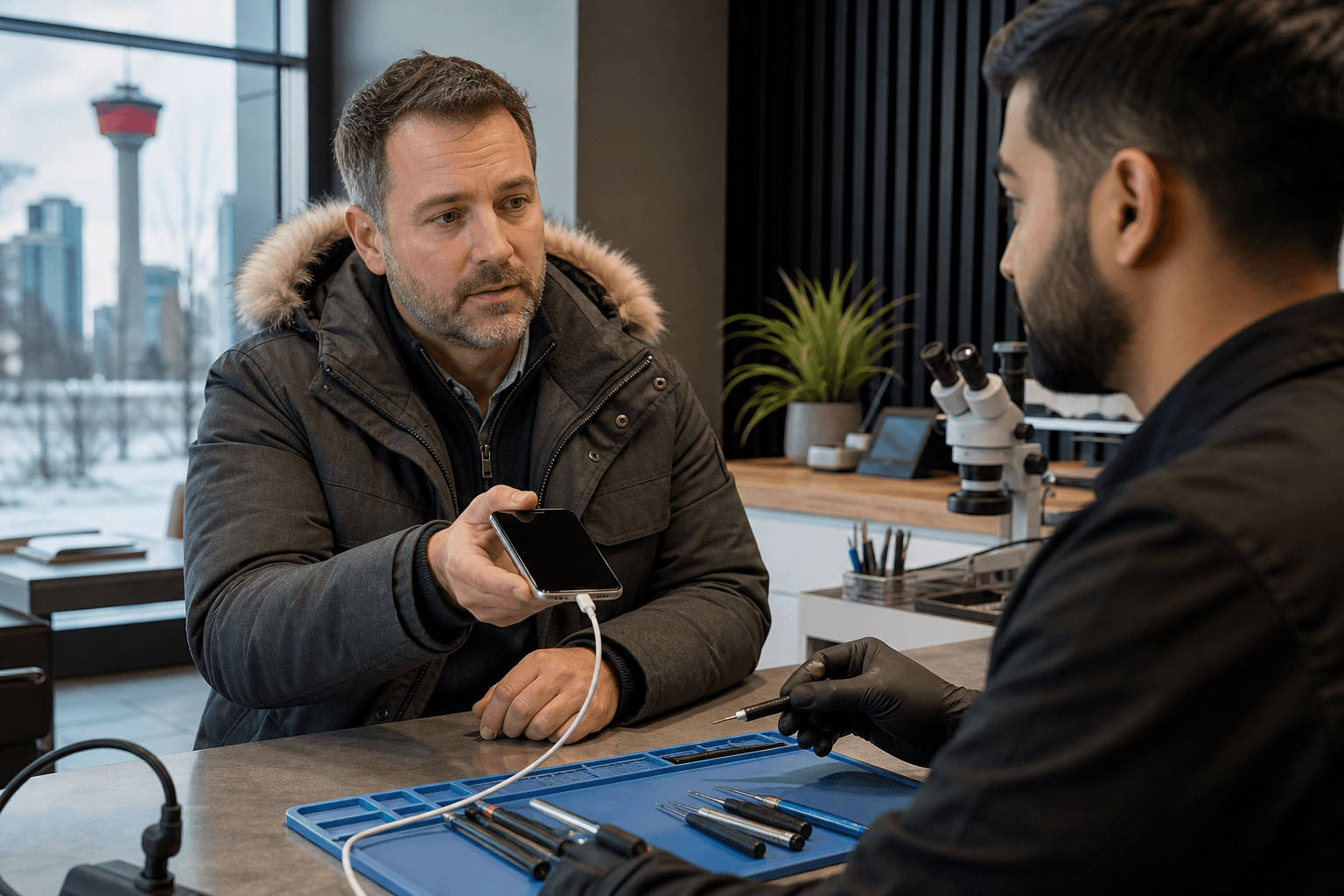
Published by TechBrotherz at TechBrotherz, the walk-in repair Store at 3317 17 Ave SE in Calgary. October 5, 2026.
No article on this site is paid for or sponsored. For a quote on your own device, call (403) 273-8324.
Quick summary

- Test a compatible known-good cable, power adapter, and wall outlet before assuming the port needs repair.
- Do not force the connector or insert sharp, metallic, or improvised objects into the port.
- Intermittent charging, a loose connection, angle-dependent charging, or visible damage are reasons to stop troubleshooting and arrange an assessment.
- Bring the device and the cable or adapter that shows the problem to the repair visit.
Charging port repair signs to check
The most useful question is not simply whether the charging port is broken. It is whether the same problem continues after you have ruled out the accessory and power source. These symptoms can help you decide what to do next.
| What you notice | Safe first check | When to stop troubleshooting |
|---|---|---|
| The device does not charge at all | Try a different compatible cable, adapter, and wall outlet. | Seek diagnosis if there is still no reliable charging response. |
| Charging starts and stops | Test whether the cable and adapter work normally with another compatible device, if available. | Arrange an inspection if the connection drops with more than one accessory. |
| Charging is unusually slow | Try another suitable power source and check whether the behaviour changes. | Ask for assessment if slow charging continues or has noticeably changed. |
| The cable feels loose | Look at the port and cable for visible damage without scraping inside the port. | Do not keep wiggling or forcing the connector. |
| Charging works only at one angle | Try a known-good cable once without putting pressure on the connector. | Stop relying on that position and request professional diagnosis. |
These signs do not prove that the port itself needs replacement. They indicate that the charging connection deserves closer attention, particularly when the problem persists with a known-good setup. If you notice intermittent charging, a loose connection, or charging at one angle, use those details when deciding whether to seek repair.
Step 1: Test the cable, adapter, and outlet

Begin with the parts that are easiest to change. Use a compatible cable that you know works, pair it with a suitable power adapter, and plug the adapter into a different wall outlet. If the device charges normally with this setup, the original cable, adapter, or outlet may be the cause rather than the charging port.
Check the cable for obvious damage, including fraying, bent ends, or a connector that does not fit correctly. Avoid repeatedly testing a cable that becomes hot, looks damaged, or requires force to insert.
Stop point: If the device still charges inconsistently, slowly, or not at all with more than one compatible cable and power setup, stop swapping accessories and arrange a professional assessment. For a laptop, bring the charger with the machine because an adapter fault can produce symptoms similar to a failed charging socket.
Step 2: Inspect the port without forcing or scraping
With the device powered down if possible, look at the port in good light. Check for an obvious obstruction, bent or damaged areas, or a connector that cannot seat normally. Do not insert a pin, knife, paper clip, or other sharp or metallic object.
Do not force the cable, twist it, or keep holding it at an angle to maintain power. If the port appears physically damaged, the connector will not sit properly, or the device has been exposed to liquid, stop home troubleshooting and tell the technician exactly what happened.
A brief external inspection is different from repeatedly digging into the port. When charging remains unreliable after basic checks, compare charging-port cleaning with professional iPhone charging port repair, especially if there is visible port damage.
Step 3: Decide between cleaning and professional repair
Cleaning and repair are not the same decision. An external obstruction or accessory problem may prevent the connector from making proper contact, while a loose connection or physical damage may require charging-port service. The correct option depends on the device, the symptom, and the condition of the port.
When a basic check may be enough
If another cable or power source solves the issue, you may not need port repair. If a technician identifies an obstruction and confirms that the port works normally after appropriate cleaning, replacement may not be necessary.
When professional assessment makes more sense
Seek assessment when charging remains intermittent, the cable feels loose, charging works only at one angle, the port has visible damage, or the device does not respond with a known-good setup. Repeated home cleaning attempts are not a substitute for diagnosis.
TechBrotherz states that inspection and cleaning are performed before quoting iPhone port replacement. That process helps distinguish an obstruction from a fault that needs repair, rather than treating every charging complaint as an automatic part replacement.
Step 4: Consider the device before booking service
Charging-port symptoms can appear across different devices, but the appropriate service is model-specific. A phone may need assessment of its charging port and related hardware. An iPad may need charging-port, battery, or other tablet service. A laptop may have an issue with the charger, DC socket, battery, or an internal connection.
TechBrotherz lists charging-port service for supported iPhone, Samsung Galaxy, Google Pixel, iPad, and laptop devices. Every model can have a different part, repair method, price, or timing, so provide the exact device model when requesting an estimate.
For a laptop, bring the charger with the computer. If it works only while plugged in, the battery may be involved. If the charging light flickers when the plug moves, the socket or its connection may need inspection, but the charger should still be checked first.
Step 5: Prepare for a charging-port repair assessment
A little preparation can make diagnosis clearer and help protect your data. If the device still has enough battery and functions normally, back it up before visiting. Do not delay necessary assessment just to complete a backup if the device is losing power quickly or showing physical damage.
- Bring the device and the cable or adapter that demonstrates the problem.
- Note whether charging is intermittent, slow, completely unavailable, or dependent on cable position.
- Mention drops, pressure on the port, liquid exposure, overheating, or previous repair attempts.
- Keep account passwords private unless access is specifically required and you are comfortable providing them.
- Ask whether the recommendation is cleaning, repair, or replacement for your exact model.
- Ask what the quoted amount includes, whether additional work requires approval, and how the warranty applies.
At TechBrotherz, the repair is quoted before work begins, with the part and labour included in one figure. This lets you understand the recommended scope and cost before approving the work.
What to expect from a Calgary walk-in repair visit
TechBrotherz provides walk-in cell phone and computer repair at 3317 17 Ave SE in Calgary, so an appointment is not required. The shop lists charging-port repairs among its phone, tablet, and laptop services and states that repairs carry a 60-day warranty.
Timing depends on the device, repair scope, parts, and whether another fault is found during assessment. The business states that most repairs take about 30 minutes, but that is not a guarantee for every charging-port job. Its iPhone charging-port information lists about 45 minutes for a specific iPhone port replacement when replacement is required.
Before visiting, check the current posted hours and bring the relevant accessories. The shop's walk-in repair hours in Calgary article can help you plan your visit.
Frequently asked questions
Can a loose charging cable mean the port needs repair?
It can, but it does not confirm the diagnosis. A damaged cable or connector may also feel loose. Try one compatible known-good cable without forcing or wiggling it. If the connection remains loose or works only at a particular angle, arrange professional assessment.
Can a faulty cable or adapter cause the same symptoms as a damaged charging port?
Yes. A damaged cable, failing adapter, or faulty outlet can cause no charging, intermittent charging, or slow charging. Test a different compatible cable, adapter, and outlet before approving port repair.
Should I clean my charging port before booking repair?
You can inspect the port visually, but avoid scraping, probing, or forcing anything inside it. If charging remains unreliable or the port appears damaged, let a technician determine whether professional cleaning or repair is appropriate.
Does wireless charging help identify a wired charging-port problem?
On devices that support wireless charging, normal wireless charging alongside failed wired charging can provide useful information about the wired connection. It does not identify the exact fault by itself, so persistent wired-charging problems still need assessment.
What should I bring to a charging-port repair appointment?
Bring the device and the cable or adapter that shows the problem. Laptop owners should bring the laptop charger. Also note when the problem occurs and disclose drops, liquid exposure, overheating, or previous repairs.
Conclusion: know when to stop troubleshooting
Start by ruling out the cable, adapter, and outlet. Then inspect the port visually without forcing or scraping it. If charging still fails, disconnects, feels loose, works only at one angle, or the port is visibly damaged, professional diagnosis is safer than repeated home attempts.
For charging-port repair in Calgary, TechBrotherz offers walk-in service at 3317 17 Ave SE, a free quote before work begins, and a stated 60-day warranty on repairs. Bring the device and relevant charger so the team can assess the problem before you approve the work.
Related pages
Rather just ask a person?
Call (403) 273-8324 and describe the problem, or walk in to 3317 17 Ave SE in Calgary. Every repair is quoted free before any work starts.