
Blog
Samsung AMOLED Troubleshooting: Safe Checks and Signs You Need Repair
Learn safe Samsung AMOLED troubleshooting steps, identify display damage, and decide when your Galaxy phone needs professional inspection or repair in Calgary.
Samsung AMOLED troubleshooting starts with one practical decision: is the problem temporary and software-related, or is the display or touch hardware failing? Restarting, updating the phone, and checking display settings are sensible first steps. Cracks, spreading black spots, fixed lines, persistent colour changes, and dead touch areas need a different response: stop experimenting and arrange an inspection.
Key facts
- Published: October 4, 2026
- Last updated: October 7, 2026
- Reading time: 8 min read
- Questions about your own device: Call (403) 273-8324
Last updated
Samsung AMOLED Troubleshooting: Safe Checks and Signs You Need Repair
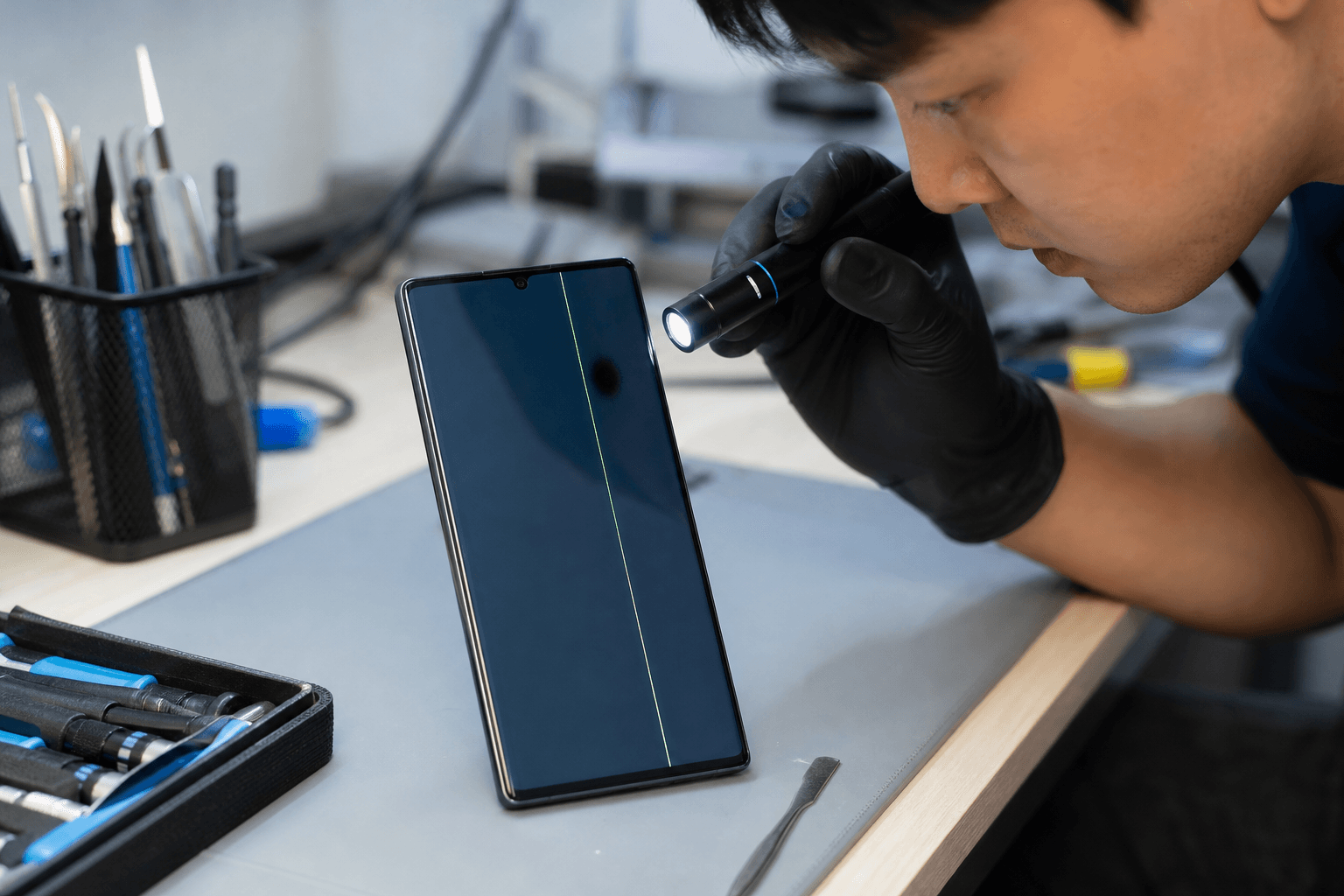
Published by TechBrotherz at TechBrotherz, the walk-in repair Store at 3317 17 Ave SE in Calgary. October 4, 2026, updated October 7, 2026.
No article on this site is paid for or sponsored. For a quote on your own device, call (403) 273-8324.
This guide helps Samsung Galaxy users in Calgary, Chestermere, and Airdrie describe the symptom, complete safe checks, protect their data, and choose the next step without pretending to diagnose the phone remotely.
Quick summary

- Restart the phone, install pending system and app updates, and review display settings.
- Test touch across the entire screen and run Samsung Members diagnostics where available.
- Persistent lines, black spots, cracks, dead touch zones, moisture, heat, or swelling are reasons to stop troubleshooting.
- Back up accessible data before repair, but avoid a factory reset if important files may need recovery.
- TechBrotherz offers walk-in Samsung Galaxy repair, free quotes before work, approximately 30-minute timing for most phone repairs, and a 60-day warranty.
Identify the Samsung AMOLED symptom first
Before changing settings, note exactly what you see and when it happens. Check whether the symptom appears on the lock screen, in one app, at a particular brightness level, or everywhere. A short recording made with another phone can help show flickering or intermittent behaviour.
For a visual checklist of physical warning signs, review these Samsung Galaxy screen repair signs. Treat the possibilities below as clues rather than a definite diagnosis.
| Symptom | Possible explanation | What it suggests |
|---|---|---|
| Black spot or dark “ink” area | Physical damage to the display assembly, especially after pressure or impact | Arrange an inspection, particularly if it is spreading |
| Green, pink, white, or coloured line | Display hardware, connection, software, or impact-related fault | Restart once and check for updates; a persistent line needs assessment |
| Flickering or uneven brightness | Settings, software, display hardware, or a connection problem | Compare brightness levels and apps before deciding |
| Ghost touches | Moisture, a damaged digitizer, accessory interference, or software behaviour | Remove accessories and test; persistent unintended taps should not be ignored |
| Dead touch zone | Digitizer or display damage, software trouble, or an obstruction | A fixed dead area points toward inspection |
| Burn-in-like image retention | Image retention or display wear, although similar effects have other causes | Confirm whether it remains across different screens |
| Completely black display | Power, software, display, battery, or board-related fault | Try a safe restart and do not assume data is unrecoverable |
Follow a safe Samsung AMOLED troubleshooting sequence

Work from the least invasive check to the most informative one. Stop if the phone becomes unusually hot, shows swelling, has exposed components, or has suffered liquid exposure.
1. Record the pattern
Write down when the issue began, whether the phone was dropped or exposed to moisture, and whether it changes with brightness, rotation, charging, or a particular app. A symptom visible across the lock screen is less likely to be limited to one app.
2. Remove simple sources of touch interference
Remove a damaged or poorly fitted screen protector and take off a case that presses against the display edges. Wipe the screen gently with a clean, dry microfibre cloth. Do not scrape the panel, push hard on a black spot, or apply liquid directly to the phone.
3. Restart the phone
A restart can clear a temporary software or app process affecting display rendering or touch response. If the problem disappears and later returns, note what you were doing beforehand. A restart that has no effect on a fixed line, crack, black spot, or dead zone does not rule out hardware damage.
4. Install pending updates
Check for available system and app updates using the phone’s normal settings. Updates may address software behaviour, but they cannot repair a cracked panel, damaged digitizer, or physically failing display. Back up important data before major software changes.
5. Review display settings
Check brightness, adaptive brightness, eye-comfort or blue-light settings, screen mode, colour tone, magnification, and accessibility settings. A display that looks different only under one setting may not have a failed AMOLED panel. If the problem remains in every mode, that persistence is useful evidence for an inspection.
6. Test touch methodically
Open a notes app or keyboard and slowly draw lines across the screen from edge to edge. Try the lock screen, home screen, and more than one app. If the same area fails repeatedly, record its location and avoid pressing it to force a response.
7. Run available diagnostics
Where supported by your model and software, use Samsung Members diagnostics to test the touchscreen and related functions. For broader Android display troubleshooting, Samsung Members diagnostics and force-restart steps are discussed in more detail. Menus vary by device, so a missing diagnostic option does not prove the hardware is good or bad.
Software or hardware: how to interpret the result
Software or settings issues are more likely when the symptom is intermittent, appears only in one app, changes after a restart, or responds to a display setting. That is not a guaranteed diagnosis, because display hardware can fail intermittently.
Physical damage becomes more likely when a symptom remains across restarts and applications, follows a drop or pressure, appears as a crack or fixed line, or affects the same touch area every time. Black spots and coloured streaks can change as a damaged display deteriorates, so do not wait for the phone to become unusable before seeking advice.
Do not assume every display fault requires a complete screen replacement. A technician needs to inspect the phone, identify the affected component, and explain the available repair before work begins.
Know when to stop troubleshooting
Stop home troubleshooting and arrange professional advice if the glass is cracked, lifting, or exposing components; a black spot, coloured area, or line is spreading; the phone has liquid exposure; the device is hot, swelling, or producing an unusual smell; touch activates on its own; or a large area no longer responds.
Also stop if the display remains black after a safe restart and you need the data stored on the phone. Do not apply heat, pry open the phone, press repeatedly on damaged glass, or continue charging a device that is hot or swollen.
Prepare before professional inspection
Back up photos, contacts, messages, and authenticator information while the phone is usable. If the display is unreliable, use the safest available backup method and do not keep charging or operating a device that shows heat, swelling, or liquid damage.
Note the model, when the problem began, recent drops or moisture exposure, and which checks you completed. Remove sensitive account information where possible, but avoid a factory reset if important data may need recovery.
A repair shop should confirm the cause, explain the proposed work, and provide the price before proceeding. This matters when a display symptom could involve the screen assembly, touch layer, battery, or another internal component.
Maintenance guidance for large-format LED displays is separate from Samsung phone troubleshooting. If relevant, read maintenance for LED EMC displays, but do not use it as a phone repair procedure.
A local next step for Samsung screen problems in Calgary
If safe checks point to a persistent display or touch problem, TechBrotherz provides walk-in Samsung Galaxy repair at 3317 17 Ave SE in Calgary. No appointment is required, and the shop provides a free quote before work begins.
First-party service information states that most phone repairs take about 30 minutes, but timing depends on the device, fault, parts, and work required. Every repair carries a 60-day warranty covering the fitted part and labour. Ask for an inspection and quote without assuming every AMOLED issue can be completed while you wait.
Samsung AMOLED troubleshooting FAQ
Can Samsung AMOLED burn-in be fixed?
There is no single home fix for burn-in-like image retention. Check whether the appearance changes between screens, brightness levels, and apps, and install pending updates. If the same shape or colour remains across different content, ask a technician to assess the display.
Will a black spot on a Samsung screen spread?
A black spot may remain stable or become larger, depending on the underlying damage. Because appearance alone cannot reliably identify the cause, back up accessible data and arrange an inspection, especially if the spot appeared after impact or is changing.
Should I back up my Samsung phone before screen repair?
Yes. Back up important data before repair whenever the phone is safe and usable. A screen repair does not automatically mean data loss, but a backup protects you if the device becomes inaccessible. Do not factory-reset it unless you understand the consequences and have been advised that it is necessary.
Can a Samsung green line disappear after a restart or update?
A restart or update may help if the line is caused by temporary software behaviour, but a line that remains in the same position across apps and restarts needs professional assessment. If it returns, do not assume the display hardware is healthy.
How can I tell whether a Samsung touchscreen problem is software or physical damage?
Test more than one app, restart the phone, remove accessory interference, and run available touchscreen diagnostics. A temporary or app-specific problem may point toward software, while a repeatable dead zone, ghost touch, crack, or moisture exposure is a stronger reason for inspection.
Conclusion: choose the safest next step
Samsung AMOLED troubleshooting is useful when it separates a temporary settings or software issue from a display or touch fault. Restart, update, review display settings, test touch, and run available diagnostics in that order. Stop when there is physical damage, spreading discolouration, persistent lines, dead touch, moisture, heat, swelling, or worsening symptoms.
Back up accessible data, document what happened, and seek a quote before authorising repair. For a local assessment, TechBrotherz offers walk-in Samsung Galaxy repair at 3317 17 Ave SE in Calgary, free quotes before work, and a 60-day warranty on repairs.
Related pages
Rather just ask a person?
Call (403) 273-8324 and describe the problem, or walk in to 3317 17 Ave SE in Calgary. Every repair is quoted free before any work starts.