
Blog
Calgary Android Phone Repair Guide: Avoid Big Bills (2026)
Calgary Android phone repair guide with step-by-step fixes, safety tips, and when to visit TechBrotherz Southview for walk-in, warranty-backed service.
Calgary Android phone repair guide refers to a step-by-step, locally grounded playbook for diagnosing, preventing, and fixing common Android issues in Southview. It outlines safe DIY checks, when to seek pro help, and how walk-in service at TechBrotherz keeps devices working. Use this guide to protect data and avoid repeat failures.
Key facts
- Published: June 28, 2026
- Last updated: October 2, 2026
- Reading time: 18 min read
- Questions about your own device: Call (403) 273-8324
Last updated
Calgary Android Phone Repair Guide: Avoid Big Bills (2026)
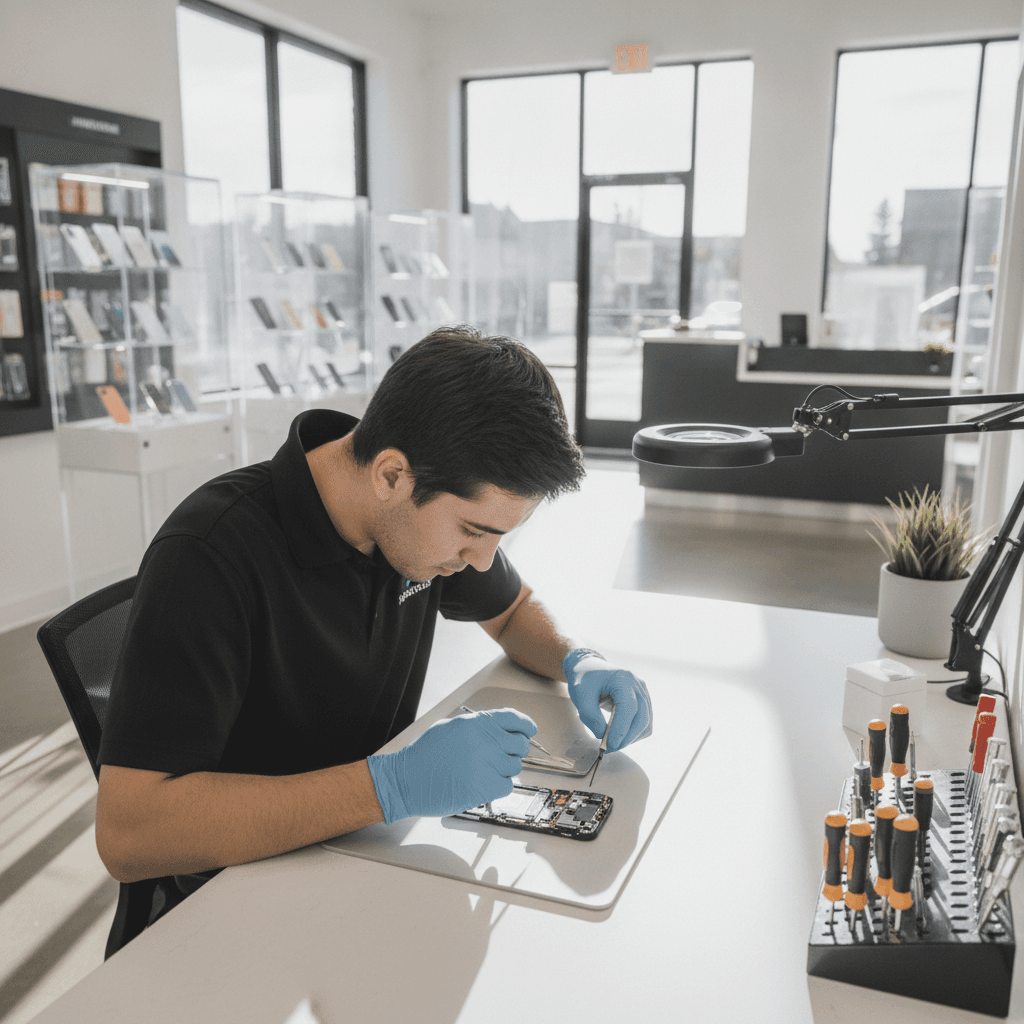
Published by Imran Mohammed at TechBrotherz, the walk-in repair Store at 3317 17 Ave SE in Calgary. June 28, 2026, updated October 2, 2026.
No article on this site is paid for or sponsored. For a quote on your own device, call (403) 273-8324.
By TechBrotherz • Imran Mohammed • Last updated: 2026-06-28
Overview and Quick Summary
This Calgary Android phone repair guide shows you how to triage issues, back up data, and decide between DIY and professional repair. You’ll learn the fastest safe checks for screens, batteries, charging ports, and software, plus when to visit TechBrotherz in Southview for same-day, warranty-backed help.
Here’s the thing: most Android problems trace to a short list of culprits—screen damage, battery wear, charging failures, and software faults. This article gives you a clean sequence to test each area without risking data loss. If a test fails or you’re stuck, our walk-in team can take it from there the same day.
- What you’ll learn: fast diagnostics, safe DIY steps, and pro workflows we use at TechBrotherz.
- Why it matters: the right first step prevents data loss and repeat failures.
- Local fit: tips tuned for Southview routines, weather, and commute patterns.
- Next move: walk in to TechBrotherz—no appointment needed; all repairs include a 60-day warranty.
Local considerations for Southview
- Plan a quick stop before or after errands near Habesha Mall; we handle walk-ins efficiently so you’re not offline all day.
- Cold snaps can exaggerate weak batteries. If your phone shuts off outdoors, warm it gradually indoors before testing.
- If you photograph sunsets from Valleyview Park Viewpoint, use a shock-absorbing case; drops on pathways are a common source of micro-cracks.
What is Android phone repair?
Android phone repair is the professional restoration of hardware and software so your device works like expected. It spans screens, batteries, cameras, ports, speakers, and system software. At TechBrotherz, repairs are walk-in, multi-brand, and backed by a 60-day warranty to ensure reliability after service.
In practical terms, “repair” means diagnose the fault, protect data, fix the failing part or software, and verify with functional tests. We see everything from cracked Samsung displays to boot loops after updates. Repairs follow a repeatable flow so your photos, apps, and logins stay intact whenever possible.
- Hardware paths: screen assemblies, charge ports, batteries, rear cameras, speakers, microphones, and buttons.
- Software paths: OS crashes, boot loops, malware, storage corruption, and forgotten passwords (with reset options).
- Outcome focus: device stability, battery health, charging reliability, and camera clarity after the fix.
Because many Android models share design patterns, a disciplined workflow avoids guesswork. For example, a Pixel with ghost touches and a Galaxy with “black screen but chirps” both point to display or connector issues, yet their disassembly steps differ. Consistent process prevents new damage and speeds up your turnaround.
Why this matters in Calgary
A structured Calgary Android phone repair guide saves time and data. Cold weather stresses batteries, transit bumps cause micro-cracks, and busy Southview routines demand fast walk-ins. Following the steps below reduces downtime and tells you exactly when to hand the device to a TechBrotherz technician.
Daily life in Southview is mobile-first. If your screen fails during a commute or your battery collapses in the cold, you need a same-day path back to normal. A reliable flow—test, back up, confirm the fault, then choose DIY or pro—prevents “try-and-hope” mistakes and protects irreplaceable photos.
- Weather factor: lithium batteries lose output in cold; sudden shutdowns don’t always mean permanent failure.
- Transit wear: repeated pocket pressure and small drops can loosen charge ports over time.
- Productivity impact: missed 2FA codes or rideshare logins can stall a workday; quick fixes matter.
We’ve found that most walk-ins who follow a simple checklist resolve or pinpoint their issue in minutes. Clear signals—like a port that wiggles or a battery that swells—dictate safe next steps and minimize risk.
How Android repair works: step-by-step
Effective Android repair follows five steps: protect data, isolate the fault, confirm with tests, fix the root cause, and validate function. Use our DIY triage first; if you hit a red flag, walk into TechBrotherz in Southview for professional tools and same-day verification.
Step 1 — Protect your data
- Back up to Google One or a trusted cloud while the device still powers on.
- Export irreplaceable items (photos, notes, authenticator codes) to a second location.
- Sign out of sensitive accounts if you expect a board-level repair.
Even a few minutes of backup can save days of recovery effort later. When we intake a phone, we prioritize data safety before opening a single screw.
Step 2 — Quick fault isolation
- Display: shine a flashlight at an “off” screen; faint UI means backlight/AMOLED failure, not total death.
- Power: hold Power + Volume Down for 15 seconds to force-reboot many models.
- Charging: test with a known-good USB-C cable/brick; wiggle the plug lightly—movement hints at port damage.
- Audio: switch to speakerphone; if it works, the earpiece may be failed or clogged.
These checks separate accessory issues from device faults. If a different cable fixes it, you just avoided an unnecessary repair.
Step 3 — Confirm with tests
- Run built-in diagnostics (e.g., Samsung Members) for sensors, touch, and camera.
- Check battery health and charge cycles if your model exposes them.
- Document repeatable symptoms with short videos; this speeds pro intake.
Step 4 — Fix the root cause
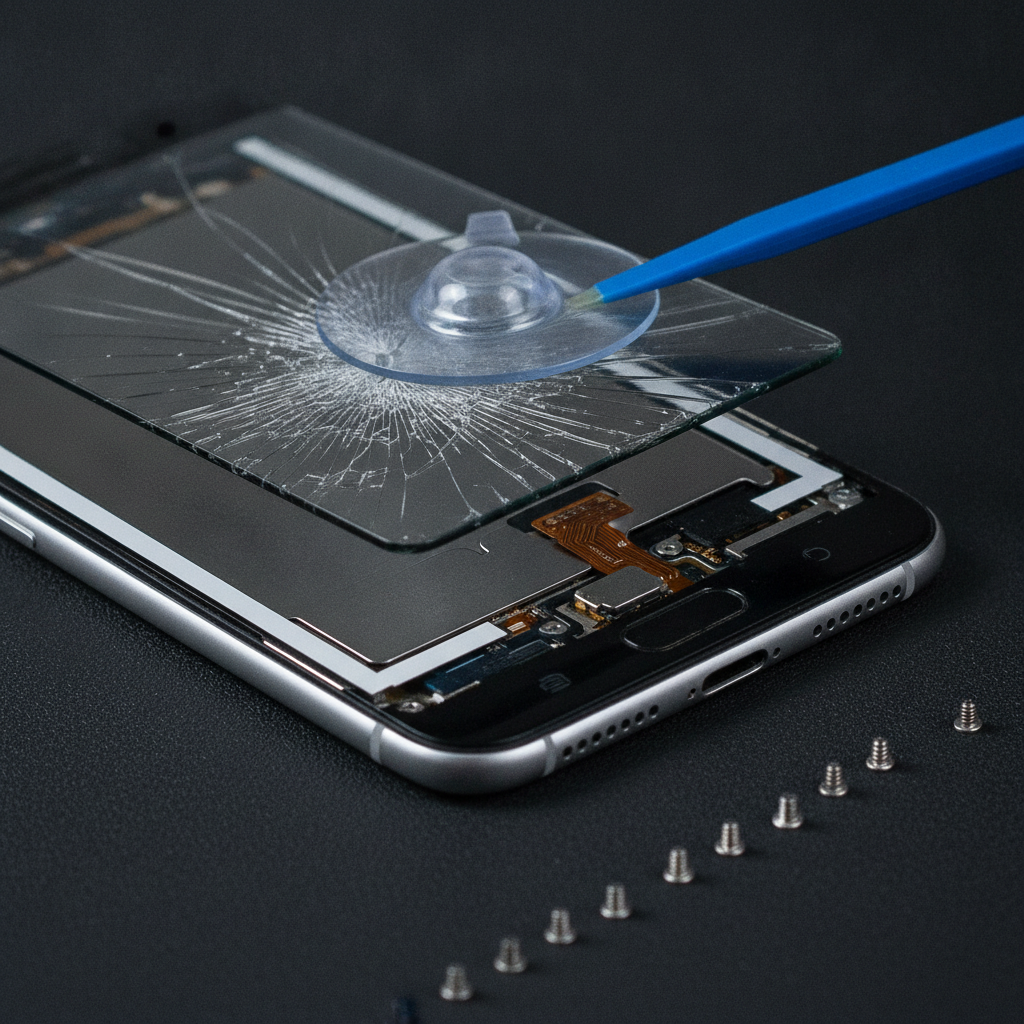
- Screen assemblies: require heat control, adhesive management, and ESD safety.
- Charge ports: may need microsoldering or full sub-board replacement depending on model.
- Battery swaps: expanders and isopropyl technique help release strong adhesives safely.
- Software: safe mode, cache partition wipe, or full reset if corruption persists.
Step 5 — Validate function
- Test display color accuracy, brightness, and touch edge coverage.
- Verify charge rate (slow/fast), USB data, and wireless charging where applicable.
- Confirm cameras focus quickly and record without dropped frames.
At TechBrotherz, the last step includes re-running the same tests you did at home. Consistent checks on both sides are how we confirm a fix really sticks.
Common Android issues and signs
Most Android failures present as display damage, battery degradation, charge port wear, camera faults, or software corruption. Clear signs—ghost touch, sudden shutdowns, wobbly USB-C ports, blurry focus, or boot loops—tell you what to test next and whether to attempt DIY or seek a professional.
Screens and touch
- Ghost touches: erratic taps without input; often a damaged digitizer layer.
- Black screen, phone still “alive”: display electronics or backlight failure; check with flashlight test.
- Color blotches/lines: pressure damage on OLED; avoid further bending.
Battery and power
- Fast drain: aged cells or runaway processes; verify screen-on time and app usage.
- Random shutdowns in cold: temporary voltage sag; warm the device before concluding failure.
- Swelling: stop charging immediately; seek pro help for safe removal.
Charging and ports
- Charges only at a certain angle: loosened or contaminated USB-C port.
- Fast charge missing: try a certified charger/cable; lint in port often blocks proper contact.
- PC won’t recognize phone: data pins damaged; cleaning or port replacement may be required.
Cameras and audio
- Hazy photos: micro-scratches or internal dust; check with a test photo against bright light.
- Shaky video: OIS module damage after a drop.
- Muffled calls: clogged mesh or failed earpiece speaker; compare with speakerphone.
Software and security
- Boot loops after updates: try safe mode or recovery tools before a full reset.
- Malware pop-ups: uninstall suspicious apps; scan with a trusted security app.
- Forgotten password: TechBrotherz offers in-store password reset for supported devices.
When any of these symptoms escalate—like heat during charging or visible battery swelling—pause DIY. That’s the moment to walk into our Southview shop for proper tools and a controlled environment.
DIY vs. pro repair in Calgary
Use DIY for light cleaning, safe mode checks, and backups. Choose professional repair for cracked displays, port replacements, swollen batteries, water exposure, and persistent boot errors. TechBrotherz offers walk-in service and a 60-day warranty, which protects your time and data after the fix.
| Scenario | DIY is reasonable | Professional is best |
|---|---|---|
| Charging fails | Test new cable/brick; remove lint with soft tool | Loose or damaged USB-C, liquid ingress, no data connection |
| Screen problems | Basic screen protector, reboot, safe mode check | Cracked glass, ghost touch, black display with sounds |
| Battery complaints | App audit, brightness tweak, background limits | Swelling, overheating, shutdowns at 20–40% |
| Water contact | Power off, dry externally, wait | Persistent fog in cameras, corrosion, no boot |
| Software faults | Safe mode, cache wipe, remove bad apps | Looping updates, repeated resets, data recovery needs |
If you’re unsure, bring the device by for a five-minute look. In our experience, a quick inspection often clarifies whether a same-day part swap or deeper board work is required.
Step-by-step Android triage you can do now
Before you visit a shop, run this seven-step Android triage: visual check, forced reboot, safe mode, charge test, port cleaning, storage audit, and targeted backups. If any step fails or reveals swelling, damage, or overheating, stop and head to TechBrotherz for a controlled, warranty-backed repair.
- Visual check: look for cracks, gaps, or a lifting screen edge.
- Forced reboot: Power + Volume Down for ~15 seconds on most models.
- Safe mode: determine if third-party apps cause crashes or drain.
- Charge test: known-good cable and brick; confirm fast charge icon if supported.
- Port clean: gently remove lint with a plastic pick; never use metal.
- Storage audit: free at least 10–15% space to keep the OS stable.
- Targeted backup: copy photos and 2FA backups to a second location.
These steps take minutes and often turn a “dead” phone into a usable one long enough to protect data. If your phone still struggles, you’ve created a clean handoff for our technicians to continue.
Tools and safety essentials
For DIY, stick to non-metal picks, a precision driver kit, ESD safety, and careful heat control. For pro-level work—screens, ports, batteries—use a repair bench with fume extraction, microscope, and calibrated heat. TechBrotherz maintains these standards for consistent, safe outcomes.
- Non-metal tools: spudgers and picks reduce the risk of board shorts.
- ESD wrist strap + mat: protect sensitive components during disassembly.
- Heat control: proper temperature softens adhesive without cooking displays.
- Magnification: spotting torn flex cables often requires a microscope.
- Fume safety: quality adhesives and cleaning agents need ventilation.
We equip our Southview bench for repeatable results—because a controlled environment is what transforms a risky teardown into a reliable repair.
When to walk in to TechBrotherz
Walk in immediately if you see battery swelling, liquid damage, a non-charging device after multiple cables, or any boot loop that blocks backups. TechBrotherz supports multi-brand Android repairs, unlocking, and password resets—no appointment required and warranty-backed for peace of mind.
- Battery red flags: lifting screens, gaps, or heat during charging.
- Liquid contact: power off; do not charge; corrosion spreads quickly.
- Connectors: loose USB-C or no data on PC even with new cables.
- Software locks: forgot the passcode? Ask about in-store password reset for supported Android tablets and phones.
As a local, single-location shop, we keep parts and tools focused where Southview customers need them most. The goal is simple: get your device back up and working the same day whenever possible.
How we handle popular Android brands
We service major Android brands including Samsung Galaxy and Google Pixel. Our workflow standardizes diagnosis while respecting model-specific quirks—whether that’s adhesive tuning for AMOLED panels or careful sealing after port replacements to preserve dust and splash resistance.
- Samsung Galaxy: OLED panels and adhesive demand precise heat and press cycles after screen swaps. See our Samsung repair approach for details.
- Google Pixel: camera modules need clean-room care; a dust-free reassembly keeps Night Sight sharp.
- Other Android brands: we follow the same data-first intake and validation testing.
If your device is outside warranty or a past repair didn’t hold, bring it in. We’ll assess the current state, document findings, and recommend the cleanest path forward.
Data safety and password resets
Data protection comes first: we back up when possible, verify account access, and avoid resets unless required. If you’re locked out, our in-store password reset option for supported devices provides a structured path back without guesswork.
- Backups: even partial backups protect your most important memories.
- Authentication: note where 2FA codes live and prepare alternatives before resets.
- Password reset: handled in-store for supported phones and tablets with a clear process.
If your screen is unusable but the phone still powers on, we can often extract enough control to secure your data or perform a guided reset. Either way, our 60-day warranty means you’re covered after the repair.
Preventive care and best practices
Prevent Android failures with smart habits: use certified chargers, keep 10–20% free storage, case your phone, and avoid pocket pressure on transit. Seasonal battery checks in Calgary’s cold can reveal weak cells early and prevent shutdowns at the worst time.
- Charging discipline: reliable cables and bricks reduce port stress and slow charge wear.
- Pocket policy: avoid tight jeans or bag spots that bend the device.
- Case + protector: reduce crack risk and keep resale options open.
- Storage margin: free space keeps updates and photos flowing.
- Seasonal check: note winter shutdowns; it’s an early sign to evaluate the battery.
Small habits stack up. Over months, they can be the difference between a phone that quietly keeps working and one that fails when you most need it.
Real Calgary examples (mini case insights)
Here are quick, real-world scenarios from Southview walk-ins: a Galaxy with ghost touch after a drop, a Pixel boot-looping post update, and a phone that only charged at an angle. In each case, standardized diagnostics and parts restored reliable performance the same day.
- Ghost touch after a drop: a Galaxy returned to normal after a controlled AMOLED assembly replacement and post-press calibration.
- Boot loop after update: a Pixel stabilized after recovery steps and data-preserving repair, followed by clean OS validation.
- Angle-only charging: deep port clean failed; a new sub-board restored data and fast charge functionality.
We document before/after tests so you leave with confidence and a warranty-backed outcome.
Where TechBrotherz fits in your Android repair plan
TechBrotherz is your Southview walk-in hub for Android, tablet, and computer repairs. We focus on rapid triage, clear communication, and a 60-day warranty. If you tried the checklist and still struggle, come by—our multi-device bench handles phones, tablets, and laptops in one stop.
Explore our service pages to match your issue to our in-store workflow, from phones to computers and unlocking:
- Android and other phones: cell phone repair service
- Samsung devices: Samsung repair overview
- Tablets and iPads: tablet repair options and iPad service details
- Computers and laptops: computer repair workflow
- Unlocking help: phone unlocking support
Need help now? Walk in today
If your Android still misbehaves after the triage steps, bring it to our Southview shop. We’ll run professional diagnostics, explain options in plain English, and stand behind the repair with our 60-day warranty.
See our cell phone repair process to know what to expect at the counter.

Android repair checklists you can save
Use these two checklists—Pre-Repair and Post-Repair—to keep your process clean. They protect your data on the way in and verify function on the way out. Consistent use prevents repeat trips and speeds any professional repair if needed.
Pre-Repair (DIY)
- Back up photos, contacts, and authenticator tokens.
- Note lock screen credentials and carrier status.
- Remove cases, SIM tray, and microSD card.
- Run safe mode and a quick malware scan.
- Free 10–20% storage space.
Post-Repair (DIY or Shop)
- Touch accuracy at all edges and corners.
- Rear/front cameras focus and record smoothly.
- Fast charge triggers; USB data mounts on a PC.
- Wi‑Fi, Bluetooth, and GPS lock quickly.
- Speaker, earpiece, and mic are clear during a test call.
Bring this with you. It becomes your acceptance test at the counter, ensuring everything works before you leave.
FAQ: Calgary Android repair
These quick answers cover the most common Calgary Android repair questions: what to do first, when DIY is safe, how long typical fixes take, and what our 60-day warranty covers. Use them to plan your next step with confidence.
What should I do first when my Android won’t turn on?
Try a forced reboot (Power + Volume Down for about 15 seconds), then test with a known-good USB‑C charger. If you hear sounds with a black screen, the display may be the issue. Back up if it powers on; if not, bring it in for professional diagnostics.
Is DIY safe for a cracked Android screen?
Basic steps like a protector and backups are fine, but full screen assemblies require heat control and ESD safety. If touch is erratic or the display is black, DIY risks damaging flex cables. That’s the time to visit our Southview bench for a controlled swap.
How long does a typical Android repair take?
Many repairs are completed the same day, especially common items like screens, ports, and batteries. Complex board work or rare parts can take longer. We’ll confirm expectations at intake and keep you updated until validation testing passes.
Can you help if I forgot my Android password?
Yes—our team provides in-store password reset for supported Android phones and tablets. We’ll walk you through data considerations, backups when possible, and a clean reset path so you’re not locked out any longer than necessary.
Key takeaways
Protect data first, run a quick seven-step triage, and use DIY only for low-risk actions. For cracked screens, failing ports, swelling batteries, or persistent software faults, walk into TechBrotherz in Southview for same-day help and a 60-day warranty.
- Backups and safe mode prevent data loss before repair.
- Visual checks and charger swaps reveal easy wins fast.
- Swelling, heat, and boot loops are stop‑signs for DIY.
- Walk-in service and warranty coverage reduce repeat trips.
For more background on mobile device repairs around Calgary, see industry examples like Google Pixel repair steps and brand-specific workflows such as iPhone repair procedures or display replacement case studies to understand how standardized processes speed results.
Related pages
Rather just ask a person?
Call (403) 273-8324 and describe the problem, or walk in to 3317 17 Ave SE in Calgary. Every repair is quoted free before any work starts.