
Blog
Why Is Your MacBook Screen Flickering? Causes to Check Before Repair
Find out why your MacBook screen may be flickering, how to separate software from hardware problems, and when to arrange professional repair.
MacBook screen flickering can come from an application or display setting, a damaged panel, an internal display connection, or a broader graphics-related fault. Before approving a screen replacement, check whether the flicker appears only in one app, changes when you move the lid, or also appears on an external display.
Key facts
- Published: July 29, 2026
- Last updated: October 4, 2026
- Reading time: 8 min read
- Questions about your own device: Call (403) 273-8324
Last updated
Why Is Your MacBook Screen Flickering? Causes to Check Before Repair
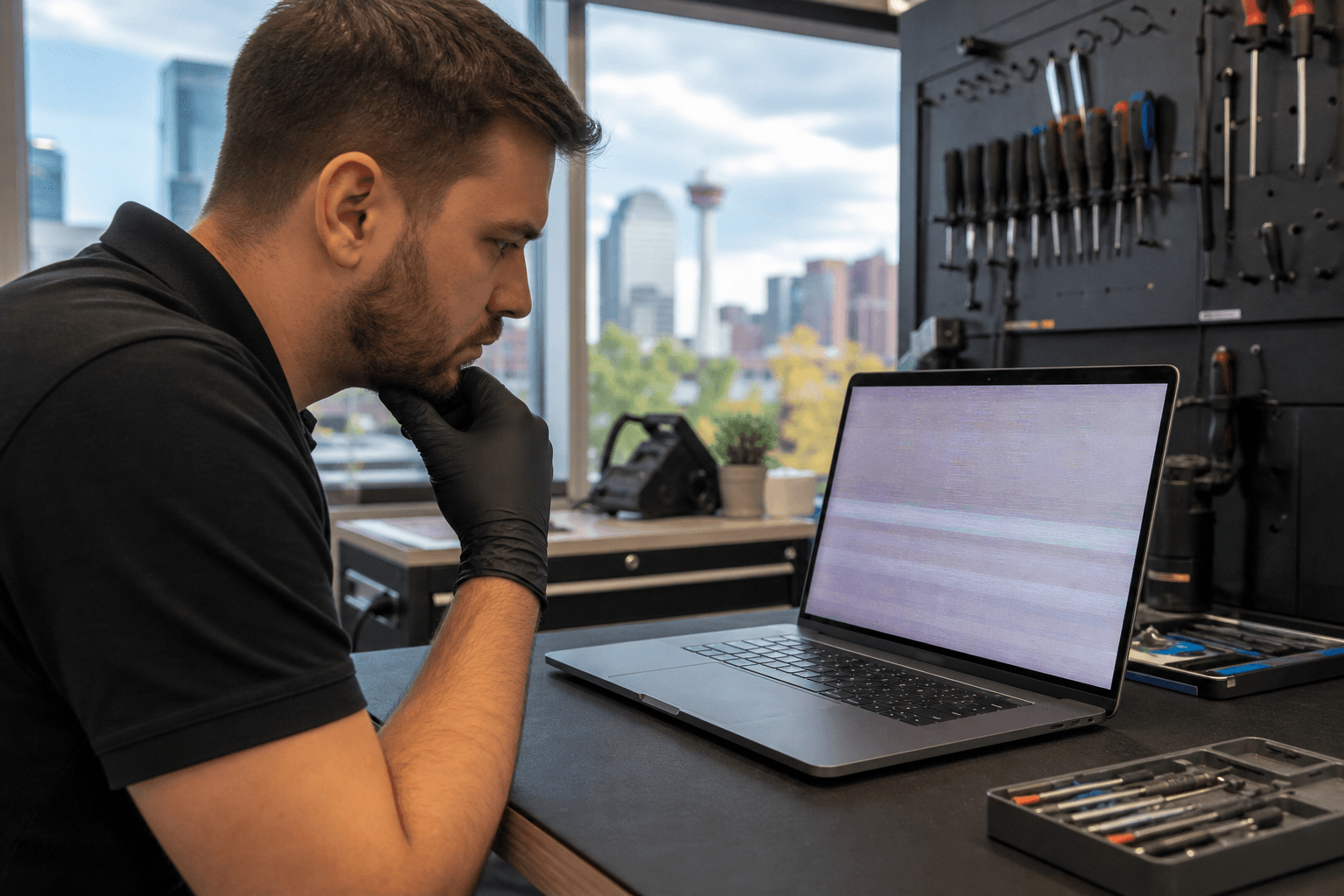
Published by TechBrotherz at TechBrotherz, the walk-in repair Store at 3317 17 Ave SE in Calgary. July 29, 2026, updated October 4, 2026.
No article on this site is paid for or sponsored. For a quote on your own device, call (403) 273-8324.
These observations cannot confirm a diagnosis on their own, but they can help you choose the next sensible step without opening the MacBook or risking further damage.
Quick summary

- Save or back up important files before extended troubleshooting.
- Restart the MacBook and test whether the flicker appears outside the affected application.
- Note whether changing the lid angle changes the symptom.
- Connect an external monitor without opening the MacBook. A normal or affected second display helps narrow the fault category.
- Arrange a diagnosis if the flicker persists, worsens, follows lid movement, or appears on both displays.
MacBook screen flicker causes to consider
The same visible symptom can have several sources. A flicker limited to one application suggests a different direction from a display that shows coloured lines, dark patches, or distortion across the whole system.
Use the possibilities below to narrow the problem, not to diagnose a specific component from home. A repair technician still needs to inspect the MacBook before confirming whether the screen, connection, or another internal part is responsible.
1. Software, macOS, or display-setting conflicts
If the flicker appears only in one application, window, or visual mode, the problem may be related to software rather than a failed display panel. A restart and a test in another application can show whether the symptom follows the entire system or stays with one piece of software.
Try closing the affected app, restarting the MacBook, and viewing a different type of content. If the desktop and other applications look normal, record which app or activity triggers the flicker. Do not assume that an update, reset, or settings change will resolve every case, particularly if the symptom continues across the system.
2. A damaged or failing display panel
A panel becomes more suspect when flickering continues across applications and is accompanied by coloured lines, dark areas, distortion, or a display that goes black while the MacBook continues running. A visible crack or impact mark is also important context.
These signs can indicate a display problem, but they do not prove that replacing the panel is the answer. A damaged connection or another internal fault can create similar symptoms, so avoid pressing on the display or trying to open the MacBook.
3. A display cable or internal connection issue
Pay attention to whether the flicker changes when you gently adjust the lid angle during normal use. A symptom that appears, disappears, or changes as the lid moves makes the display path, cable, or an internal connection worth investigating.
This is an observation for a technician, not an instruction to dismantle the computer. MacBook display components are compact and delicate, and opening the device can complicate diagnosis or cause additional damage.
4. Graphics hardware or another internal fault
If the built-in display and an external monitor show the same flicker, lines, or distortion, the source may be broader than the screen itself. Graphics hardware, the system connection, or another internal component could be involved.
That result is especially important before ordering a replacement panel. A new screen may not correct a fault that is also being sent to another display, and the appropriate repair may require a different diagnosis.
Use the symptom pattern to narrow the likely source

The table is a starting point, not a remote diagnosis. Note what happens and share the pattern with the repair shop.
| What you notice | What it may suggest | Useful next step |
|---|---|---|
| Flicker appears in one application only | Application or software interaction | Restart, test another app, and record the trigger |
| Flicker appears across the desktop and multiple apps | Display settings, panel, connection, or internal hardware | Test another display and arrange diagnosis if it persists |
| Flicker changes when the lid moves | Display path, cable, or connection may need inspection | Stop adjusting the lid repeatedly and note the movement involved |
| Coloured lines, dark patches, or spreading distortion | Possible panel or physical display damage | Protect your data and seek an inspection |
| External monitor looks normal | Built-in panel or its connection becomes more likely | Ask for a display diagnosis before approving replacement |
| Both displays show the same fault | A broader graphics or internal issue becomes more plausible | Do not assume a panel replacement will solve it |
Safe checks to try before arranging repair
- Protect important data. Save current work and back up files before spending time testing the fault.
- Restart the MacBook. Observe whether the flicker returns immediately or only after opening a particular application.
- Test outside the affected app. Move between the desktop, another application, and different types of content.
- Observe lid movement without forcing it. Do not flex, press, or twist the lid.
- Connect an external monitor. Use the correct cable or adapter and compare both displays.
- Record the results. Note when the flicker began, whether the MacBook was dropped or exposed to liquid, and what happened on the second display.
Avoid pressing on the screen or opening the computer to reseat a cable. Those actions can turn an intermittent problem into a larger repair and may remove useful evidence.
What the external-monitor test can tell you
An external display helps separate the built-in screen from other parts of the computer. If the external picture is stable while the MacBook screen flickers, the built-in panel or its connection becomes a stronger possibility. TechBrotherz explains this type of external monitor check as a way to distinguish a panel fault from graphics hardware or another internal issue.
The result is not conclusive. A normal external monitor does not identify the exact failed component, and a matching fault on both displays does not identify whether the cause is graphics hardware, software, or another internal connection.
When to stop troubleshooting and seek diagnosis
Arrange professional assessment when:
- the flicker continues after a restart and affects more than one application;
- the symptom is becoming more frequent or severe;
- the display shows coloured lines, expanding dark areas, or significant distortion;
- the flicker changes with normal lid movement;
- the MacBook has visible impact damage or a history of liquid exposure;
- the same fault appears on the built-in display and an external monitor; or
- you cannot work reliably or access important files.
Stop trying to reproduce the issue if doing so requires pressing the screen, forcing the hinge, or repeatedly changing the lid angle. Protect your data and explain the symptoms clearly when arranging an inspection.
When a screen replacement may be appropriate
A screen replacement becomes more plausible when the built-in display is affected but an external monitor shows a stable image, particularly when there are visible lines, dark patches, impact marks, or a persistent black display. Even then, the technician should confirm the fault before work begins.
The exact MacBook and panel must be identified before a reliable quote can be confirmed. Screen size, resolution, touch capability where applicable, and the specific panel used by the laptop can affect the replacement part. The laptop screen replacement process at TechBrotherz includes identifying the panel before quoting.
What to expect from a Calgary laptop repair quote
TechBrotherz provides computer and laptop repair from 3317 17 Ave SE in Calgary and accepts walk-in customers without an appointment. The shop diagnoses the device and provides a free quote before work begins, so you can decide whether the proposed repair makes sense before approving it.
Most laptop screens are replaced the same day when the applicable part and repair requirements allow it. That is not a promise that every MacBook flicker will be resolved the same day, because the cause may not be the screen and the exact part must first be identified.
Applicable laptop repairs are covered by a 60-day warranty on the part and workmanship. Ask what the proposed repair covers and whether the quote is for a screen replacement or a different diagnostic outcome.
MacBook screen flickering questions
If my MacBook screen flickers when I move the lid, does it need a new screen?
Not necessarily. A lid-angle change can make a display connection or cable worth investigating, but it can also occur with a failing panel or another fault. Do not keep flexing the lid to test it. Record what you observed and arrange an inspection.
Does a normal external monitor prove that my MacBook screen is faulty?
No. A normal external display makes the built-in panel or its connection more likely, but it does not identify the exact component. A technician should still test the MacBook before confirming a screen replacement.
Can a repair shop quote a MacBook screen replacement without the exact model or panel information?
A rough estimate may be possible, but a reliable quote requires identifying the machine and the panel it uses. Size, resolution, and touch capability can change the replacement part and its cost.
Should I keep using a MacBook that flickers after being dropped?
Back up important data and avoid continued use if the display is worsening, difficult to read, or accompanied by other concerning physical or operational symptoms. A drop can affect more than the visible panel, so arrange a diagnosis instead of assuming a screen replacement will resolve the problem.
Conclusion: identify the fault before choosing the repair
The most useful MacBook screen flicker check is to compare patterns. Test outside the affected app, observe whether normal lid movement changes the symptom, and use an external monitor without opening the computer. A stable second display can make a built-in screen issue more likely, while the same fault on both displays calls for broader diagnosis.
Do not approve a replacement panel until the cause and exact part have been identified. If you are in Calgary, visit TechBrotherz at 3317 17 Ave SE for walk-in laptop assessment, a free quote before work, and a 60-day warranty on applicable repairs.
Related pages
Rather just ask a person?
Call (403) 273-8324 and describe the problem, or walk in to 3317 17 Ave SE in Calgary. Every repair is quoted free before any work starts.