
Blog
Laptop Fan Replacement or Cleaning: Which Do You Need?
Laptop fan replacement in Calgary: learn whether noise and heat call for cleaning, thermal service, a new fan, or professional diagnosis before repair.
Laptop fan replacement is appropriate when the fan grinds, rattles, stops spinning, or cannot keep the laptop cool after basic airflow and thermal checks. Persistent heat can also come from dust, blocked vents, dried thermal compound, poor heatsink contact, software load, or another hardware fault, so diagnosis should come before approving a fan. TechBrotherz provides walk-in computer repair and quotes computer work before starting at its Calgary shop.
Key facts
- Published: October 24, 2026
- Last updated: October 24, 2026
- Reading time: 9 min read
- Questions about your own device: Call (403) 273-8324
Last updated
Laptop Fan Replacement or Cleaning: Which Do You Need?
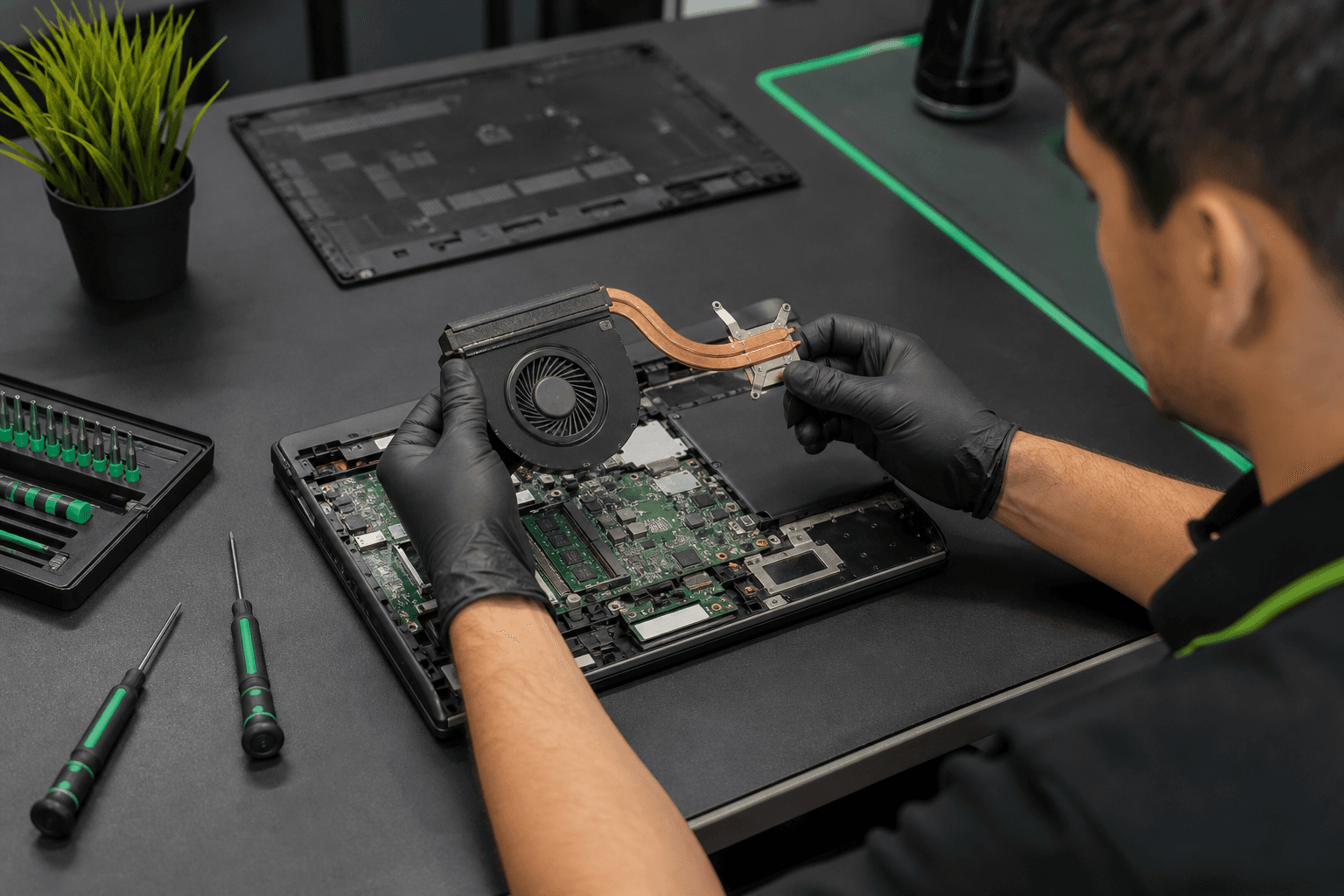
Published by TechBrotherz at TechBrotherz, the walk-in repair Store at 3317 17 Ave SE in Calgary. October 24, 2026.
No article on this site is paid for or sponsored. For a quote on your own device, call (403) 273-8324.
Laptop fan replacement starts with diagnosis, not a part
A cooling fan is only one part of a laptop's thermal system. The fan moves air, while vents, heatsinks, heat pipes, thermal compound, temperature sensors, firmware, and workload all affect how much heat the system produces and removes.
A replacement fan will not solve a blocked vent or a poorly seated heatsink. It can also be the wrong first repair if a background process is keeping the processor busy or if the battery, charger, motherboard, or temperature sensor is causing abnormal behaviour.
How to tell if the fan itself is failing
A laptop fan is more likely to need replacement when it produces persistent grinding or rattling, fails to spin, or becomes noisy even during light use. Heat-related shutdowns and severe performance throttling also justify prompt diagnosis, especially when they appear with unusual fan behaviour.
Use the symptom pattern as a starting point, not as a final diagnosis:
- Grinding, clicking, or rattling: A worn bearing, damaged blade, or loose fan housing is possible. A fan that sounds rough after the laptop has warmed up should not be treated as ordinary operating noise.
- The fan does not spin: The fan motor, connector, control circuit, sensor, or power path may be at fault. A software setting can also affect fan behaviour, so the lack of movement needs testing.
- Overheating during light use: Dust, blocked vents, dried thermal compound, poor heatsink contact, a failing fan, or an unwanted background process can all produce this symptom.
- Sudden shutdowns: The laptop may be protecting itself from excessive heat, but a failing battery, charger, motherboard, or other component can cause shutdowns too.
- Slow performance under ordinary tasks: Heat can cause the processor to reduce its speed. This is called thermal throttling, but slow performance can also come from storage health, memory pressure, updates, or software.
- Fan constantly running after a recent repair or upgrade: The heatsink may not be making proper contact, the thermal compound may need attention, or the new component may be creating a higher workload.
Cooling should be assessed as a system, not as a fan in isolation. General thermal service can include fan cleaning, thermal compound work, heatsink checks, and validation of temperatures and fan behaviour. That broader view helps avoid replacing a fan when the actual fault is elsewhere.
Cleaning, thermal service, or fan replacement: which path fits?

The sensible repair depends on what inspection finds. Occasional noise may need observation, visible dust may call for cleaning, heat with a working fan may require broader thermal service, and mechanical noise or no fan movement may justify replacement.
- Start with safe observation. Note whether the noise changes with workload, whether the laptop gets hot during simple tasks, and whether it slows down or shuts off. Use the laptop on a hard, flat surface so its vents are not covered.
- Choose cleaning when airflow is restricted. Dust around the intake or exhaust can make a healthy fan work harder. Cleaning may be enough when the fan spins normally and there is no grinding, electrical smell, or recurring shutdown.
- Choose broader cooling and thermal service when the fan works but heat remains. This may involve fan cleaning, thermal compound, heatsink inspection, storage and workload checks, and temperature validation.
- Choose fan replacement when the fan has mechanical failure. Persistent grinding, damaged blades, a fan that will not start, or a verified motor or connector fault points more clearly toward replacement.
- Request full diagnosis when the symptoms do not line up. Repeated shutdowns, heat after a new fan, abnormal charging behaviour, or noise that does not come from the fan may indicate another hardware or software problem.
Do not scrape debris from a vent with a metal tool or force compressed air into a stationary fan. That can damage blades, bearings, or internal components before the actual fault has been identified.
Can you keep using a laptop with a failing fan?
You should stop using a laptop normally when the fan has stopped, is grinding continuously, or the machine is shutting down because of heat. Continued operation can turn a cooling fault into repeated thermal shutdowns or additional hardware damage, and it can interrupt unsaved work.
Shut the laptop down, disconnect the charger, and arrange an assessment if the cooling system is clearly failing. Do not keep testing it through demanding games, video rendering, large software builds, or other sustained workloads simply to see how long it lasts.
A brief observation of the symptom is different from continued use. Record what happened, including the application running, whether the fan was spinning, whether the laptop was on a soft surface, and whether it shut down or became slow.
Are laptop fans easy to replace?
Sometimes, but laptop fans are not universally easy to replace. The answer depends on the model, fan revision, connector, internal layout, and how much of the laptop must be removed to reach the cooling assembly.
Some laptops have a service cover and a separate fan connector. Others require removal of the bottom case, battery, heat pipe, motherboard, keyboard deck, or other assemblies before the fan can be reached. A model-specific replacement part may also look similar while using a different connector or mounting pattern.
Common DIY mistakes include ordering the wrong revision, pulling a delicate connector by its wires, disturbing the heatsink, applying thermal compound incorrectly, pinching a cable during reassembly, or failing to test fan control afterward. A new fan is not guaranteed to solve overheating if the vents, heatsink, compound, sensor, software load, or another component is responsible.
There is no universal replacement schedule for laptop or PC fans. Replace a fan when testing shows mechanical or electrical failure, not simply because the laptop has reached a particular age. A clean, correctly functioning fan may continue working for years, while a damaged one may need service much sooner.
What affects a laptop fan replacement quote in Calgary?
Laptop fan replacement pricing is model-dependent, so a reliable quote needs more than the words “fan replacement.” The exact model and revision, compatible part availability, access difficulty, related cooling work, diagnostic time, and final testing can all change the job.
- Exact model and revision: A laptop family can contain several fan designs with different connectors, screw positions, and heat-pipe arrangements.
- Part availability: The correct replacement must match the laptop's electrical and physical requirements. A similar-looking fan is not automatically compatible.
- Access and disassembly: A fan beneath an accessible cover requires less labour than one beneath the motherboard or a combined cooling assembly.
- Related thermal work: Dust removal, thermal compound, heatsink inspection, or vent cleaning may be appropriate at the same visit.
- Other faults: A sensor, connector, power circuit, battery, charger, or motherboard issue can change the recommended repair.
- Validation: The laptop should be tested after reassembly to confirm fan control, temperatures, charging, sleep, and the original symptom.
TechBrotherz quotes computer work per job rather than per hour. Its computer repair service states that a diagnostic fee is deducted from the repair if you proceed, and that the work carries 60-day warranty coverage. A dedicated fan-replacement price is not published, so the laptop should be assessed before a final figure is approved.
What should testing include after fan replacement?
Post-repair testing should confirm more than whether the laptop powers on. The fan should start correctly, respond to changing workload, run without abnormal noise, and keep the laptop from repeating the original overheating or throttling symptom. Related reading: Laptop Overheating Symptoms: Questions and Answers.
Before collecting the laptop, ask whether the following checks were completed:
- Fan startup and speed behaviour under an appropriate workload.
- Temperature behaviour during light use and sustained activity.
- Absence of grinding, rattling, scraping, or intermittent stopping.
- Charging and battery operation.
- Sleep, wake, restart, and shutdown behaviour.
- Display, keyboard, trackpad, wireless connection, and essential ports after reassembly.
- The specific issue that brought you in, such as loud noise, slowdown, shutdown, or excessive heat.
A single boot can miss a fan that fails only after warming up or under load. These reader-facing checks help confirm that the cooling repair addressed both the component and the original symptom.
Prepare for a Calgary laptop fan assessment
Bring the laptop and its charger, plus a short record of what it does. Note when the noise began, whether the laptop was dropped or exposed to liquid, which applications trigger the heat, whether the fan spins, and whether you saw an error message or shutdown.
Back up important files before handing over any computer that still works. If testing requires access to the operating system, ask how your login details will be handled and provide only what is necessary for the agreed diagnostic work.
TechBrotherz accepts walk-ins without an appointment at 3317 17 Ave SE in Calgary. Its walk-in repair hours page explains what to expect before visiting, but laptop fan work should not be assumed to have the same timing as a typical phone repair.
Laptop fan replacement FAQ
What is laptop fan replacement?
Laptop fan replacement is the removal of a failed cooling fan and installation of a compatible fan for that specific laptop model. The repair should include inspection of the surrounding cooling system because a fan may not be the only cause of overheating.
How often should you replace a PC fan?
You should replace a PC or laptop fan when it fails testing or develops symptoms such as grinding, rattling, no movement, or inadequate cooling. There is no reliable universal replacement interval because dust, workload, construction, operating conditions, and part quality vary.
Can you use a laptop without a cooling fan?
You should not continue normal laptop use without a functioning cooling fan when the system relies on that fan for processor or graphics cooling. Shut it down and arrange diagnosis instead of using demanding applications until the cooling fault is understood.
What information should you bring for a laptop fan replacement quote?
Bring the exact laptop model, charger, symptom history, error messages, recent repairs or upgrades, and details about when the noise or heat occurs. That information helps separate fan failure from dust, software load, heatsink problems, or another hardware fault.
Choose the next step for your overheating laptop
If persistent noise, overheating, shutdowns, or throttling continue after basic airflow checks, a diagnosis is more useful than ordering a part based on appearance alone. Bring the laptop and charger to TechBrotherz for computer repair at the Calgary walk-in shop, where the work is quoted before it starts.
Related pages
Rather just ask a person?
Call (403) 273-8324 and describe the problem, or walk in to 3317 17 Ave SE in Calgary. Every repair is quoted free before any work starts.