
Blog
iPad Charging Fixes: Save Time and Avoid Panic in 2026
iPads not charging troubleshooting, step-by-step for Southview and Calgary users—DIY fixes, safety checks, and when to visit TechBrotherz for iPad repair.
iPads not charging troubleshooting is a systematic way to find and fix why an iPad won’t gain power—covering cables, power adapters, ports, software, and battery health. Start with quick checks, then progress to deeper diagnostics. If you’re in Southview and DIY steps fail, TechBrotherz in Calgary can handle professional iPad repair safely and fast.
Key facts
- Published: June 30, 2026
- Last updated: October 2, 2026
- Reading time: 12 min read
- Questions about your own device: Call (403) 273-8324
Last updated
iPad Charging Fixes: Save Time and Avoid Panic in 2026

Published by TechBrotherz at TechBrotherz, the walk-in repair Store at 3317 17 Ave SE in Calgary. June 30, 2026, updated October 2, 2026.
No article on this site is paid for or sponsored. For a quote on your own device, call (403) 273-8324.
By TechBrotherz • Last updated: 2026-06-30
Summary
Use a stepwise approach: confirm power, test a known-good cable and adapter, clean the port, reboot and update iPadOS, check battery health indicators, and try a different outlet. If charging is still inconsistent or stuck at “Not Charging,” schedule a professional diagnostic to prevent battery or board damage.
This complete guide blends clear DIY steps with expert insights from a local, walk-in repair shop. You’ll learn the fastest fixes, why they work, and when to stop tinkering and get help. We’ve tailored examples for Calgary users—especially neighbors in Southview—so you can resolve issues confidently.
- What iPad charging troubleshooting is and why it matters
- Prerequisites and safety checks before you start
- Step-by-step fixes that solve most problems
- How iPad charging actually works (USB-C, Lightning, PD)
- Common symptoms and what they mean
- Best practices that prevent repeat failures
- Tools and resources to speed things up
- When to visit a pro in Southview and what to expect
What Is iPad Charging Troubleshooting?
iPad charging troubleshooting is a structured process to isolate whether power loss comes from accessories, the charging port, software, or the battery/logic board. Start simple—verify power and cables—then proceed to port cleaning, software resets, and finally professional diagnostics if issues persist.
When an iPad won’t charge, you’re balancing speed and safety. Good troubleshooting reduces guesswork, safeguards your data, and prevents damage to ports or the main board. At TechBrotherz, we favor a “least invasive to most invasive” sequence so you get back up and running without unnecessary risk.
- Accessory checks: Swap in a known-good cable and adapter.
- Port and debris: Lint is a frequent culprit that blocks the connector.
- Software: Glitches in iPadOS can confuse power negotiation.
- Battery health: Aged cells may trickle or refuse charge.
- Logic board faults: Rare, but they require pro tools to confirm.
Each area has quick wins and warning signs. If you feel stuck, our iPad repair team can take over mid-process without repeating steps you’ve already tried.
Prerequisites and Safety Checklist
Before you start, back up your iPad, remove thick cases, use ESD-safe tools, and work on a dry, non-metal surface. Always test with a certified cable and adapter, and avoid metal picks inside the port to prevent short circuits or scratched pins.
Spending two minutes on setup prevents hours of headaches. These basics protect your data and the device while making every test more reliable.
- Back up first: Use iCloud or a computer backup so you’re protected if a reset is needed.
- Use certified gear: Start with an MFi/USB-IF certified cable and a compatible power adapter.
- Inspect the port: Shine a light into the USB-C/Lightning port—look for lint or bent pins.
- Power source sanity check: Plug a lamp or laptop into the same outlet to confirm it’s live.
- Work surface: Dry, clean, and static-safe. Avoid kitchens and bathrooms where moisture lingers.
- Remove case and accessories: Cases can stress connectors; magnetic keyboards can affect alignment.
If you uncover corrosion, heat damage, or a wobbly port, skip DIY—those are signs to visit our tablet repair bench for a proper inspection.
Step-by-Step: 12 Fixes That Solve Most iPad Charging Issues
Work through these 12 fixes in order: confirm power, test another outlet, switch cables, switch adapters, inspect/clean the port, restart, update iPadOS, reset settings, cool the device, charge powered off, try a different charging mode, and finally run a professional diagnostic.
Follow this in order. Each step rules out a cause, so you don’t waste time or risk damage.
- Confirm the outlet: Test a second outlet or a surge strip. Wall plugs fail more often than you’d think.
- Try a new cable: Use a different, certified USB-C or Lightning cable. Frayed or oxidized connectors cause intermittent charging.
- Swap the power adapter: A weak or incompatible adapter may maintain power but not actually charge under load.
- Direct-to-wall: Bypass hubs, docks, or keyboards and go straight to a wall adapter.
- Inspect the port: Check for lint, dust, or bent pins using a flashlight.
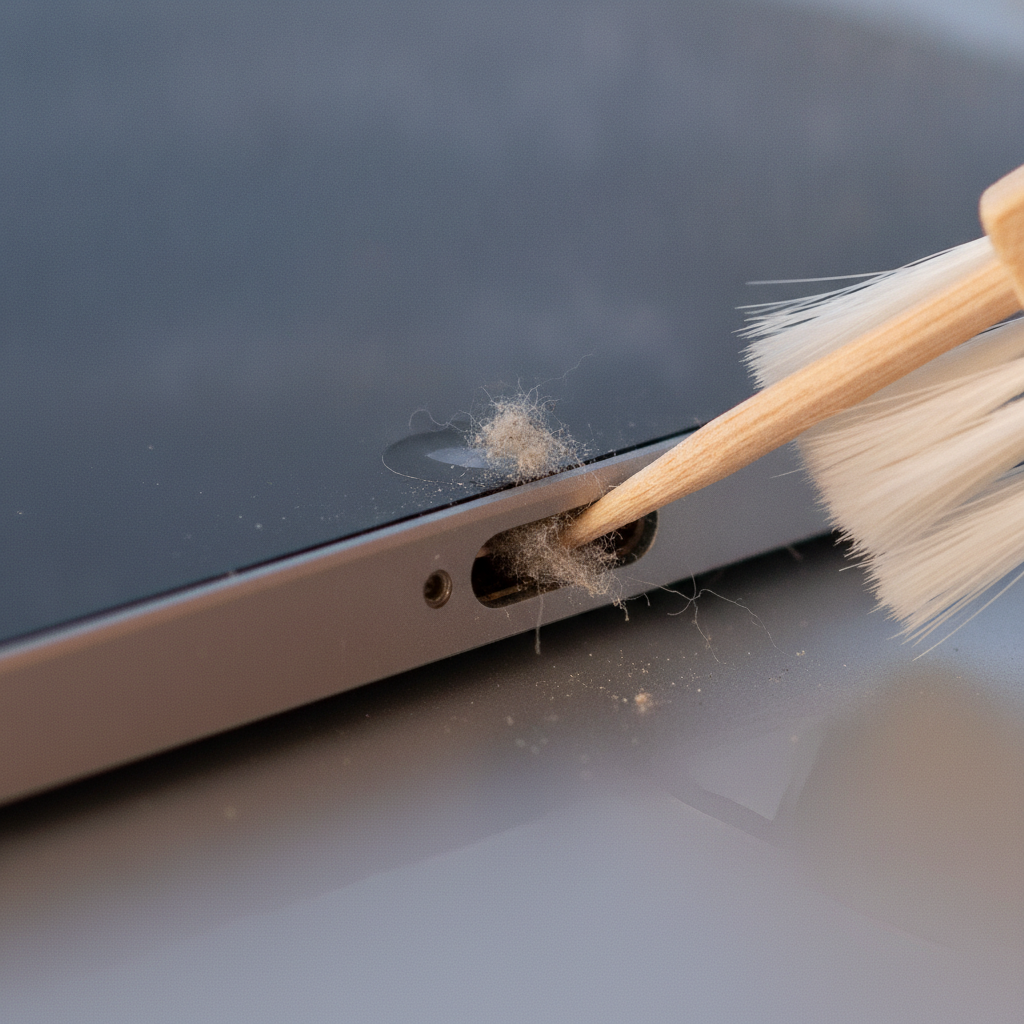
- Carefully clean the port: Use a wooden toothpick and a soft brush. Never use metal picks.
- Force restart: Reboots clear power-negotiation hiccups and stuck background processes.
- Update iPadOS: Software updates often include power and battery management fixes.
- Reset settings: Settings Only reset can clear odd power behavior without wiping data.
- Cool it down: If the iPad is warm, let it reach room temperature; devices throttle charging when hot.
- Charge powered off: Power down and leave it connected for 30–60 minutes to bypass wake power draw.
- Professional diagnostic: If issues persist, bring it to our iPad repair counter for port, battery, and board-level testing.
Why these steps work
- Power path first: Outlets, adapters, and cables are the most common failure points.
- Physical blockages: Lint compacts over time, preventing full pin contact and power negotiation.
- Software states: A reboot or update often corrects charge controller handshakes.
- Thermal limits: iPads slow or suspend charging when hot to protect the battery.
If you encounter damage during cleaning or a port that shifts under gentle pressure, stop. Our walk-in device repair team can stabilize the connector and prevent trace damage.
How iPad Charging Works (Power, Cables, Software)
Charging relies on a negotiation between the adapter, cable, and iPad. If any piece is out of spec—underpowered adapter, worn cable, dirty port, or buggy software—the iPad may show “Not Charging” or trickle slowly. Matching certified accessories and a clean port usually resolve it.
Understanding the chain helps you fix it faster. The adapter advertises available power, the cable must pass that power reliably, and the iPad’s controller accepts what’s safe for the battery. Dirt, oxidation, or an old case that presses the plug can unseat connections and break the handshake.
- USB-C vs. Lightning: Newer iPads use USB-C; older models use Lightning. Each has distinct pin layouts and failure patterns.
- Power negotiation: Hubs and long cables can reduce stable power delivery.
- iPadOS role: The OS manages charging to reduce heat and extend battery lifespan, sometimes delaying or pausing charging.
For a general overview of tablet quirks, this quick tablet issues guide shows how small physical problems often masquerade as “software bugs.”
Common Symptoms and What They Mean
Match the symptom to the cause: “Not Charging” often points to cable/adapter or port debris; slow charging suggests underpowered adapters or background load; intermittent charging indicates a loose port or worn cable; no response can mean a depleted battery or deeper board fault.
Symptom mapping saves time. Use the table below to jump from what you see to what to try.
| Symptom | Likely Cause | DIY Fix | When to See a Pro |
|---|---|---|---|
| “Not Charging” text | Cable/adapter out of spec; debris in port | Swap cable/adapter; clean port | Port is loose or pins look damaged |
| Slow charging | Underpowered adapter; long/cheap cable | Use certified, shorter cable; proper adapter | Still slow after accessory swaps |
| Intermittent charge sound | Worn cable; connector not seating | Replace cable; remove case; clean port | Connector shifts when touched |
| No response on plug-in | Drained battery; dead adapter; deep fault | Different outlet/adapter; charge 60 minutes | No sign of life after power cycle |
| Battery jumps or drops | Aged cell; software calibration off | Reboot; update; recalibrate | Rapid drain or swelling observed |
If your symptom doesn’t match, come by our diagnostic counter; we’ll test adapters, cables, and the iPad’s charge circuit while you wait.
Best Practices That Prevent Repeat Charging Problems
Protect the port, stick with certified accessories, avoid moisture, and update iPadOS. Gentle insertion/removal and periodic lint checks prevent pin damage. Using a proper wall adapter and a short, high-quality cable preserves steady power delivery and battery health.
Habits extend device lifespan. A few small changes can eliminate repeat charging headaches.
- Port hygiene: Monthly light cleaning prevents compacted lint.
- Cable discipline: Replace cables at first sign of fray or yellowing pins.
- Adapter pairing: Keep one dedicated adapter for the iPad.
- Heat management: Don’t charge under pillows or in hot cars.
- iPadOS updates: Install updates for better power management.
- Case fit: Make sure cases don’t stress the connector.
For a broader rundown of fixable tablet issues, see this summary of common tablet issues.
Tools and Resources to Speed Up Troubleshooting
You need a flashlight, soft brush, wooden toothpick, known-good cable and adapter, and a stable wall outlet. Optional gear—like a USB power meter—helps confirm if the adapter and cable deliver steady power without guessing.
With the right tools, you solve more in minutes and avoid accidental damage.
- Flashlight: Inspect the port for lint and bent pins.
- Soft brush + wood pick: Safe debris removal.
- Certified cable + adapter: Your control group for testing.
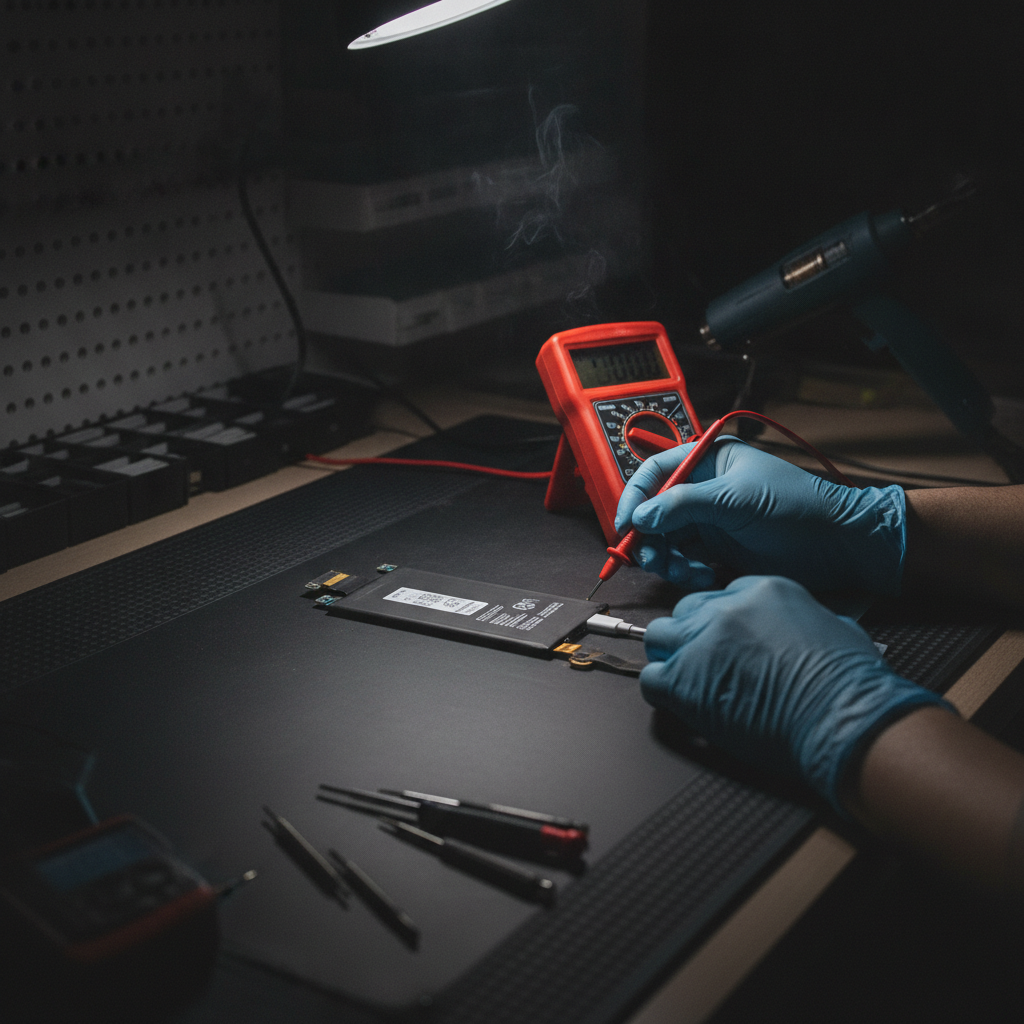
- USB power meter (optional): Confirms voltage/current stability.
- Anti-static mat (optional): Reduces ESD risk during handling.
Short on tools? Drop by our Southview-friendly iPad bench and we’ll run quick accessory and port tests while you wait.
When to See a Pro in Southview
Seek professional help if the port is loose, bent, or corroded; if charging fails across multiple certified cables and adapters; if the iPad overheats or the battery swells; or if software resets don’t change behavior. Prompt diagnostics prevent larger board damage.
Some faults need board-level tools and microscope inspection. Our team handles iPads alongside iPhones and Samsung tablets daily, so we can spot patterns fast and save you time. As a walk-in shop, TechBrotherz is designed for quick drop-offs and same-day assessments when possible.
- Port repair or replacement: For wobble, intermittent contact, or visible pin damage.
- Battery evaluation: If percentages jump, drain rapidly, or the device feels unusually warm.
- Board-level diagnosis: When the charge controller or power IC needs investigation.
If you also carry a phone that’s acting up, our iPhone repair and Samsung repair teams can service those in parallel, minimizing your total downtime.
Local considerations for Southview
- Heading to or from Valleyview Park Viewpoint? Dust from outdoor trails often ends up in charging ports. Do a quick visual check before plugging in.
- Winter in Calgary can be rough on batteries. Let the iPad warm to room temp indoors before charging after cold exposure.
- If you’re shopping near Habesha Mall, swing by our bench for a fast port inspection—no appointment needed.
How We Diagnose at TechBrotherz
We isolate the fault quickly: verify accessories, scope the port, run battery and thermal checks, and test charge behavior under load. If needed, we escalate to board-level investigation, then validate sustained charging before return.
Our bench process is built for speed and safety so you can stay productive. We combine accessory swaps with visual inspection and functional tests to pinpoint root cause fast.
- Accessory validation: Test with known-good cable/adapter sets.
- Microscope inspection: Identify debris, oxidation, pin damage, or flex on the connector.
- Battery behavior: Evaluate thermal response and charge retention.
- Software state: Confirm iPadOS version and perform controlled reboots/resets if required.
- Final validation: Ensure stable, repeatable charging before pickup.
Need help today? Walk in during business hours or start on our device repair page to see service categories, including tablet repair and unlocking help.
Troubleshooting Quick Reference (Bookmark This)
If you have 5 minutes: check outlet, swap cable and adapter, clean the port, and reboot. If you have 15 minutes: update iPadOS and try a powered-off charge. If none of these work, schedule a diagnostic to prevent further wear.
- 5-minute triage: Outlet check, cable swap, adapter swap, port clean, reboot.
- 15-minute deepening: iPadOS update, Settings reset, cool-down, powered-off charge.
- Visit a pro: Persistent failures or visible port/battery issues.
For a Calgary-wide view of repair options, scan this local iPad repairs overview.
Case Studies (Anonymized) from Our Bench
Real-world patterns: pocket lint blocking a USB-C port, underpowered third-party adapters causing trickle charge, and aged batteries failing under light load. Each looks like “software trouble” at first but resolves with the right physical or component fix.
These mini-examples mirror what many Southview users experience day to day.
- Pocket lint, zero charge: A student’s iPad wouldn’t recognize power after fieldwork. Debris removed under scope restored normal charging immediately.
- Adapter mismatch: A parent used a tiny phone cube. The iPad displayed “Not Charging” while the screen was on. A proper adapter fixed it on the spot.
- Heat throttle: After a car dash mount in summer, an iPad paused charging. Cooling to room temperature brought charging back.
- Aged battery: Battery percentage bounced during charge. Diagnostic indicated high wear; replacement stabilized charge and runtime.
- Keyboard case pressure: A tight magnetic case misaligned the plug. Removing and reseating restored a solid connection.
If any of these sound familiar, bring your tablet by our iPad repair counter—walk-ins welcome.
Frequently Asked Questions
Here are concise answers to common iPad charging questions. Use them as quick checks before scheduling service. If you’re still stuck after trying these tips, our Southview-friendly team can run a same-day diagnostic.
Why does my iPad say “Not Charging” when plugged into a computer?
Many computer USB ports provide limited power. Your iPad may draw enough to maintain power but not gain charge. Use a certified wall adapter and cable, or a powered USB-C hub designed to deliver higher wattage.
Is it safe to clean the iPad charging port myself?
Yes, if you use non-metal tools and a gentle touch. A wooden toothpick and soft brush can remove lint safely. Stop if you see bent pins or corrosion—those require professional tools to avoid permanent damage.
Should I update iPadOS before or after trying hardware fixes?
Do quick hardware checks first (cable, adapter, port). If those don’t help, update iPadOS and reboot. Updates sometimes include power-management fixes that resolve odd charging behavior.
When is battery replacement the likely fix?
If the iPad charges inconsistently across multiple good accessories, gets warm when charging, or the battery percentage jumps or drains quickly, a worn battery is likely. A diagnostic can confirm health and rule out port or board faults.
Can a case or keyboard cause charging problems?
Yes. Tight cases and some magnetic keyboards can misalign or stress the connector. Remove accessories and test again. If the issue disappears, choose a case with better port clearance.
Conclusion and Next Steps
Most iPad charging issues trace back to four things: weak adapters, worn or dirty cables/ports, software hiccups, or a tired battery. Move methodically from simple to advanced checks—and if problems persist, a quick professional diagnostic prevents bigger failures.
- Start with outlet, cable, adapter, and port checks.
- Reboot, update iPadOS, and try powered-off charging.
- Address heat; avoid charging in extreme temperatures.
- Get a diagnostic if the port is loose or charging stays inconsistent.
Ready for help? Walk in to TechBrotherz for friendly, warranty-backed service on iPads and other devices. We also handle phones and computers, so you can solve multiple tech issues in one visit.
Soft CTA — Walk In or Call
Stop by our Southview-friendly shop during business hours or start by visiting our iPad repair page. Prefer to talk first? Call our team and we’ll guide you through next steps.
Related pages
Rather just ask a person?
Call (403) 273-8324 and describe the problem, or walk in to 3317 17 Ave SE in Calgary. Every repair is quoted free before any work starts.