
Blog
Calgary Tablet Repair Checklist: Fix Common Issues Fast (2026 Guide)
Use this Calgary tablet repair checklist to diagnose issues, protect data, and validate fixes—then walk into TechBrotherz in Southview for fast, warranty‑backed service.
A Calgary tablet repair checklist is a structured, step-by-step guide to diagnose, protect data, choose the right fix, and verify results. It covers screens, batteries, charging ports, wireless, cameras, audio, and software resets. Southview users can apply it at home, then walk into TechBrotherz for professional tablet repair when needed.
Key facts
- Published: June 27, 2026
- Last updated: October 2, 2026
- Reading time: 18 min read
- Questions about your own device: Call (403) 273-8324
Last updated
Calgary Tablet Repair Checklist: Fix Common Issues Fast (2026 Guide)
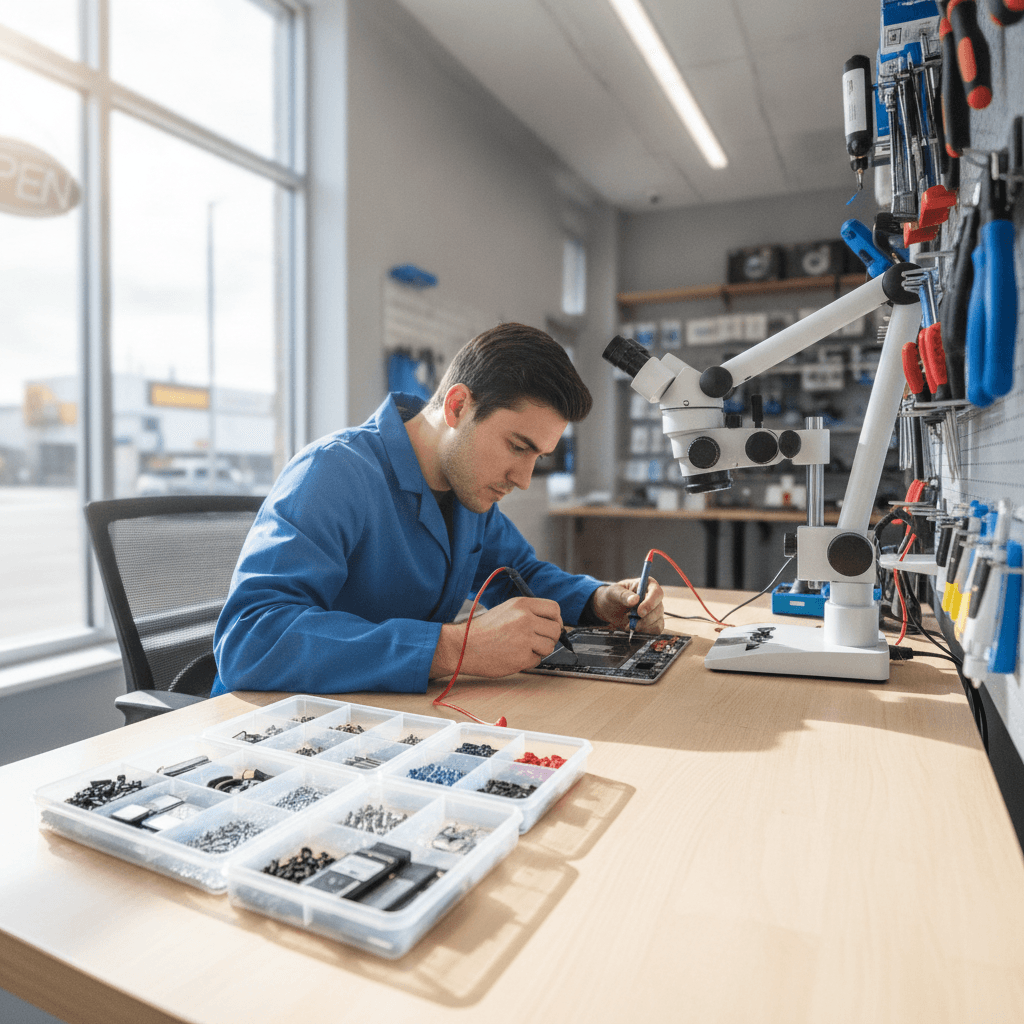
Published by Imran Mohammed at TechBrotherz, the walk-in repair Store at 3317 17 Ave SE in Calgary. June 27, 2026, updated October 2, 2026.
No article on this site is paid for or sponsored. For a quote on your own device, call (403) 273-8324.
By TechBrotherz • Last updated: June 27, 2026
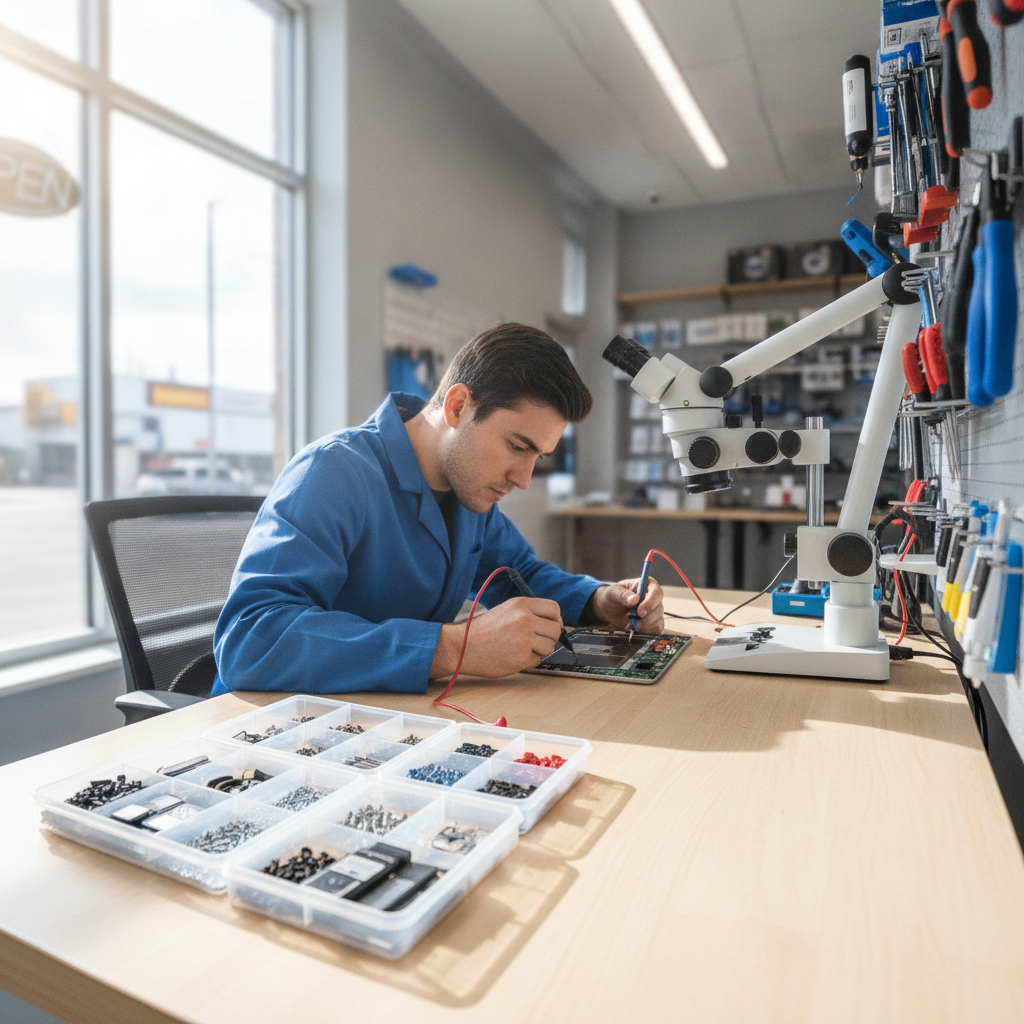
Quick Summary
Use this Calgary tablet repair checklist to quickly identify the issue, secure your data, and decide between DIY triage and a same-day walk-in at TechBrotherz. Confirm symptoms, run basic resets, test hardware, and document findings. Finish with a full post-repair check: display, battery health, charge, wireless, audio, cameras, and sensors.
This complete guide maps real-world steps our Calgary technicians follow in-store. You’ll learn how to:
- Spot patterns that separate software glitches from hardware faults
- Protect your photos, messages, and app data before any repair
- Run fast diagnostics at home to save time at the counter
- Choose professional service confidently when a replacement part is required
- Validate the repair with a 15-point post-fix test routine
Table of contents
- What is a Calgary tablet repair checklist?
- Why this checklist matters in Calgary
- How the checklist works (step-by-step)
- Types of issues and repair methods
- Best practices and safety
- Tools and resources
- Mini case studies from Southview
- FAQ
- Conclusion + next steps
What is a Calgary tablet repair checklist?
A Calgary tablet repair checklist is a practical sequence for diagnosing, fixing, and validating tablet issues, adapted to local conditions and TechBrotherz workflows. It prioritizes data safety, quick triage, part quality, and a standardized 15-point test so Southview users get reliable, repeatable results.
In our experience, structure beats guesswork. A repeatable process reduces mistakes, shortens bench time, and protects your data. The first pass focuses on symptoms and quick wins; the second pass dives into hardware. By the third pass, you’re validating results with a post-repair test.
- Definition: A step-by-step flow covering symptoms → triage → action → validation.
- Scope: Screens, batteries, charging, wireless, cameras, speakers/mics, storage, OS resets.
- Outcome: Clear decision points: continue DIY, or walk into TechBrotherz tablet repair for parts-level service.
Here’s the thing: most recurring tablet problems fall into familiar patterns. For example, after 400–500 charge cycles, many lithium‑ion batteries hold about 80% capacity. That number explains frequent “dies at 20%” complaints and guides when a pro inspection makes sense.
Why this checklist matters in Calgary
This checklist prevents data loss, reduces downtime, and helps Calgary tablet owners decide when to seek a professional repair. It turns vague symptoms into clear actions, so you can walk into TechBrotherz with a complete picture that speeds service.
Missed steps lead to avoidable headaches. Skipping backups risks your photos and messages; ignoring damage signs makes small faults spread. A structured approach saves hours. We see patterns: around one in three “no charge” complaints actually trace back to cable or adapter issues, not the port.
- Data first: Sync or export before resets to avoid loss.
- Downtime cut: A 10-minute triage often halves bench time later.
- Right fix sooner: Clear notes help technicians reproduce the fault quickly.
Weather and travel in Calgary matter too. Cold snaps can make marginal batteries dip below safe voltage faster, while car-charger spikes sometimes show up as random shutdowns. Documenting when problems occur (cold car, gaming, streaming) tightens the diagnosis.
How the checklist works (step-by-step)
Work the checklist in three passes: 1) capture symptoms and protect data, 2) run quick software and accessory tests, 3) isolate hardware and decide on professional service. Finish with a standardized 15-point validation so you leave with confidence.
Pass 1 — Capture and protect
- Confirm the model and OS: Note exact model, storage, OS version, and any updates installed in the last week.
- Back up essentials: Sync photos, messages, contacts, and app data to cloud or a computer before deeper steps.
- Record triggers: Time of day, temperature, apps in use, accessories attached—patterns matter.
- Check physicals: Screen cracks, bulges near the battery, loose port, dented corners, or liquid marks.
Bulges or separation around the display often signal a swelling battery. That’s a stop‑using‑now condition; don’t compress the screen back down. Power off and bring it in. Lithium‑ion cells can vent under pressure.
Pass 2 — Fast software and accessory tests
- Forced restart: Clear temporary glitches; this alone resolves many one-off freezes.
- Safe mode / startup check: If available on your model, boot with third‑party apps disabled to isolate software conflicts.
- Known‑good charger and cable: Swap to a certified adapter and cable; many “dead” tablets recover here.
- Charging environment: Test from a wall outlet, not a car or PC port; measure time-to-first-percent.
- Network reset: For Wi‑Fi/Bluetooth faults, clear saved networks and re‑pair.
- Storage check: Keep at least 10–15% free space; low storage spikes crash rates and slow updates.
Take this example: A Southview student arrived with “won’t charge.” Our counter test showed the battery increased 3% in five minutes with a certified adapter—an accessory problem, not hardware. Documenting that result fast‑tracks the right fix.
Pass 3 — Hardware isolation
- Display: Shine a flashlight at an “off” screen—if you see a faint image, the backlight or display assembly is suspect.
- Touch: Draw a grid in a notes app; missing lines indicate dead zones.
- Charge port: Inspect for lint or bent pins; gentle air can clear debris—no metal tools inside the port.
- Speakers/mic: Voice memo and speaker tests at multiple volumes; compare left/right channels for imbalance.
- Cameras: Front/rear focus and exposure checks; dark spots may indicate dust under the lens.
When you’ve documented findings, choose your next move. If a part is failing (screen, battery, port), a walk‑in at TechBrotherz tablet repair is the efficient choice. If software still looks likely, proceed with resets after backing up.
| Issue | Quick checks | When to seek pro help |
|---|---|---|
| No power | Force restart; charge with known‑good adapter 15–20 minutes | Still no boot; battery swelling; port feels loose |
| Fast drain | Battery health, background app refresh off, screen brightness at 50% | Shutdowns under 30% or bulge near display |
| Cracked screen | Touch grid test; check for glass shards | Touch dead zones or display discoloration |
| Charging issues | Try two cables and one certified adapter; inspect port | Intermittent charging or bent pins |
| Wi‑Fi/Bluetooth | Toggle airplane mode; reset network settings | Fails on multiple networks or devices |
Types of issues and repair methods
Most tablet problems cluster into display damage, battery and power, charging and ports, wireless connectivity, audio/camera faults, and software corruption. Start with non‑invasive tests, then escalate to parts‑level service at TechBrotherz when symptoms point to hardware failure.
We group issues to move faster and avoid unnecessary resets. Here’s how we approach each type—and where your Calgary tablet repair checklist hands off to a technician.
Display and touch
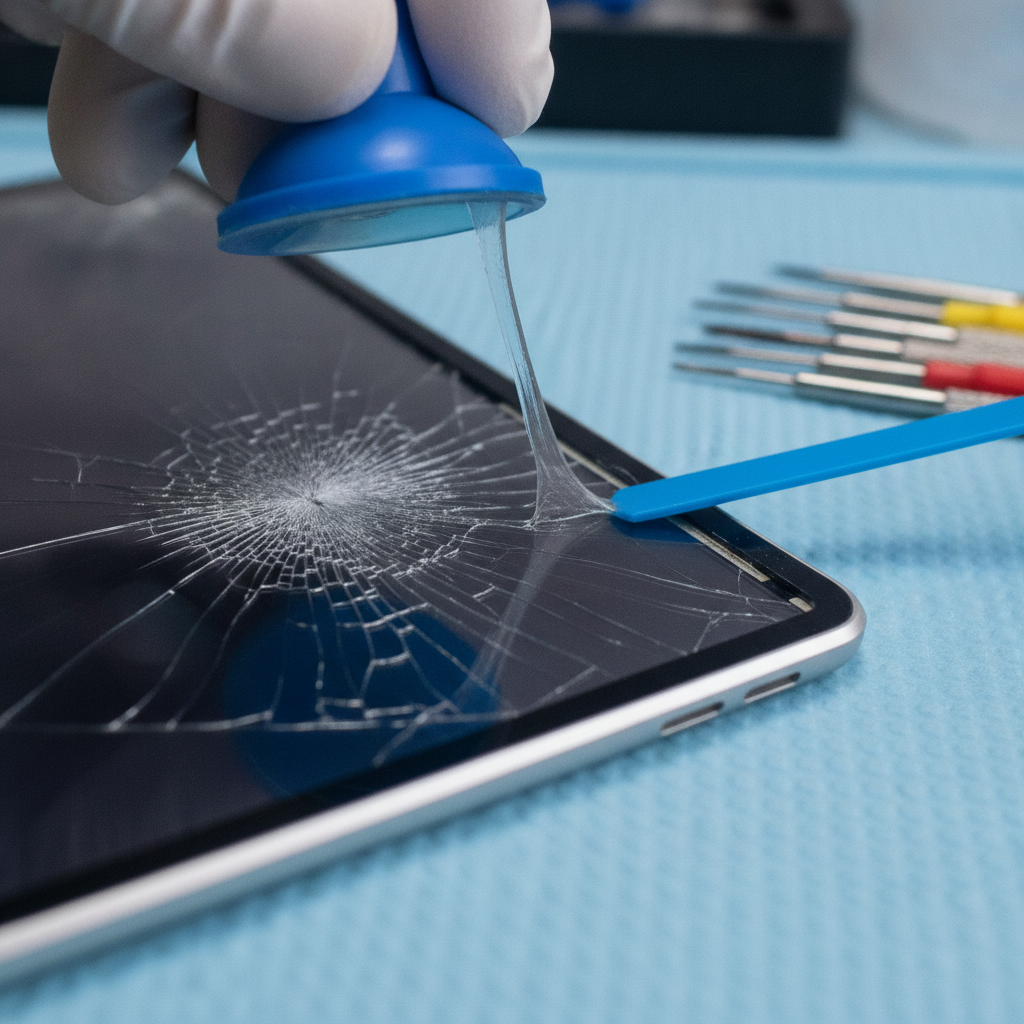
- Cracks and spidering: If shards lift or touch fails in zones, a display assembly replacement restores both glass and digitizer.
- Ghost touches: Random inputs after drops suggest digitizer damage. Rule out case pressure first.
- Backlight/no image: Faint images under a flashlight hint at backlight failure or display connector issues.
Impact examples show up daily in Southview, especially after backpacks take a fall on 17 Ave SE. A quick grid test and visual inspection usually separates cosmetic cracks from true touch failure in under five minutes.
Battery and power
- Capacity loss: After a few hundred cycles, many lithium‑ion packs settle near 80% capacity; shutdowns at 10–30% often follow.
- Thermal throttling: Gaming or direct-sun use can trigger heat cutoffs; note app and ambient temperature.
- Swelling: Screen lift or frame gaps require immediate power‑down and professional handling.
We’ve found that keeping brightness below 60% and disabling background refresh extends runtime measurably on older tablets. Still, when cells swell or readings bounce, a bench evaluation is safer than further cycling.
Charging and ports
- Accessory mismatch: Many “no charge” cases improve 1–5% in minutes with a certified adapter—fast evidence the port is fine.
- Lint and wear: Pocket lint blocks connectors; gentle air fixes lots of intermittent connections.
- Bent pins / loose feel: If the plug wiggles or pins look uneven, port service is likely.
Document time-to-first-percent and cable/adapter models in your notes. Those details help us reproduce behavior quickly and cut repair time.
Wireless, audio, and cameras
- Wi‑Fi/Bluetooth: If pairing fails across two devices or networks, hardware or antenna leads may be at fault.
- Speakers and mics: Test at low, mid, and high volumes. Crackle at one channel suggests driver or speaker wear.
- Cameras: Spots or haze can indicate dust under the lens or post‑impact misalignment.
In one week, about a quarter of connectivity walk‑ins we see boil down to corrupted network stacks cleared by a reset. Persistent failures across networks point to a deeper antenna or board-level issue.
Software corruption and resets
- App conflicts: Safe mode or clean boot often exposes problematic apps quickly.
- OS updates: Apply the latest stable build after backup; many touch and sleep bugs have software patches.
- Factory reset: As a last resort after syncing data; validate activation and sign‑in before leaving Wi‑Fi range.
If you’re stuck in an activation loop, our phone and tablet unlocking team can help verify account access and restore usability without risking data you’ve already saved.
Best practices and safety
Back up before changes, avoid pressure on cracked glass, never compress a swollen battery, and document every test. Use certified chargers and anti‑static handling. For parts-level fixes, bring your notes to TechBrotherz for a faster, warranty‑backed repair.
Good habits prevent bigger problems. A few rules keep you safe and speed up any professional visit.
- Backup and sign‑outs: Sync data; sign out of cloud and app stores before factory resets.
- Anti‑static basics: If you open any device, use an anti‑static mat and avoid metal pry tools on batteries.
- Quality parts matter: Display assemblies, batteries, and ports vary; consistent quality reduces rework.
- Thermal awareness: Don’t charge under pillows or in hot cars; heat accelerates battery wear.
- Document everything: Photos of damage and short notes on tests help establish a baseline.
We routinely see reduced repeat visits when customers arrive with model, OS, and symptom notes. It’s a simple step that shortens queues and gets your device back in use faster.
Need hands-on help today? Walk into our Southview shop for tablet repair in Calgary. No appointment needed, and repairs include a warranty-backed service. Bring your checklist notes—we’ll take it from there.
Tools and resources
You only need a few tools for safe triage: a known‑good charger and cable, an anti‑static surface, good lighting, and patience. For parts‑level repairs or software lock issues, TechBrotherz provides certified tools, diagnostics, and unlocking support.
For DIY triage, keep it simple and safe. Focus on what you can test without risk.
- Known‑good power: Certified wall adapter and cable to verify charging.
- Anti‑static handling: A mat and wrist strap reduce ESD risk if you remove cases or SIM trays.
- Lighting and magnification: A bright desk lamp reveals debris in ports and hairline cracks.
- Notes app: Log steps, accessories, and results in bullets.
When the checklist points to a hardware fix, our iPad repair and Samsung Galaxy repair teams handle assembly replacements and delicate connectors daily. For a broader device triage, see our cell phone repair and computer repair services.
For background on common tablet symptoms and self-checks, see these practical explainers on common tablet issues and a few quick fixes. They align with the early steps in this Calgary tablet repair checklist.
Mini case studies from Southview
Real Calgary scenarios show how a structured checklist speeds repair. By logging symptoms, using known‑good accessories, and documenting results, most customers cut bench time and get clearer outcomes at TechBrotherz.
1) The “dead after school” tablet
- Symptoms: Shuts off around 25% during video calls; feels warm.
- Triage: Brightness high, heavy multitasking, and warm backpack storage.
- Outcome: After backup and settings tweaks, behavior improved; bench tests indicated cell wear consistent with several hundred cycles.
Result: The owner arrived with notes and cycle history. A standardized battery evaluation confirmed capacity loss. With settings optimized, the device stabilized pending a parts‑level solution.
2) The “charges only in the car” tablet
- Symptoms: No charge on a home outlet; works in a vehicle.
- Triage: Swapped to a certified wall adapter and cable; gained 4% in eight minutes.
- Outcome: Accessory mismatch, not a port failure. Customer avoided unnecessary service and left with verified charging behavior.
Result: With two accessories tested, the owner had a clear record of time‑to‑first‑percent and could reproduce the fix anywhere.
3) The “ghost touch during games” issue
- Symptoms: Random taps in the lower-right screen after a drop.
- Triage: Grid test showed missing lines; case pressure ruled out.
- Outcome: Diagnosis pointed to digitizer damage. The owner chose a professional display assembly service at TechBrotherz.
Result: The clear handoff from checklist to in‑store repair cut time to resolution significantly.

Local considerations for Southview
- Plan your visit around traffic on 17 Ave SE; if you’re near Valleyview Park Viewpoint, finish your triage at home and bring your notes to shorten your stop.
- Winter cold snaps reduce battery performance. Warm the device to room temperature before testing; retest charging after 10–15 minutes indoors.
- Accessories bought along 17 Ave vary in quality. Test with a certified wall adapter at home before assuming a port fault.
Frequently Asked Questions
These brief answers address the tablet questions Calgary owners ask most. Use them with the checklist to decide between a quick at‑home fix and a professional walk‑in at TechBrotherz in Southview.
What should I check first when my tablet won’t turn on?
Try a forced restart, then charge with a certified wall adapter and known‑good cable for 15–20 minutes. If there’s still no sign of life, stop and bring it in—continued attempts on a swollen battery or damaged port can worsen the issue.
How do I know if it’s a screen issue or a software glitch?
Shine a flashlight at the display and look for a faint image. If touch fails in certain zones or ghost taps appear after a drop, it’s likely hardware. If safe mode fixes the problem, a third‑party app or software setting is the cause.
When should I stop DIY and visit a repair shop?
Stop if you see battery swelling, bent port pins, liquid exposure, or recurring shutdowns under 30% charge. If quick checks don’t change the symptoms, a parts‑level inspection at a professional shop is the safest next step.
Can a bad charger really cause random shutdowns?
Yes. Unstable or underpowered adapters lead to voltage dips that look like battery failure. Testing with a certified wall adapter and a second cable is an easy way to confirm accessory issues before assuming a hardware fault.
Conclusion and next steps
Follow the checklist, protect your data, and capture clear notes. If symptoms point to hardware, walk into TechBrotherz for a fast, warranty‑backed repair. You’ll save time at the counter and leave with confidence after a full 15‑point validation.
Key takeaways:
- Start with model/OS, backup, and symptom patterns—avoid hasty resets.
- Use known‑good power gear to separate accessory faults from port issues.
- Never compress a lifted screen; treat swelling as a stop‑using‑now sign.
- Document each test and result; bring your notes for faster in‑store service.
Action steps:
- Run Pass 1–3 and note your findings.
- Decide: keep troubleshooting or move to professional parts service.
- For screens, batteries, ports, or activation help, visit TechBrotherz in Southview—no appointment needed.
If you’re comparing options, remember that consistent parts quality, repeatable processes, and a real-world warranty are what make repairs last. We’re ready when you are.
Related pages
Rather just ask a person?
Call (403) 273-8324 and describe the problem, or walk in to 3317 17 Ave SE in Calgary. Every repair is quoted free before any work starts.