
Blog
Does Your Laptop Need Repair? Signs to Check Before You Visit a Calgary Shop
Learn the signs your laptop may need repair, how to compare repair with replacement, and what to prepare before requesting a clear Calgary quote in person.
A laptop usually deserves professional attention when a problem is persistent, worsening, or disrupting work, school, communication, or access to important files. One slow startup or an isolated error may be temporary, but repeated crashes, overheating, charging faults, or failing components are good reasons to request a diagnosis.
Key facts
- Published: July 21, 2026
- Last updated: October 2, 2026
- Reading time: 10 min read
- Questions about your own device: Call (403) 273-8324
Last updated
Does Your Laptop Need Repair? Signs to Check Before You Visit a Calgary Shop
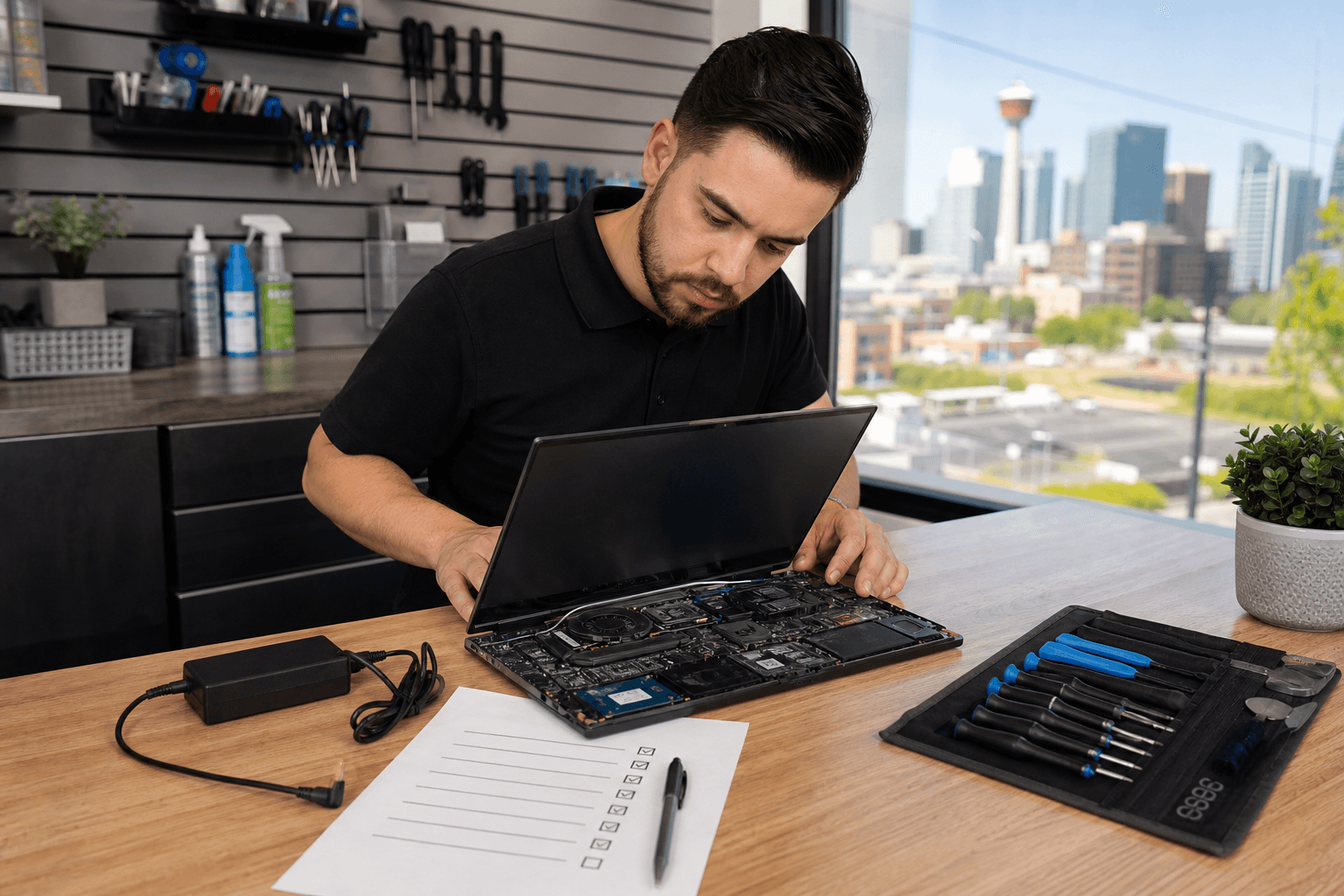
Published by TechBrotherz at TechBrotherz, the walk-in repair Store at 3317 17 Ave SE in Calgary. July 21, 2026, updated October 2, 2026.
No article on this site is paid for or sponsored. For a quote on your own device, call (403) 273-8324.
These symptoms do not prove a particular hardware or software fault. Use the checklist below to decide when to stop guessing, what information to record, and which questions to ask before approving laptop repair in Calgary.
Quick summary

- Seek an assessment for recurring crashes, severe slowdowns, overheating, unreliable power, physical component failures, or problems that keep returning.
- Back up important files when the laptop still works, and record the model, symptoms, error messages, recent changes, and charger details.
- Compare the repair quote with the laptop’s reliability, performance needs, condition, and the value of your files and workflow.
- Before work begins, confirm the suspected fault, total price, expected timing, data handling, testing, and warranty coverage.
Signs your laptop may need professional repair
The strongest signs are not always dramatic. A gradual decline can matter just as much as a sudden failure when it repeatedly affects normal use. The following seven situations should prompt you to document the pattern and consider a professional diagnosis.
1. Slow performance continues after basic troubleshooting
Long startup times, persistent freezing, delayed responses, or applications that take unusually long to open may be worth investigating when they continue after a restart and routine software updates. A single slow session could reflect background activity, but recurring slowdown can have several possible explanations, including software conflicts, storage limitations, heat, or another hardware concern.
Record when the slowdown began, which tasks are affected, whether the laptop becomes slow on battery or while plugged in, and whether the problem occurs across multiple applications. If performance is interfering with work or becoming progressively worse, request a diagnosis rather than repeatedly deleting files or installing unverified “cleaner” tools. For more context, review these computer hardware repair basics.
2. The laptop crashes, freezes, or will not start reliably
Repeated shutdowns, application freezes, blue-screen-style errors, failed start-ups, or a laptop that works only after several attempts are stronger repair signals than an isolated software hiccup. The cause could involve software, power, storage, memory, heat, or another component, so the symptom alone is not a diagnosis.
Write down the exact error message if one appears, how often the failure occurs, and whether it follows a recent update, installation, drop, or other change. Note whether the laptop starts normally on its charger, on battery, or in neither situation. If it starts intermittently, back up important files before repeated testing makes access less reliable.
3. Overheating, unusual noise, or sudden shutdowns
A hot case, unusually loud fan, unfamiliar clicking or grinding sound, or sudden shutdown can indicate that the laptop needs attention. These signs may relate to airflow, power, software load, or internal hardware, but continuing to use an abnormally hot or noisy device can make the situation harder to assess.
Record when the heat or noise appears, what task the laptop is performing, and whether the behaviour changes when it is plugged in. Stop using it if it becomes unusually hot, emits a burning smell, shows physical damage, or presents another safety concern. Do not open the device or force a noisy component yourself unless you understand the risks and have the appropriate tools.
4. Charging or power behaviour has changed
Intermittent charging, a loose connection, rapid power loss, unexpected shutdowns, or a laptop that works only with the charger attached all justify closer attention when the behaviour is new or recurring. Possible causes include the charger, outlet, charging connection, battery, power circuitry, or software settings.
Bring the charger used with the laptop if possible, and record whether the problem changes with another outlet or power mode. Note whether the charging indicator flickers, whether the connector must be held at an angle, and whether the battery drains unusually quickly. Avoid repeatedly bending or forcing the charging connection, since that may worsen a physical fault.
5. The screen, keyboard, trackpad, or ports no longer work properly
Flickering, lines, a black screen, an unresponsive keyboard, a trackpad that works intermittently, or USB and charging ports that fail repeatedly are practical reasons to seek an assessment. A display or input problem may be caused by a component, connection, software setting, or physical damage. It should not be treated as a confirmed diagnosis based only on what you can see.
Record which keys, ports, or areas of the screen are affected and whether the issue changes when the lid is moved or another accessory is connected. Take note of any recent impact, liquid exposure, pressure, or cable damage. Stop forcing a port or connector if it feels loose or obstructed.
6. Files, applications, or the operating system behave unexpectedly
Repeated error messages, applications that stop opening, unusual pop-ups, missing access to files, or operating system behaviour that changes without explanation may justify professional help. These symptoms can have different causes, including software problems, storage issues, account access complications, or unwanted programs. They do not automatically mean that files can be recovered or that a particular repair will solve the issue.
Back up files while access is available, using a backup method you trust. Record the affected applications, exact messages, recent downloads or updates, and whether the problem affects one account or the whole laptop. Avoid entering sensitive credentials into unfamiliar tools and tell the repair provider what information is important before work begins.
7. The same problem keeps returning
A temporary fix that works once is different from a problem that returns every few days or after every restart. Recurring failures, repeated repairs, or symptoms that gradually become more severe may indicate that the original issue was not fully identified, that more than one problem is present, or that the laptop needs a broader assessment.
Bring details of earlier troubleshooting or repairs, including what changed and how long the improvement lasted. Ask whether the new visit is addressing the same fault or a different symptom. A clear history helps a technician avoid treating each episode as an isolated event.
Laptop symptoms and the next sensible step

| What you notice | Possible categories of cause | What to do next |
|---|---|---|
| Persistent slowdown or freezing | Software, storage, heat, or hardware | Record affected tasks and request diagnosis if it disrupts normal use. |
| Repeated crashes or failed starts | Power, operating system, storage, memory, or other hardware | Record errors, back up files if possible, and seek assessment. |
| Heat, loud fans, or sudden shutdowns | Thermal, airflow, power, or component issue | Limit use if unusually hot and arrange a professional check. |
| Charging or battery changes | Charger, connection, battery, power, or software | Bring the charger and note outlet, battery, and connection behaviour. |
| Screen, keyboard, trackpad, or port failure | Physical, connection, driver, or component issue | Stop forcing the affected part and document exactly what fails. |
| Unexpected file or application behaviour | Software, storage, account, or unwanted-program concern | Back up what you can and ask about data protection before service. |
The categories in this table are possibilities, not diagnoses. The useful decision is whether the issue is recurring, disruptive, worsening, or risky enough to justify an assessment.
Repair or replace your laptop? Questions that clarify the choice
Repair is not automatically the better option, and replacement is not automatically the cheaper or simpler one. Start with the confirmed fault and the quote, then consider how reliably the laptop has worked, whether its performance still meets your needs, and how disruptive another failure would be.
- How extensive is the problem? A contained component issue may lead to a different decision than several unrelated faults.
- How reliable has the laptop been? A new failure on an otherwise dependable device is a different situation from repeated breakdowns.
- Does it still meet your needs? Consider the applications, storage, ports, battery behaviour, and performance required for your work or study.
- What is the total repair quote? Compare the complete parts-and-labour figure with realistic replacement options, not just a tempting advertised starting price.
- How valuable are the files and setup? A repair may preserve a familiar workflow, but important data should be backed up whenever possible.
- What happens if the repair is not worthwhile? Ask whether diagnosis or approval occurs before work begins and what you will owe if you decline the repair.
The distinction between a laptop and a desktop can also affect practical repair considerations, including access, portability, and the way components are fitted. This comparison of PC repair versus laptop repair can help you frame the conversation.
What to ask before approving laptop repair
Before handing over approval, ask the repair shop to explain what has been found and what remains uncertain. Useful questions include:
- What problem has been confirmed, and what other causes are still possible?
- What is the total price for parts and labour?
- Is the quote based on the exact laptop model and the part required?
- When should I expect an update or an estimated completion time?
- What access, password, charger, or accessories are needed for testing?
- How will my files and personal information be handled during the work?
- What testing will be completed before I collect the laptop?
- What does the warranty cover, and for how long?
A credible answer should distinguish an estimate from a confirmed quote and should not promise a repair time before the device and required part are understood.
Laptop repair checklist: what to prepare before you visit
A few minutes of preparation can make diagnosis more efficient and reduce avoidable delays. A useful laptop repair checklist should include the following:
- Device details: Record the manufacturer, model, operating system, and serial number if available.
- Symptom timeline: Note when the problem began, how often it occurs, and whether it is getting worse.
- Evidence: Photograph physical damage or write down exact error messages. A short video may help show an intermittent fault.
- Recent changes: Mention updates, new applications, drops, liquid exposure, new accessories, or previous repairs.
- Accessories: Bring the charger and any accessory needed to reproduce the issue, if practical.
- Backups: Copy important files before visiting when the laptop still works. Do not assume a repair includes guaranteed data recovery.
- Access: Ask in advance what login or testing access is required. Share only what is necessary and confirm how it will be protected.
- Your decision questions: Have the quote, turnaround expectation, testing, and warranty questions ready before approving work.
Choosing a laptop repair option in Calgary
TechBrotherz provides walk-in laptop and computer repair from 3317 17 Ave SE in Calgary, serving Calgary and nearby communities including Chestermere and Airdrie. No appointment is required, so you can bring the laptop in during posted business hours for assessment.
The shop states that it provides a free quote before work begins, with parts and labour included in one figure. Repair time and price depend on the laptop model, the problem, and the part required, so a general phone-repair timing should not be treated as a promise for laptop work. Repairs carry a 60-day warranty covering the fitted part and the work performed.
Frequently asked questions
Should I back up my laptop before taking it for repair?
Yes, if the laptop still works and you can do so safely. Back up important files before service, but remember that a backup does not replace a conversation about data access, privacy, or what testing the shop needs to perform.
Can a slow laptop always be fixed with a repair?
No. Slow performance can have several possible causes, and repair may not be worthwhile if the device has broader reliability or performance limitations. A diagnosis and clear quote can help you compare repair with replacement.
What information should I provide when asking for a laptop repair quote?
Provide the exact model, the symptoms, when they began, error messages, recent changes, physical damage, the charger used, and any previous repair history. A firm figure may require an in-person assessment and the correct part for that model.
Does a laptop repair warranty cover every future problem?
Not necessarily. A warranty generally relates to the repair, fitted part, and stated terms, not every unrelated problem that may develop later. Ask exactly what the warranty covers before approving the work.
Conclusion: document the problem, then request a clear diagnosis
Persistent slowdown, repeated crashes, abnormal heat, power changes, failing components, unexpected software behaviour, and recurring temporary fixes are useful signals that your laptop deserves professional assessment. They do not identify the fault by themselves, so bring clear notes, back up important files when possible, and compare the repair quote with the laptop’s condition and your actual needs.
For walk-in laptop and computer repair at 3317 17 Ave SE, Calgary, TechBrotherz provides a free quote before work begins and backs repairs with a 60-day warranty. Ask for the total parts-and-labour figure and the expected next step before approving service.
Related pages
Rather just ask a person?
Call (403) 273-8324 and describe the problem, or walk in to 3317 17 Ave SE in Calgary. Every repair is quoted free before any work starts.