
Blog
What Should You Check Before Choosing HDD or SSD Data Recovery?
Learn when to stop using a failing HDD or SSD, assess recovery providers, protect important files, and choose a Calgary-area next step carefully.
If a hard drive or SSD is clicking, beeping, disappearing, not being detected, or failing to spin, stop using it rather than continuing to experiment. These symptoms can indicate a problem that needs assessment, and repeated power cycles or software attempts may make the situation harder to evaluate. First, document what happened, protect the drive, and ask a provider about diagnostics before authorizing recovery work. MRC’s drive recovery guidance identifies these symptoms as reasons to power the device off.
Key facts
- Published: September 10, 2026
- Last updated: October 2, 2026
- Reading time: 10 min read
- Questions about your own device: Call (403) 273-8324
Last updated
What Should You Check Before Choosing HDD or SSD Data Recovery?
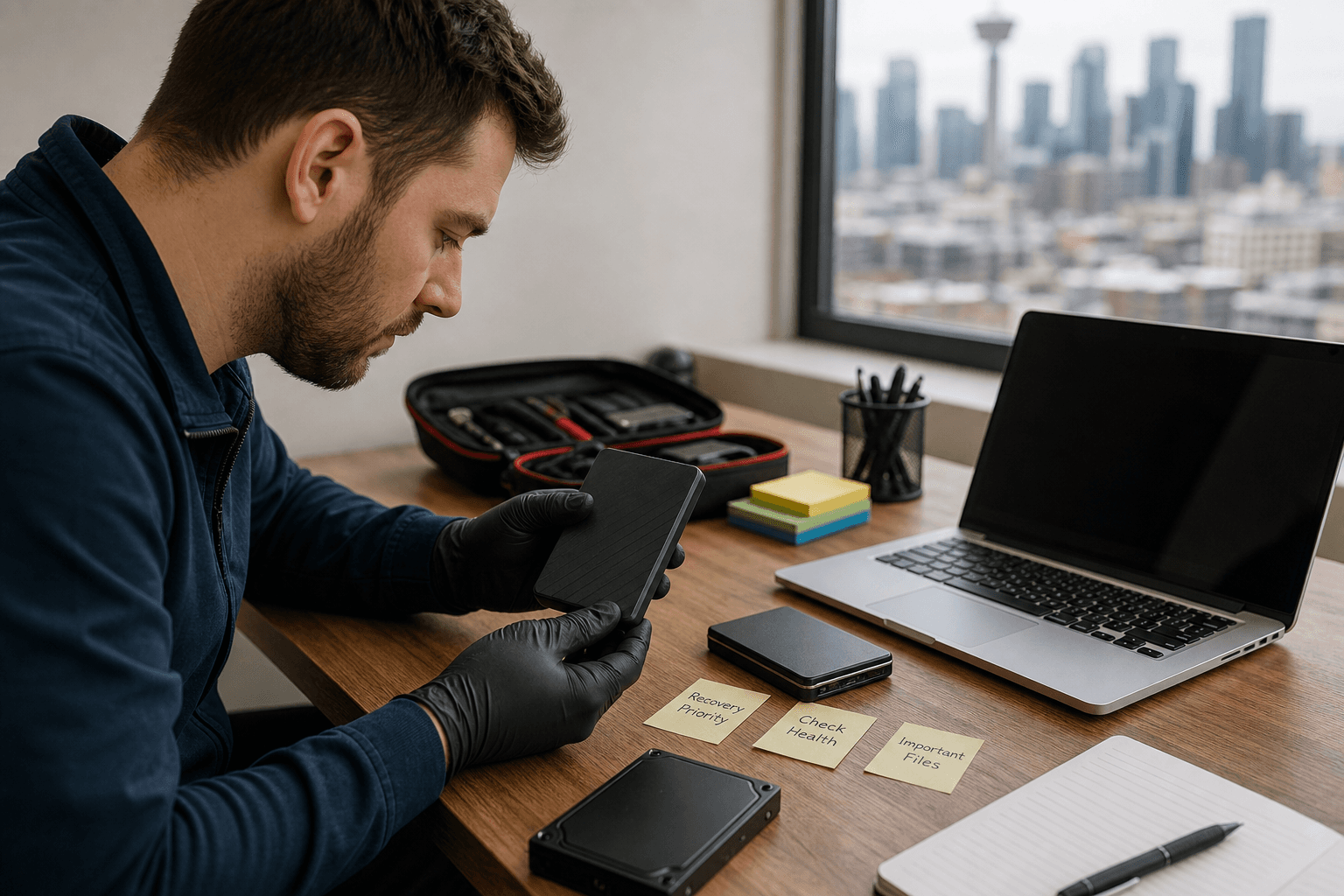
Published by TechBrotherz at TechBrotherz, the walk-in repair Store at 3317 17 Ave SE in Calgary. September 10, 2026, updated October 2, 2026.
No article on this site is paid for or sponsored. For a quote on your own device, call (403) 273-8324.
Quick summary

- Power down a drive that clicks, beeps, disappears, is not detected, or will not spin.
- Identify whether it is an HDD, SSD, external drive, or USB device, without assuming one type is always easier to recover.
- Ask for a diagnostic, written scope of work, approval points, and a clear explanation of possible outcomes.
- Confirm where the drive will be handled, who can access the files, and whether work is local or outsourced.
- Choose the response according to how irreplaceable the data is, not simply the lowest quoted price.
1. Identify what the drive is doing
“My drive is not working” can describe several different situations. It may be visible to the computer but show an access error, or it may not appear at all. It may have stopped after a drop, power interruption, liquid exposure, update, accidental deletion, or attempted repair. Record the details so a provider can assess the problem without relying on guesswork.
- Note clicking, beeping, grinding, or other unusual sounds.
- Record whether the drive spins up, stops, or fails to spin.
- Note whether it appears briefly and then disappears.
- Record bad-sector warnings, missing partitions, file-system errors, or unreadable volumes.
- Write down any recent impact, power event, software scan, formatting, or repair attempt.
These observations do not establish a diagnosis. They indicate what should be tested and whether continued use is sensible. A drive making unusual sounds or repeatedly disconnecting deserves a more cautious response than one affected only by a file or operating-system error.
2. Consider whether the device is an HDD or SSD

Tell the provider whether the storage device is a traditional hard disk drive, solid-state drive, external drive, USB device, or storage installed inside a laptop or desktop. Recovery providers describe services for internal and external HDDs, SSDs, USB drives, memory cards, RAID systems, and other storage devices, but the appropriate assessment depends on the specific device and failure. iCube Development’s Calgary recovery information and Secure Data Recovery’s service description illustrate the range of storage types that may require different approaches.
An HDD has magnetic platters and moving components. An SSD stores data in flash memory managed by a controller. That difference matters, but it is inaccurate to say that one type is always easier to recover. Difficulty may depend on whether the problem is logical, mechanical, related to firmware or a controller, caused by bad sectors, or connected to how the device manages stored data.
Do not remove the drive from its enclosure or alter its connections simply to test a theory if the files are important. Record the model and capacity if you can do so without opening the device, and leave technical intervention to a suitably equipped provider.
3. Ask what type of failure is being assessed
A useful diagnostic should explain what category of problem is suspected and what work may be required next. Providers may distinguish between logical, mechanical, and complex recovery. These labels are not promises, but they help explain why a file-system issue and a physically damaged drive should not be treated as the same job. IT Cares describes diagnostic, logical, mechanical, and complex categories, while MRC identifies file-system, bad-sector, firmware, controller, and mechanical faults.
| Possible issue | What you may notice | Useful question |
|---|---|---|
| Logical or file-system problem | The drive is detected, but files or a volume will not open. | Can you assess it without changing the original drive? |
| Bad sectors | Slow access, freezing, errors, or selected files that will not copy. | How will you limit stress on the source device? |
| Mechanical failure | Clicking, beeping, grinding, failure to spin, or repeated stopping. | Will you obtain approval before further work? |
| Firmware or controller problem | Non-detection or unusual capacity or device identity. | What specialist method is appropriate? |
| Deletion or formatting | The drive works, but files or a partition are missing. | Should it be removed from use to avoid overwriting data? |
These are starting points, not remote diagnoses. A provider should explain what has been confirmed, what remains uncertain, and what the proposed next step is.
4. Know which DIY attempts can increase risk
Basic information gathering is different from repeatedly intervening in a failing drive. If it clicks, beeps, disappears, is not detected, or fails to spin, repeated reconnection may add stress without resolving the problem. Repeated scans or repair attempts can also make it harder to distinguish the original fault from changes introduced during troubleshooting.
Avoid opening a hard drive at home, using household fixes, or applying a method simply because it worked for another device. Do not keep running consumer software against a drive showing mechanical symptoms. For more context on why storage intervention can carry risks, read What Should You Know Before Trying NAND Data Recovery Techniques?.
5. Match the response to the importance of the data
Ask what would happen if the files were permanently lost. Family photographs, legal records, business accounts, client information, research, and irreplaceable creative work deserve more caution than replaceable downloads.
- Is there a current, tested backup?
- Are the files stored elsewhere?
- Would losing them interrupt a business or affect a client?
- Is the drive encrypted, and are the password or recovery key available?
- Has anyone already run recovery software, reformatted the drive, or attempted a repair?
If there is no usable copy and the data cannot be replaced, stop making changes and request an assessment. Professional evaluation cannot guarantee that every file will be recovered, but avoiding unnecessary experiments can preserve better options.
6. Check what the diagnostic includes
Do not treat “assessment,” “diagnostic,” and “recovery” as interchangeable. Ask what the initial examination covers, whether the original drive will be modified, and what you will receive before paying for further work.
- Will you identify the likely failure type first?
- Will you create an image or working copy rather than repeatedly operating on the original?
- What equipment or method suits this HDD, SSD, or enclosure?
- Will I receive a written report or estimate before additional work begins?
- What files can you verify after assessment?
- What happens if the drive is partly readable or recovery is not practical?
Some specialist providers describe disk imagers, PCB programming or replacement, and controlled cleanroom facilities for selected cases. Confirm such capabilities directly rather than assuming them from a general repair offering. PC Whoop’s service description provides examples of specialist tools and facilities that may be relevant in particular cases.
7. Verify where the drive will be handled
A Calgary address does not automatically prove that technical recovery occurs in Calgary. A business may assess devices locally, ship them elsewhere, or use a third party. None of these arrangements is automatically unsuitable, but you should know which applies before handing over sensitive data.
- Where will the physical recovery work take place?
- Will the drive be shipped to another city or province?
- Will another company or subcontractor access the device or files?
- Who will communicate with you if the diagnosis changes?
- How will the drive be packaged, tracked, and returned?
Data Recovery Expert’s Calgary information highlights the difference between a local laboratory and a local drop-off location. Apply that question to any Calgary data-recovery option.
8. Ask how private data will be protected
A failed drive may contain tax records, health information, passwords, customer files, photographs, or confidential business material. Ask how access is limited and how recovered data is stored.
- Who can view files during diagnosis and recovery?
- Are recovered files copied to temporary storage, and how long are copies retained?
- How are files returned?
- What happens to temporary copies if you decline further work?
- Can the provider document return or destruction of the original and copies?
Do not assume a provider has a particular certification, security process, or chain-of-custody procedure unless it explains and documents that practice.
9. Understand the price structure
Pricing may vary because logical, mechanical, firmware, controller, and complex cases require different work. Ask whether the diagnostic is charged separately, what the estimate covers, and when you may decline additional steps.
- Diagnostic fee, if any
- Estimated cost range and what could change it
- Possible parts, specialist, shipping, or returned-media charges
- When payment is due
- What you receive if recovery is limited or unsuccessful
- Whether the estimate covers selected files or all accessible data
Some Canadian providers publish separate logical, mechanical, and complex categories, while others describe fixed-rate pricing by device type and capacity. Compare scope, not just the headline number. See IT Cares’ published categories and iRescueData’s pricing approach for examples, not recommendations or guarantees.
What to record before contacting a provider
- Device: HDD, SSD, USB drive, external enclosure, laptop, or desktop.
- Capacity and model: if visible without opening it.
- Symptoms: sounds, slow access, non-detection, errors, or missing files.
- Timing: last successful access and what happened before failure.
- Possible event: drop, liquid, power interruption, update, deletion, formatting, or malware concern.
- Previous attempts: scans, cable or enclosure changes, formatting, or repairs.
- Data priority: the folders that matter most.
- Access details: encryption, passwords, or recovery keys.
- Backup status: whether another copy exists and has been tested.
Where a Calgary repair shop fits into the decision
TechBrotherz is a local electronics repair shop at 3317 17 Ave SE in Calgary. Its supplied business information confirms walk-in repair for smartphones, tablets, computers, and laptops, including iPhone, Samsung Galaxy, iPad, PC, and laptop support, with a 60-day warranty on repairs. You can also review its device repair checklist for Southview customers.
However, the supplied information does not verify that TechBrotherz performs specialist HDD or SSD data recovery, operates a cleanroom, or uses dedicated recovery imaging equipment. Confirm whether it handles your specific failure or refers it to a specialist before drop-off. General computer repair is not automatically the same as dedicated data recovery.
A simple decision framework before handing over the drive
- Preserve it: stop using a drive with alarming symptoms.
- Document it: record the type, symptoms, recent events, and previous attempts.
- Request a diagnostic: ask what will be tested and whether the original will be modified.
- Compare the scope: check location, privacy, pricing, approval points, and limitations.
Choose the safest next step for irreplaceable data
For HDD and SSD data recovery, the first decision is often whether to stop using the drive, not which software to download. Clicking, beeping, disappearing, non-detection, and failure to spin are strong reasons to power down and seek informed advice. For quieter logical problems, careful documentation and a clearly scoped diagnostic can help you decide what to do next.
Before handing over the device, confirm the provider’s experience with your storage type and failure, where the work will happen, how private files are handled, what the diagnostic includes, and what you will pay if the result is limited. Recovery should never be assumed or guaranteed.
For general walk-in electronics repair in Calgary, visit TechBrotherz at 3317 17 Ave SE. Confirm directly whether HDD or SSD data-recovery work is available for your specific situation before bringing in the drive.
Frequently asked questions
Can I keep using a hard drive that clicks or disappears?
It is safer to stop using it. These symptoms can indicate a fault requiring assessment. Power it down, avoid repeated reconnections, and ask a provider about the appropriate diagnostic step.
What should I ask a data-recovery provider before sending a drive?
Ask what the diagnostic includes, whether the original will be modified, where the work occurs, whether another company will handle it, how privacy is protected, what the estimate covers, and what happens if recovery is partial or unsuccessful.
Does a Calgary repair shop automatically offer HDD or SSD data recovery?
No. A shop may offer general computer or electronics repair without specialist data recovery. Confirm its capability with your drive type and symptoms before drop-off.
Related pages
Rather just ask a person?
Call (403) 273-8324 and describe the problem, or walk in to 3317 17 Ave SE in Calgary. Every repair is quoted free before any work starts.