
Blog
Can a Water‑Damaged Phone Be Saved? Step‑by‑Step Help
Follow water‑damaged phone repair steps to save your device. Shut down, dry safely, test in stages, and get Southview diagnostics at TechBrotherz.
Water-damaged phone repair steps are the immediate actions that stop corrosion, drive out moisture, and let you test a soaked device safely. The first hour matters. In Southview, power the phone off, remove accessories, keep it still, begin controlled drying, and get professional diagnostics at TechBrotherz if the device shows warning signs.
Key facts
- Published: July 3, 2026
- Last updated: October 2, 2026
- Reading time: 16 min read
- Questions about your own device: Call (403) 273-8324
Last updated
Can a Water‑Damaged Phone Be Saved? Step‑by‑Step Help
Published by Imran Mohammed at TechBrotherz, the walk-in repair Store at 3317 17 Ave SE in Calgary. July 3, 2026, updated October 2, 2026.
No article on this site is paid for or sponsored. For a quote on your own device, call (403) 273-8324.
By Imran Mohammed — TechBrotherz | Last updated: 2026-07-03
Quick Summary
If your phone gets wet, turn it off, remove the case/SIM/tray, blot—don’t rub—then air-dry with gentle airflow and desiccants. Avoid heat, shaking, and charging. After 24–48 hours, test cautiously. If you see screen haze, crackling audio, or boot loops, seek pro diagnostics at a repair shop.
Here’s the game plan we use and teach at TechBrotherz so Southview neighbors can act fast and avoid permanent damage.
- Immediate response: Power down, remove accessories, keep the device face up.
- Controlled drying: Blot, use gentle airflow and silica gel—not rice.
- Safe reactivation: Wait, then test in stages; watch for moisture alerts.
- Professional help: Corrosion and trapped liquid often need a board-level inspection.
- Local tip: Walk in for same-day triage at our Southview shop; no appointment needed.
Local considerations for Southview
- Weather swings: Calgary’s freeze–thaw can pull moisture deeper into ports. Keep the phone warm and dry indoors after exposure near Valleyview Park Viewpoint.
- Quick access: If you’re near Foggy Gorilla Vape Shop | 17th Ave, you’re minutes from our bench for a moisture inspection and cleaning.
- Walk-in advantage: No appointment means faster corrosion control. Bring the device as-is (don’t charge first).
What is water damage, really?
Phone water damage is liquid ingress that disrupts circuits, corrodes metals, and traps moisture under shields and connectors. Even "water-resistant" phones can admit liquid through speakers, microphones, and worn seals. Effective repair targets moisture removal, corrosion cleanup, and connector integrity before safe power-on.
Water damage is chemistry plus electricity. Liquids bridge circuits, then minerals and impurities accelerate corrosion. Left unchecked, that corrosion can creep under shields, wick into flex cables, and undermine solder joints.
- Ingress points: speaker grills, SIM tray, microphone ports, charge port, cracked screens, and worn gaskets.
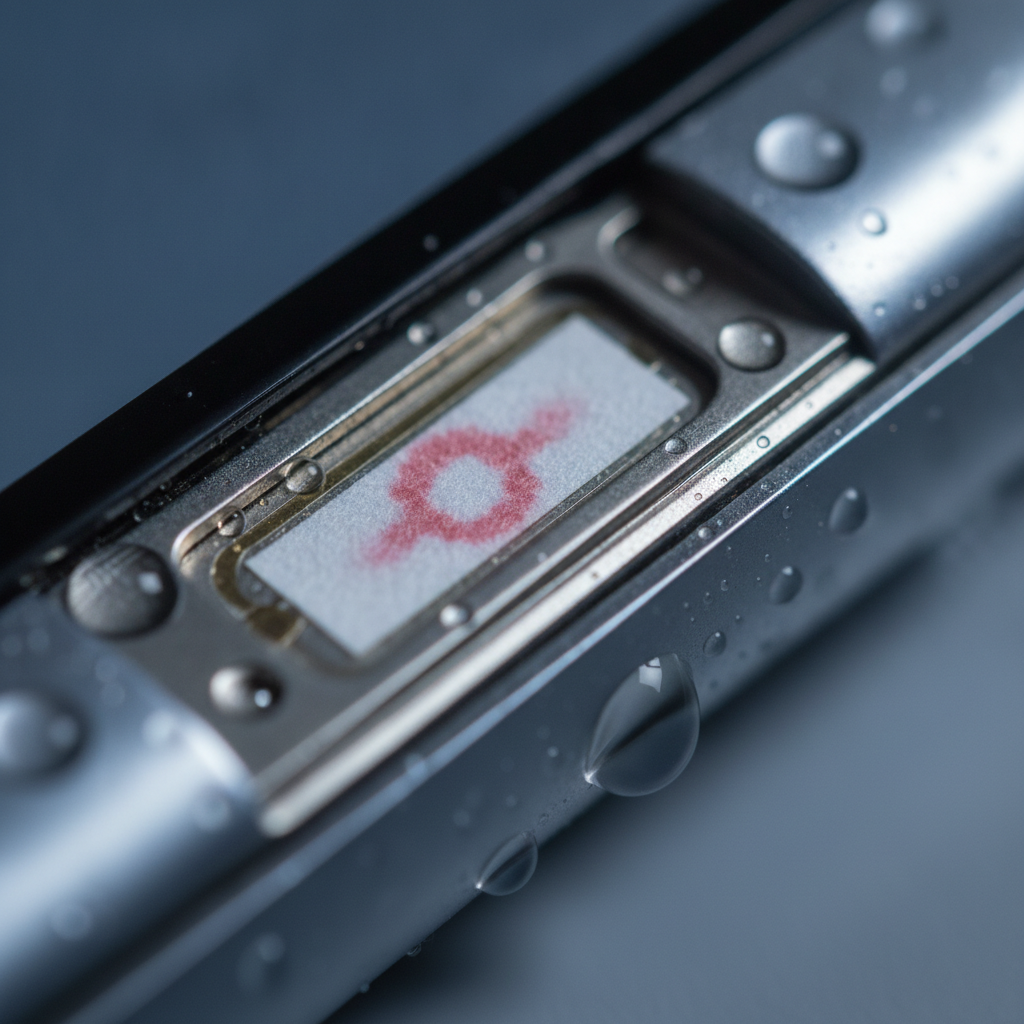
- Common symptoms: foggy camera glass, distorted audio, ghost touches, battery drain, “liquid detected” alerts, and no-charge behavior.
- Time factor: The earlier you stop current and start drying, the better the outcome.
In our Southview bench work, we often see phones that stayed powered after a splash. Turning the device off immediately reduces short-circuit risk and slows corrosion pathways.
Prerequisites before you begin
Before any DIY rescue, secure your data credentials, prepare a clean, static-safe workspace, and gather desiccants and a gentle airflow source. Confirm you can power the device off safely. If it’s hot, hissing, or swelling, isolate it and seek professional help—don’t attempt to charge or open it.
Set yourself up to succeed. A calm, organized approach saves phones more often than frantic moves.
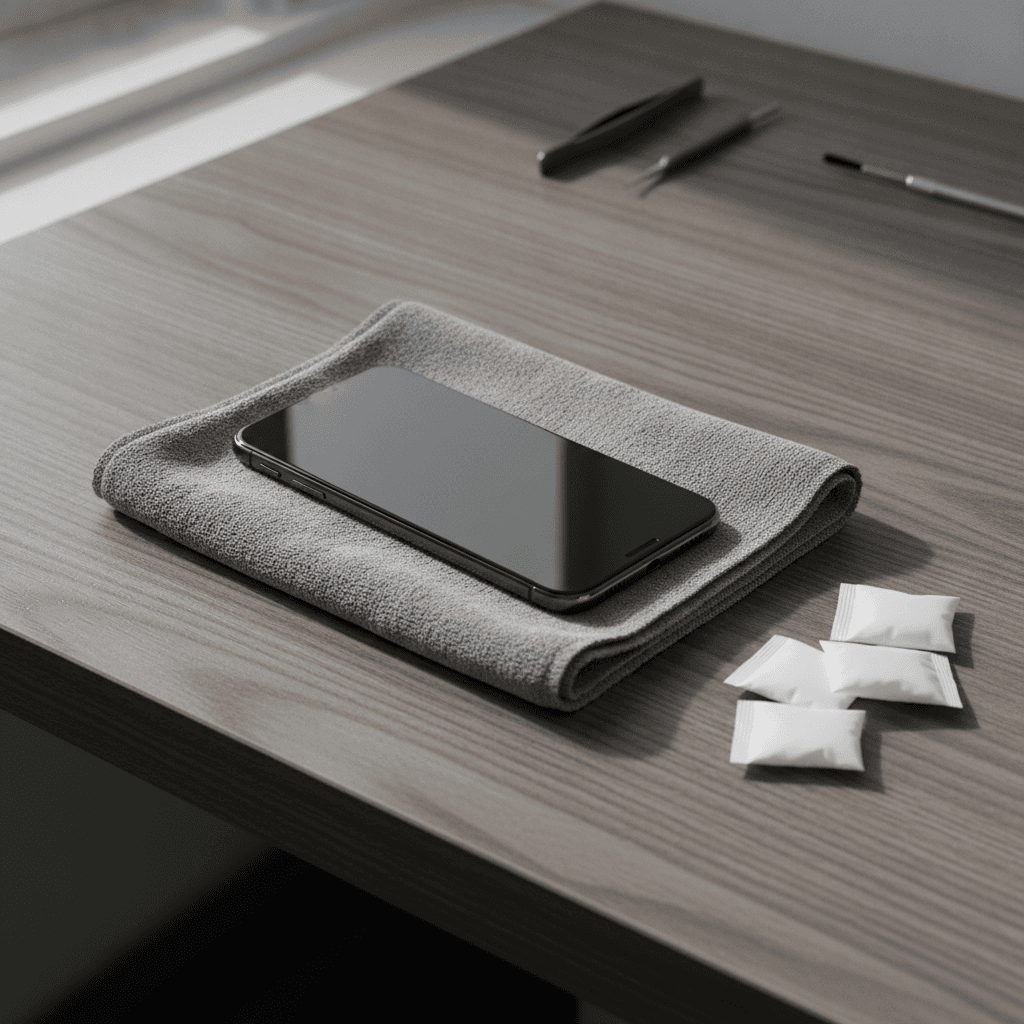
- Workspace: Dry table, paper towels, microfiber cloth, small tray for screws/SIM, and good lighting.
- Materials: Silica gel or purpose-made desiccant packs; isopropyl alcohol (90%+ for pro use); soft brush.
- Tools to avoid: Hair dryers, ovens, radiators, rice, and compressed air—heat and high pressure spread moisture.
- Accounts: Have sign-in info ready in case a reset is required later (we help with unlocking and secure password resets in-store).
- Local option: If you’d rather skip risk, our cell phone repair team can triage and document the device the same day.
Safety first: if you notice heat, popping sounds, or swelling, store the device away from flammables and visit a technician promptly.
Water‑damaged phone repair steps (our proven sequence)
Save a wet phone by cutting power, removing external parts, extracting surface liquid, promoting slow evaporation, and reactivating in stages. Document symptoms and, if problems persist, book professional diagnostics for disassembly, corrosion cleanup, and connector testing before normal use.
1) Kill power and stabilize
- Turn the phone off immediately. If it’s frozen, use a force restart to shut down.
- Do not press buttons repeatedly or try to unlock biometrics; extra current can arc across wet traces.
- Remove case, cards, and accessories; keep the phone face up to limit wicking across the display.
2) Evacuate surface liquid
- Blot ports and seams with a microfiber cloth. Don’t rub liquid into grills or lenses.
- Gently tip the device so ports face downward; let gravity assist. Avoid shaking.
- Wick moisture from the SIM tray cavity and charge port with a corner of lint-free paper.
3) Controlled drying
- Place the phone in a ventilated area with gentle airflow. A fan set at a distance works.
- Add silica gel packs around, not on, the phone. Replace packs every few hours if they saturate.
- Avoid direct sun and heat sources; extreme temperatures warp plastics and weaken adhesives.
4) Patience window
- Resist powering on for at least a full day. Trapped moisture under shields needs time to dissipate.
- Inspect lenses for fog and ports for condensation rings before testing power.
- If you see a moisture-detection alert later, let it sit longer before charging.
5) Staged reactivation
- Power on without charging. Note any errors, lines on the screen, or audio issues.
- Test calls, speakers, and cameras. Use speakerphone to check for crackle or muffled sound.
- Only connect a charger once you’re confident ports are dry. If charging fails, stop and seek service.
6) Professional inspection (when to call us)
- Persistent fog, distorted audio, ghost touches, or boot loops point to corrosion or trapped liquid.
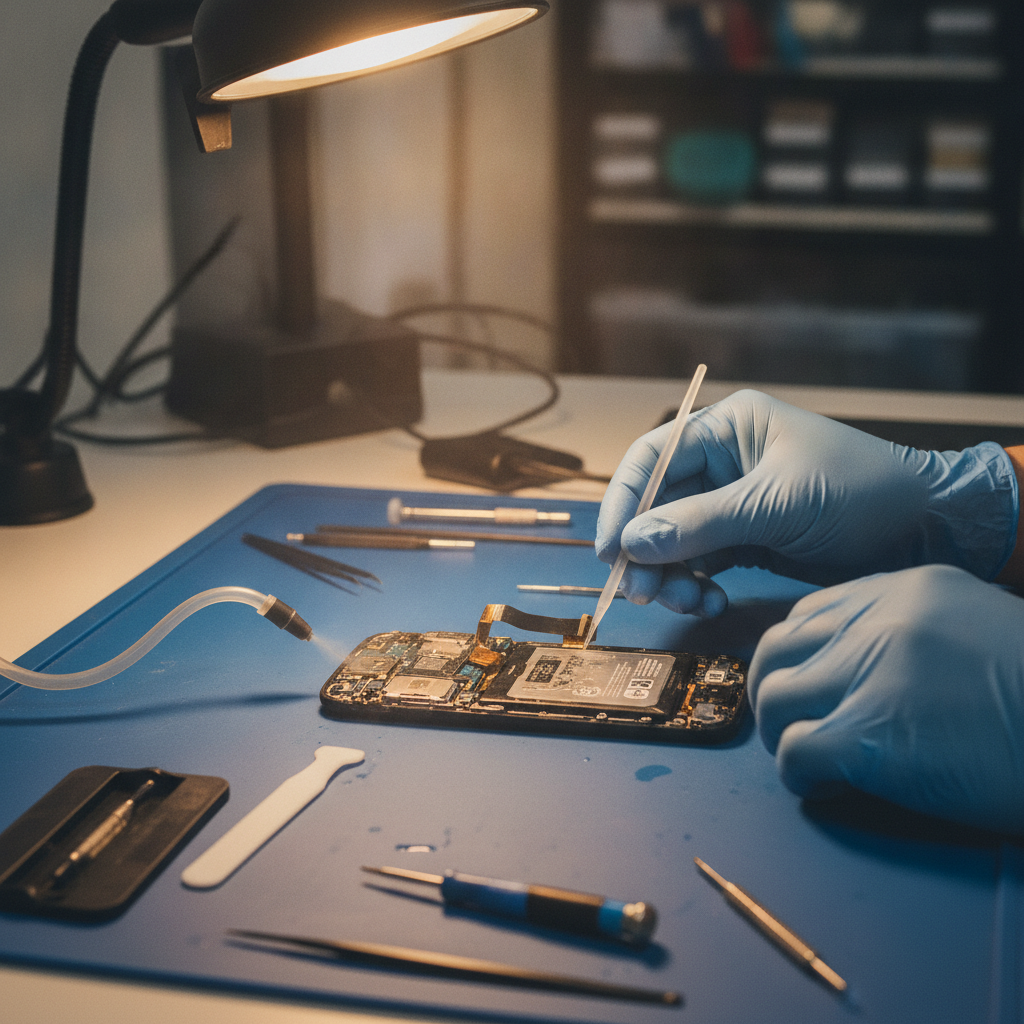
- At TechBrotherz, we disassemble, remove shields, clean affected areas, and test connectors and sensors.
- We support iPhone repair and Samsung Galaxy repair, plus other brands, with a 60‑day warranty on completed repairs.
How phone water resistance actually works
Water resistance relies on gaskets, adhesives, and mesh screens that slow ingress—but they degrade over time. Ratings like IP67/IP68 reflect lab conditions, not real-world wear. After drops or prior repairs, seals may fail early, so post‑splash care still matters even on “water‑resistant” models.
Ratings are guides, not guarantees. A phone that survived a pool last year may fail after a brief rain today if seals aged or a tiny frame bend opened a path.
- Gaskets and adhesives lose elasticity with heat cycles and time.
- Openings like speakers, mics, and SIM trays remain vulnerable entry points.
- Aftermarket screens and prior repairs can weaken the water barrier if adhesives aren’t replaced properly.
We see this weekly in Southview: a light splash causes foggy cameras on phones that once shrugged off a dunk. That’s why the same water damaged phone repair steps apply to both older and newer devices.
Drying myths debunked
Skip rice, heat guns, and shaking. Rice doesn’t pull moisture from under shields, heat warps plastics and spreads liquid, and shaking drives water deeper into microphones and speakers. Choose time, airflow, and desiccants, and let a technician address corrosion you can’t see.
- Rice myth: It may absorb surface humidity but not trapped moisture near components.
- Heat risk: Excess heat degrades gaskets and can delaminate OLED layers.
- Compressed air: Pressure forces moisture beyond seals and mics.
- Best practice: Steady airflow and desiccants. If symptoms remain, professional teardown is the quickest save.
Curious about a step-by-step reference? This rescue guide overview outlines common don’ts that align with what we see on the bench daily.
Troubleshooting after drying
After 24–48 hours of drying, test display, audio, cameras, charging, and wireless functions. Persistent fog, muffled sound, no-charge behavior, or erratic touch point to corrosion or residue. Stop using and book diagnostics—continued use can worsen board damage and raise data‑loss risk.
Screen and touch
- Ghost touches or lines: Possible digitizer or connector corrosion. Document any pattern.
- Haze under glass: Moisture trapped near backlight or camera; avoid heat.
Sound and microphones
- Crackling speaker: Waterlogged mesh or corrosion; test with speakerphone and media.
- Muted mic: Residue in grill; avoid poking with pins—get a safe cleaning.
Charging and ports
- No-charge or alert: Let it dry longer. If alerts persist, internal moisture is likely.
- Intermittent charge: Dock connector or board-level corrosion; don’t force cables.
Wireless features
- Weak Wi‑Fi or Bluetooth: Antenna cable or shield area affected; needs inspection.
- Random reboots: Potential shorting from corrosion under shields.
If any of the above show up, our tablet and phone repair bench can inspect, ultrasonic-clean where appropriate, and test flexes and connectors.
DIY versus professional repair: When to hand it off
DIY is fine for safe shutdown and passive drying. If symptoms persist, or if the phone was submerged in dirty or salty water, professional disassembly and board cleaning give the best chance of recovery. Prior damage, cracked glass, or bent frames tilt the decision toward a repair shop.
| Scenario | DIY Likely OK | Pro Repair Recommended |
|---|---|---|
| Quick splash, no symptoms | Yes — dry and monitor | No — unless alerts persist |
| Submerged in pool or lake | Drying only, no opening | Yes — internal cleanup |
| Cracked screen or prior repairs | Risky — seals compromised | Yes — inspect connectors |
| Battery feels warm or swollen | No | Yes — safety first |
| Moisture alert won’t clear | No | Yes — port diagnostics |
Not sure? Walk in and we’ll check it. No appointment means you get eyes on the issue fast.
How professionals handle liquid damage (inside the bench process)
Shops isolate power, document damage, and open the device to expose shields and connectors. They remove corrosion with controlled solvents, dry assemblies under low heat and airflow, test sub‑systems, and replace affected parts. A final soak test of functions ensures the phone is stable before hand‑off.
At TechBrotherz, our process focuses on data safety and device stability.
- Intake and evidence: We log symptoms, run moisture checks, and photograph internals after opening.
- Cleaning: Targeted corrosion cleanup along flex connectors, docks, and camera interfaces.
- Component testing: Cameras, speakers, mics, antennas, haptics, and power circuits.
- Parts replacement when needed: Ports, speakers, or display assemblies affected by minerals or residue.
- Warranty-backed handoff: Completed repairs are covered by our 60‑day warranty.
Have an iPhone? See our iPhone repair page. Android user? Our Samsung repair page has details for Galaxy models.
Best practices to prevent future damage
Protect your phone with a sealed case, replace gaskets during screen repairs, and keep ports clean. Treat IP ratings as guidance, not permission to submerge. After any exposure, dry thoroughly before charging, and schedule a seal check annually if you spend time around water.
- Protective cases: Use cases rated for splashes if you run, bike, or fish regularly.
- Repair right: When replacing a screen, ensure adhesives and seals are refreshed.
- Routine checks: Inspect for loose bezels or lens fog; they hint at failing seals.
- Charging discipline: Never charge immediately after exposure—even if the phone “seems” dry.
- Backup habit: Keep cloud backups on; liquid damage is unpredictable.
We often combine a seal check with other services. While you’re in for iPad repair or tablet repair, we can assess speaker mesh and port condition.
Tools and resources you can use today
Create a simple kit: microfiber cloths, silica gel packs, a small desk fan, and a clean tray for SIM and parts. Keep it where spills are likely. For deeper learning, review practical rescue outlines and water‑resistance explainers from reputable electronics resources.
- Home kit items: Microfiber cloths, desiccant, and a low-speed fan.
- Reference reads: A practical step-by-step overview plus this perspective on how water‑resistant phones behave.
- Local help: For Southview residents, our walk‑in diagnostics get you answers quickly.
Real examples from our Southview bench
Three quick saves show the pattern: fast shutdown, passive drying, then targeted cleanup restore key functions. Delayed action leads to corrosion and recurring issues. The earlier you stop current and remove moisture, the higher your odds of a full recovery.
Example 1: Rain-soaked run
- Situation: A runner got caught in a downpour near Southview; phone showed a moisture alert.
- Actions: Powered off, air-dried 36 hours, then brought it to us.
- Outcome: Port cleaning plus light corrosion removal; normal charging restored.
Example 2: Kitchen sink slip
- Situation: Brief submersion; camera fogged and speaker crackled.
- Actions: Followed the drying steps; symptoms persisted.
- Outcome: Disassembly and corrosion cleanup near speaker mesh; audio cleared.
Example 3: Trail splash with a prior screen swap
- Situation: Bike splash; aftermarket display from another shop.
- Actions: Device dried but kept ghost touching.
- Outcome: We reseated the display cable, replaced degraded adhesive, and stabilized touch.
Walk in to TechBrotherz for same-day diagnostics and a 60‑day warranty on completed repairs. iPhone, Samsung, and other major brands supported.
Get a quick device check
FAQ: Water‑damaged phone repair steps
Turn it off, remove accessories, blot, and air‑dry with desiccants. Don’t heat or charge. Test after a day or two. If you see errors, fog, or reboots, stop using it and get professional diagnostics to prevent deeper corrosion and potential data loss.
Should I put my phone in rice?
No. Rice can’t pull moisture from under shields or connectors and dust can enter ports. Use gentle airflow and silica gel instead. If symptoms remain after drying, have a technician clean and inspect ports and connectors.
How long should I wait before turning it back on?
Wait at least 24 hours, then test in stages without charging. If you still see moisture alerts or foggy lenses, give it more time or seek a professional inspection to check for trapped liquid and corrosion.
My phone shows a liquid-detected alert. What now?
Disconnect the charger and let the device dry longer. Don’t force charging. If the alert keeps returning, the port or internal connectors may be damp or corroded. Visit a repair shop for a safe cleaning and diagnostic test.
Is water damage covered by warranties?
Manufacturer warranties typically exclude liquid damage. However, reputable local shops provide coverage on completed repairs. At TechBrotherz, eligible repairs include a 60‑day warranty from completion.
Key takeaways
Act fast, avoid heat, and dry with time and airflow. Test in stages and seek help if symptoms persist. Professional corrosion cleanup and port service greatly improve your chances of a stable, long‑term fix.
- Power down and stabilize immediately.
- Blot, use airflow and desiccants—skip rice and heat.
- Wait before charging; test functions step by step.
- Recurring alerts or fog mean it’s time for professional service.
Get help in Southview today
Walk into TechBrotherz for same‑day diagnostics and a clear plan to recover your water‑exposed phone. We service iPhone, Samsung Galaxy, and other brands, and we back completed repairs with a 60‑day warranty so you can get back to normal confidently.
We’re set up for quick triage with no appointment. Explore cell phone repair, iPhone repair, Samsung Galaxy repair, iPad repair, and tablet repair services from a single Southview location.
Related pages
Rather just ask a person?
Call (403) 273-8324 and describe the problem, or walk in to 3317 17 Ave SE in Calgary. Every repair is quoted free before any work starts.