
Blog
Water Damage Diagnostics: Repair, Recover, or Replace?
Learn how liquid damage diagnostics works for phones and computers in Calgary, what symptoms mean, and how to choose repair, recovery, or replacement.
After liquid contact, switch the device off, disconnect power, and stop testing or charging it. Water damage diagnostics builds a decision picture from the exposure, power state, symptoms, ports, battery, display, storage, and other affected components before you choose cleaning, repair, data recovery, or replacement.
Key facts
- Published: August 17, 2026
- Last updated: October 29, 2026
- Reading time: 9 min read
- Questions about your own device: Call (403) 273-8324
Last updated
Water Damage Diagnostics: Repair, Recover, or Replace?
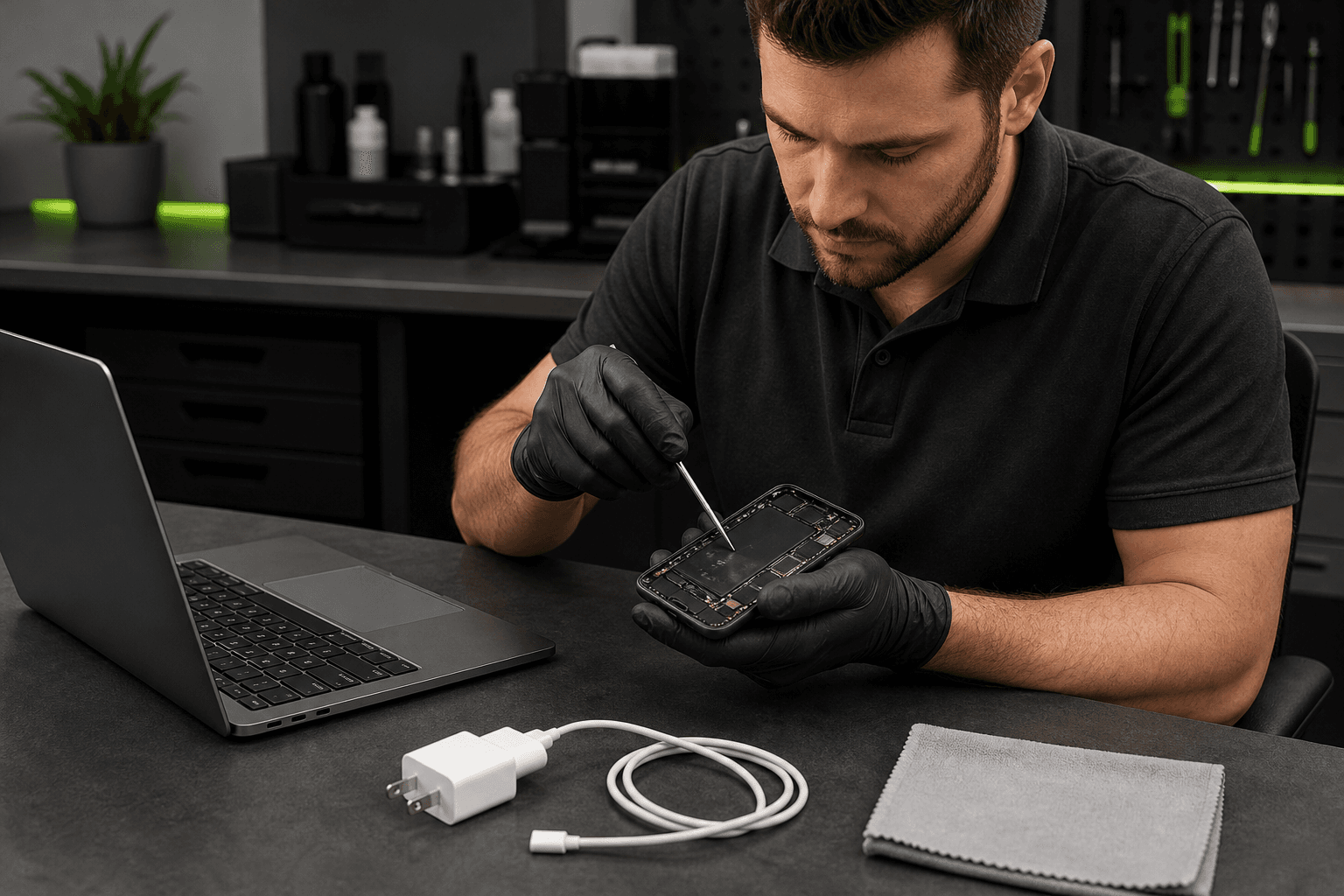
Published by TechBrotherz at TechBrotherz, the walk-in repair Store at 3317 17 Ave SE in Calgary. August 17, 2026, updated October 29, 2026.
No article on this site is paid for or sponsored. For a quote on your own device, call (403) 273-8324.
A device can still ring, boot, or appear normal while liquid affects a charging circuit, connector, camera, keyboard, or logic board. The useful question is not simply whether it got wet, but which functions have failed, what remains usable, and which next step protects your data and your budget.
What to Do Immediately After a Spill
Remove the charger, dock, USB accessories, headphones, and other external connections. If the device is still on and responds normally, shut it down through its operating system. If it is already off, leave it off instead of turning it on to test whether it recovered.
- Move it away from the liquid. Keep the device still on a dry surface.
- Remove external accessories. Disconnect cables, cases, memory cards, and removable batteries where this can be done without forcing anything.
- Dry the outside only. Blot visible liquid with a lint-free cloth. Do not push tools, paper, or cotton swabs into ports.
- Record what happened. Note the liquid, approximate time, whether the device was powered or charging, and which functions changed first.
- Stop improvised testing. Do not repeatedly press the power button, connect a charger, apply direct heat, or use a method that pushes liquid farther inside.
Drying time is not a reliable indicator that internal damage has resolved. A computer or phone can look dry on the outside while moisture or residue remains around connectors and boards, so persistent symptoms should lead to an assessment instead of another round of charging.
For phones, failure to boot, continuing charging problems, or persistent camera fog after water exposure are reasons to seek professional repair instead of continuing troubleshooting.
Symptoms That Point to Liquid Damage
Liquid damage does not have one universal symptom. The combination of the incident, timing, and affected function is more useful than any single sign.
| Symptom | What it may involve | Safest next step |
|---|---|---|
| No power or sudden shutdown | Battery, power circuit, board, or internal short | Do not keep trying to boot it. Arrange diagnostics. |
| Charging fails or works intermittently | Port, cable contact, charging circuit, battery, or residue | Disconnect power and stop repeated cable tests. |
| Foggy camera or lens | Moisture inside the camera area or behind the lens | Stop using the camera and seek assessment if fog persists. |
| Heat, odour, smoke, or unusual fan activity | Electrical fault, contamination, or stressed component | Disconnect power and stop using the device immediately. |
| Flickering, lines, dark areas, or distorted display | Display assembly, connector, or board damage | Stop prolonged use and seek service. |
| Keyboard, trackpad, touch, or button failure | Input assembly, connector, or board contamination | Shut down and do not press affected keys repeatedly. |
| Intermittent operation or random restarts | Corrosion, unstable power, storage, or board-level fault | Stop relying on the device and arrange a controlled assessment. |
| Missing audio, microphone, or speaker function | Port, mesh, microphone, speaker, or liquid residue | Record the symptom and avoid inserting anything into openings. |
A phone that still rings is not necessarily healthy, and a laptop that boots is not necessarily safe to keep using. Water exposure symptoms can appear later as corrosion or residue affects a connection.
How Phones, Tablets, Laptops, and Desktops Differ
The device category changes what a technician needs to inspect and what you should prioritize. Phones concentrate concerns around the charging port, battery, cameras, display, microphones, and compact board. Tablets have similar systems but often a larger battery, wider display assembly, and fewer practical inspection points.
A phone that continues to ring but shows no image points the assessment toward the display path, connector, or board instead of automatically proving the battery is dead. A tablet that charges only when the cable is held at an angle may have a contaminated or damaged port, but repeated charging attempts can add stress.
Laptops add a keyboard, trackpad, larger display cable, charging system, storage, cooling system, and battery connection. A desktop may receive liquid through front or rear ports, ventilation openings, the keyboard, or the power area, so the spill location does not identify the failed component.
If a phone contains irreplaceable photographs, or a computer holds work files that are not backed up, tell the technician before testing begins. The plan may need to prioritize stable access and data preservation.
What Professional Water Damage Diagnostics Determines
A diagnostic assessment identifies what failed, what remains usable, and what work is justified. It is not automatic approval for cleaning, part replacement, board repair, data recovery, or a new device.
The incident and power history
The liquid type, approximate volume, exposure time, device position, and whether it was plugged in provide useful context. Water, coffee, soft drinks, salt water, and other liquids can leave different residues.
External condition and entry points
The assessment can begin with the charging port, speakers, microphones, buttons, keyboard, vents, seams, and display edges. The technician looks for residue, trapped moisture, staining, lifted parts, corrosion indicators, and signs that liquid reached a deeper area.
Power, charging, and battery behaviour
Testing considers whether the device powers on, accepts a charge, holds power, restarts, becomes hot, or behaves differently with a known-good accessory. These observations help separate a port problem from a battery or power-circuit fault.
Functional components and data access
Depending on the device, testing may include the display, touch input, keyboard, trackpad, cameras, speakers, microphones, Wi-Fi, storage, and operating-system behaviour.
For laptops and desktops, computer diagnostics can help identify whether the fault is limited to an input, port, power system, display path, storage device, or board. The next step depends on what inspection finds, not simply on the fact of liquid exposure.
Cleanup, repair, recovery, or replacement
Cleanup addresses contamination or residue. Repair addresses a confirmed failed component or connection. Data recovery becomes the priority when file access matters more than restoring every function. Replacement may be considered when damage is extensive, parts are unavailable, or repair no longer offers practical value.
What Changes Repairability and the Quote
There is no responsible single price for computer water damage before assessment. Two devices exposed to the same spill can receive different recommendations because their model, power state, affected components, and data priorities differ.
- Liquid type: Residue changes cleaning and inspection requirements.
- Exposure duration: Longer exposure can increase corrosion or contamination.
- Power state: A device operating or charging during exposure may need closer power-circuit testing.
- Corrosion and residue: These can affect connectors and board contacts.
- Device model: Construction, battery design, access, and component layout vary.
- Parts availability: Repair depends on compatible parts and reasonable value.
- Number of affected systems: A failed port differs from simultaneous display, battery, keyboard, and board symptoms.
- Data priority: A data-focused plan may require different handling.
TechBrotherz states that computer jobs are quoted per project instead of per hour, with the price agreed before work begins. Its computer service information also states that a diagnostic fee is deducted from the repair if you proceed. This should not be assumed to apply to every phone, tablet, or liquid-damage situation without confirmation. Related reading: Screen Protector Selection for Every Phone Type.
Can a Water-Damaged Computer Be Repaired?
Sometimes, but the answer depends on inspection. A computer that boots may need targeted work, while one showing heat, odour, unstable power, keyboard failure, display faults, or random shutdowns needs a cautious assessment before normal use.
- If it will not power on: Stop pressing the power button and prioritize diagnostics or data planning.
- If it becomes hot or smells unusual: Disconnect power and stop using it.
- If it charges intermittently: Do not keep reconnecting the charger to find a working angle.
- If the keyboard or trackpad fails: Shut down if possible and report which inputs stopped responding.
- If the screen flickers or shows lines: Stop prolonged use.
- If it boots and your files matter: Tell the technician that data access is a priority.
Drying alone does not prove that a computer is safe or that corrosion has stopped. Assessment distinguishes a recoverable functional fault from a situation where data access, component repair, or replacement is the better objective.
What to Bring to a Calgary Diagnostic Visit
Bring the affected device and its normal charger or power adapter. For a desktop, ask whether the tower is sufficient for intake, since testing equipment may be available.
- The device, charger, adapter, dock, or unusual cable involved.
- The liquid type and approximate exposure time.
- Whether the device was on, asleep, off, or charging.
- The first symptom and every function that changed afterward.
- Steps already attempted, including charging, restarting, cleaning, or opening the device.
- Your priority: restore use, preserve files, retrieve data, or compare repair with replacement.
TechBrotherz is a walk-in phone and computer repair store at 3317 17 Ave SE in Calgary. The shop states that no appointment is needed, quotes are provided before work starts, and most repairs take about 30 minutes generally. That timing is not a promise for liquid-damage diagnostics or repair.
The shop lists laptop water-damage cleanup and data recovery, along with phone, iPad, laptop, desktop computer, and tablet repair. Repairs carry a 60-day warranty according to its service information. Ask which parts of the repair and follow-up the warranty applies to.
For a broader explanation of assessment before restoration work, see this water damage assessment guide.
Questions to Ask Before You Approve the Next Step
- What component or function failed testing?
- Was liquid residue or corrosion found, and where?
- Is the recommendation cleanup, repair, data recovery, or replacement?
- What does the quote include, including parts and labour?
- Does protecting or retrieving data change the plan?
- What happens if additional damage appears?
- Is the diagnostic charge separate, and is it deducted if repair proceeds?
- What warranty applies, and what does it exclude?
These questions help you approve a defined scope instead of authorizing an open-ended attempt to make the device work again.
Water Damage Diagnostics FAQ
How can I check for water damage in a laptop?
Note the incident and symptoms, inspect the exterior for residue or moisture, and look for no power, charging failure, keyboard or trackpad faults, display problems, heat, odour, random restarts, or intermittent operation. Do not continue charging it to see whether the problem clears. A technician can inspect ports, battery, connectors, display paths, input assemblies, storage behaviour, and corrosion.
How much does it cost to fix a computer with water damage?
Cost depends on the liquid, exposure time, power state, corrosion, model, affected components, parts availability, diagnostic complexity, and data priorities. TechBrotherz quotes computer work per job instead of per hour and states that the diagnostic fee is deducted from the repair if you proceed.
How long should I wait for a water-damaged computer to dry?
There is no universal waiting period that proves a computer is dry or safe. Keep it powered off and disconnected instead of using time as permission to restart it. Heat, odour, charging trouble, no power, or intermittent operation calls for diagnostics.
Can a water-damaged phone or computer still be repaired?
It may be repairable, but inspection is required. The outcome depends on affected components, corrosion, model, parts availability, and whether your priority is restored function or data access.
What should I bring to a water damage diagnostic appointment?
Bring the device, charger or power adapter, liquid type, approximate exposure time, power state, first symptom, steps attempted, and your priority. TechBrotherz accepts walk-ins at 3317 17 Ave SE in Calgary.
Choose the Next Step From the Diagnostic Findings
The assessment should leave you with three practical answers: what failed, what can still be protected, and whether repair offers enough value for this device. Use those answers to choose targeted repair, data-focused work, or replacement instead of authorizing an undefined repair attempt.
For a Calgary walk-in assessment of liquid-exposed equipment, bring it to TechBrotherz and ask about computer diagnostics.
Related pages
Rather just ask a person?
Call (403) 273-8324 and describe the problem, or walk in to 3317 17 Ave SE in Calgary. Every repair is quoted free before any work starts.