
Blog
How Do You Know Your MacBook Needs a Battery Replacement?
Learn how to assess MacBook battery symptoms, spot swelling, compare service options, and prepare for a safe replacement in Calgary with confidence.
A MacBook that drains quickly, shuts down unexpectedly, or will not charge may need battery service, but those symptoms do not prove the battery is the only problem. The safest approach is to identify the exact MacBook model, document what is happening, check for physical damage, and compare suitable service options. Apple confirms that built-in batteries in MacBook, MacBook Air, and MacBook Pro notebooks can eventually require service or recycling because rechargeable batteries have a limited lifespan. Apple’s battery service information explains the general options.
Key facts
- Published: September 7, 2026
- Last updated: October 2, 2026
- Reading time: 6 min read
- Questions about your own device: Call (403) 273-8324
Last updated
How Do You Know Your MacBook Needs a Battery Replacement?
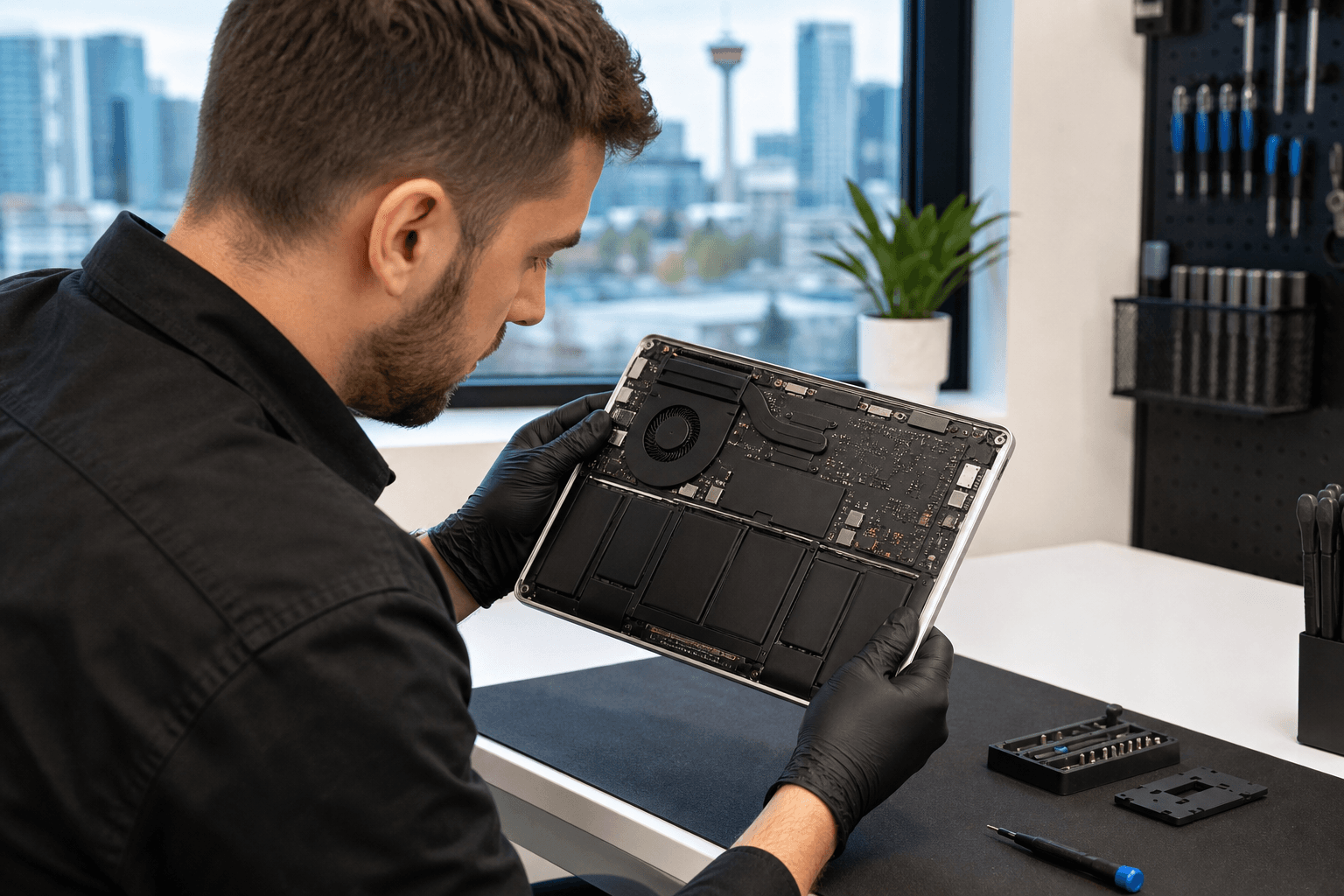
Published by TechBrotherz at TechBrotherz, the walk-in repair Store at 3317 17 Ave SE in Calgary. September 7, 2026, updated October 2, 2026.
No article on this site is paid for or sponsored. For a quote on your own device, call (403) 273-8324.
Quick summary

- Identify the exact MacBook model before asking for a price or confirming compatibility.
- Record rapid drain, charging problems, unexpected shutdowns, heat, and physical changes.
- Stop using and charging the MacBook if the case is lifting, the trackpad is bulging, or the battery appears swollen or damaged.
- Compare Apple service, a model-specific DIY kit, and local repair based on safety, coverage, tools, convenience, and warranty terms.
- Back up important files when it is safe, then confirm parts, pricing, timing, testing, and warranty details.
Step 1: Identify Your Exact MacBook Model
There is no single battery that fits every Apple notebook. MacBook, MacBook Air, and MacBook Pro models can differ in battery design, compatibility, and service requirements. Before contacting a provider, collect the model name, screen size, approximate purchase year, serial number if available, and macOS version.
If the MacBook turns on, identifying information is usually available under Apple menu > About This Mac. If it will not start, check the underside or purchase records. Do not keep handling it if you see swelling or physical damage; go directly to Step 3.
Step 2: Record the Symptoms Before Assuming the Battery Is the Cause

Specific observations help a technician determine whether the battery is likely responsible or whether the charger, charging port, software, or another hardware component may be involved.
- Rapid drain: The battery percentage falls much faster than it used to.
- Unexpected shutdowns: The MacBook turns off while charge remains.
- Charging problems: It does not charge, charges intermittently, or works only while plugged in.
- Reduced runtime: It no longer lasts through your normal work away from an outlet.
- Physical changes: The case, keyboard, trackpad, or bottom panel appears to lift or change shape.
- Heat or unusual behaviour: The device becomes unusually hot or behaves differently while charging.
These signs justify an assessment, not an automatic replacement. A faulty charger, damaged port, software issue, or other hardware fault can produce similar symptoms.
Step 3: Stop Immediately if the Battery Looks Swollen or Damaged
Safety stop: If the case is lifting, the trackpad is bulging, seams are separating, or you notice unusual heat, smoke, odour, or visible battery damage, stop using and charging the MacBook. Do not press the case back into place, puncture the battery, open the computer, or attempt removal yourself. Arrange qualified service instead.
Do not put a visibly damaged MacBook in household waste or a recycling bin. Apple notes that rechargeable batteries eventually require service or recycling. If there is smoke, fire, or an immediate hazard, move away and contact the appropriate emergency service.
Step 4: Check AppleCare or Other Existing Coverage
Before choosing a repair route, check whether your MacBook has AppleCare or another applicable plan. Apple’s Canada AppleCare information describes battery service when a Mac battery retains less than 80 percent of its original capacity, subject to plan terms. Verify your own coverage, fees, and exclusions rather than assuming eligibility.
Check AppleCare battery coverage details before authorizing service.
Step 5: Compare the Three Replacement Routes
| Option | What to consider | Best fit when |
|---|---|---|
| Apple or an Apple Authorized Service Provider | Professional inspection and an explanation of service options. Confirm eligibility, cost, timing, and data-handling requirements. Review Apple Mac repair options. | You prefer an Apple-supported route or may have applicable coverage. |
| DIY replacement | Kits vary by model and may include tools and instructions. Exact compatibility is essential, and mistakes can damage the computer or create a safety risk. Review an example of model-specific kits. | You have the correct kit, suitable skills, and no swelling or safety concern. |
| Local repair provider | An in-person provider can assess the MacBook and explain current parts, pricing, timing, testing, and warranty terms. Confirm each detail rather than assuming it. | You want help with a built-in battery or a convenient Calgary assessment. |
Do not choose based on a general online price. Compatibility, parts, labour, and total cost depend on the exact model and the computer’s condition.
Step 6: Prepare the Information a Repair Provider Needs
Prepare the exact model and serial number if available, symptoms and start date, charging behaviour, shutdowns, heat or swelling, any drop or liquid exposure, coverage details, backup status, and timing constraints.
Before authorizing work, ask whether the battery is confirmed as the cause, whether the proposed part matches the model, what the total cost is, whether the part is available, what timing to expect, what testing will be completed, and what warranty applies. For local laptop service, review TechBrotherz’s computer and laptop repair information.
Step 7: Confirm the Calgary Repair Details Before Visiting
TechBrotherz is a local electronics repair shop at 3317 17 Ave SE in Calgary. Its listed services include computer and laptop repair, and it accepts walk-in repairs without an appointment during posted business hours. The shop serves Calgary and nearby communities including Chestermere and Airdrie, and states that repairs are backed by a 60-day warranty.
These general details do not confirm availability for every MacBook model. Provide the model and symptoms before travelling, and confirm current parts availability, price, estimated timing, testing, and the exact warranty terms.
Step 8: Back Up Important Data and Confirm the Finished Repair
If the MacBook is operating safely, back up important files before service. If the battery is swollen, damaged, unusually hot, or otherwise unsafe, do not keep using it to create a backup. Ask the provider what preparation is required.
After service, check that the MacBook starts normally, recognizes and charges the battery, and has a properly seated case, keyboard, trackpad, and bottom panel. Confirm the charger works, important files and access are intact where applicable, and you have written service and warranty details. Report any remaining problem promptly.
Conclusion: Choose the Safest Model-Specific Next Step
Fast drain, charging problems, and unexpected shutdowns justify an assessment, but they do not prove that the battery needs replacement. Identify the model, document symptoms, check coverage, and compare Apple service, a properly matched DIY kit, and local repair. If the case is lifting or the battery appears swollen or damaged, stop using and charging the computer and seek qualified help.
For MacBook battery replacement in Calgary, Calgary SE, Chestermere, or Airdrie, TechBrotherz offers walk-in computer and laptop repair at 3317 17 Ave SE during posted hours. Visit TechBrotherz with the model and symptoms available, and confirm pricing, availability, timing, testing, and warranty details before authorizing service.
Related pages
Rather just ask a person?
Call (403) 273-8324 and describe the problem, or walk in to 3317 17 Ave SE in Calgary. Every repair is quoted free before any work starts.