
Blog
iPhone Stuck on the Apple Logo: Safe Steps Before Repair
iPhone stuck on the Apple logo? Follow safe restart and recovery steps, understand data risks, and prepare for a Calgary repair assessment at TechBrotherz.
If your iPhone is stuck on the Apple logo, check whether the progress bar is moving, test the charger, and use the correct force-restart method for your model before seeking repair. A force restart does not intentionally erase your data, but recovery-mode Restore does. Stop sooner if the phone is hot, swollen, wet, physically damaged, or repeatedly restarting.
Key facts
- Published: November 17, 2026
- Last updated: November 17, 2026
- Reading time: 8 min read
- Questions about your own device: Call (403) 273-8324
Last updated
iPhone Stuck on the Apple Logo: Safe Steps Before Repair
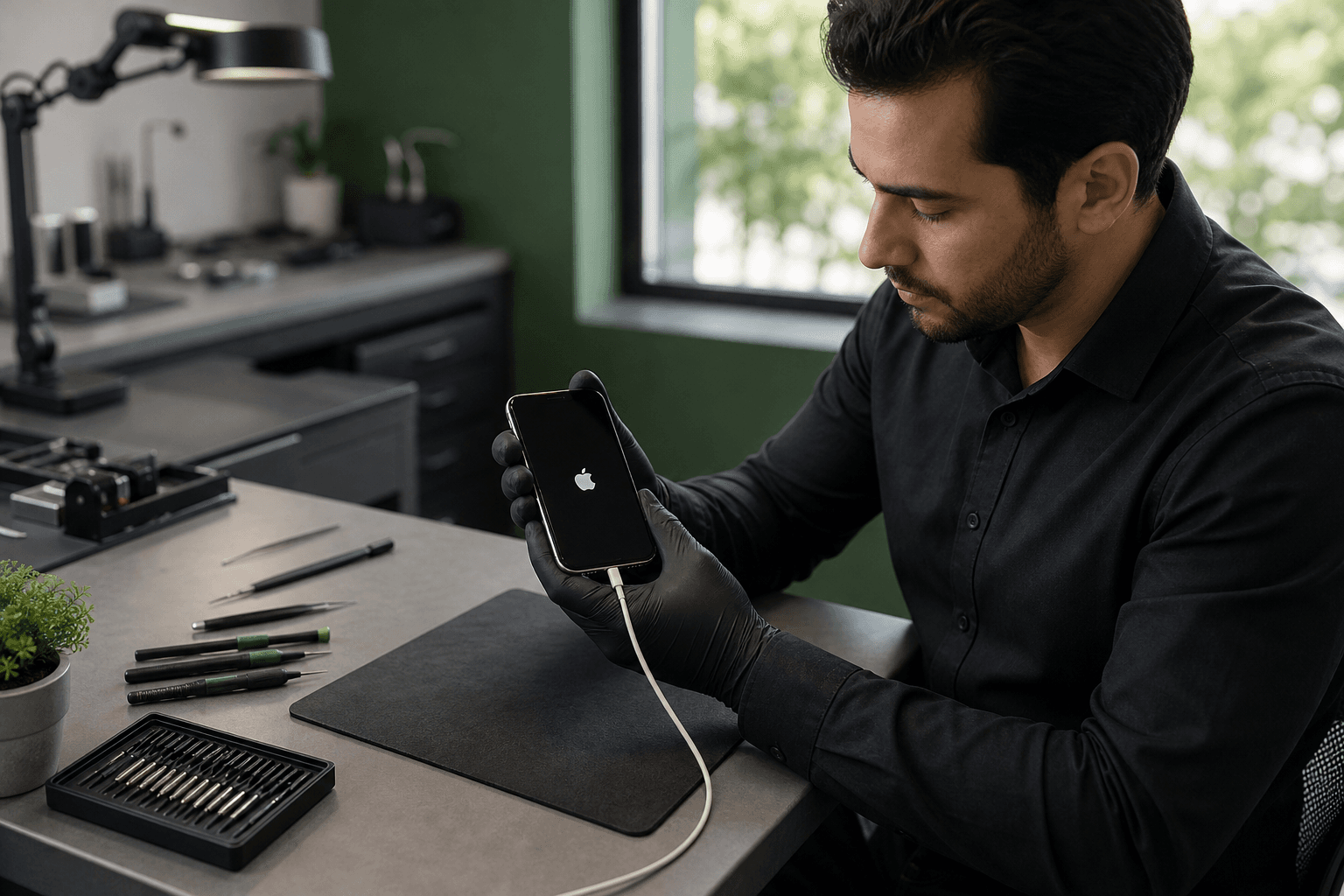
Published by TechBrotherz at TechBrotherz, the walk-in repair Store at 3317 17 Ave SE in Calgary. November 17, 2026.
No article on this site is paid for or sponsored. For a quote on your own device, call (403) 273-8324.
What to do first when your iPhone is stuck on the Apple logo
Look closely at the screen before pressing buttons. A frozen logo, a logo followed by shutdown, and a logo with a moving progress bar are different symptoms.
- Check for progress. If the bar is moving, leave the iPhone connected to reliable power and allow the process to finish.
- Check for danger. If the phone is unusually hot, swollen, wet, cracked around the housing, or smells unusual, stop charging and troubleshooting.
- Identify the model. Force-restart buttons differ between iPhone generations.
- Try one correct force restart. Follow the instructions below instead of pressing random combinations repeatedly.
- Record the result. Note whether the logo stays on screen, disappears, or returns in a cycle.
If the phone starts normally, back it up immediately. If the Apple logo returns repeatedly, treat it as a boot-loop symptom and move to diagnosis.
Triage the symptom before choosing a fix
The pattern suggests the safest next step, but it does not prove which component has failed.
| What you see | Best next step | What it may point to |
|---|---|---|
| Progress bar is moving | Keep the phone on reliable power and wait | An update or startup process still running |
| Frozen Apple logo with no progress | Try one correct force restart | A temporary freeze or deeper startup fault |
| Logo appears, disappears, then returns | Record the cycle and stop repeated attempts | Software, power, battery, or hardware trouble |
| Problem began during or after an update | Consider recovery mode after reviewing data risks | An incomplete update or software failure |
| No logo or charging response | Test a known-good cable, adapter, and wall outlet once | Depleted battery, charging path, display, or internal fault |
| Recent drop, liquid exposure, heat, or physical damage | Stop troubleshooting and arrange assessment | Possible physical or liquid-related damage |
If the iPhone shows the logo and turns off repeatedly, it is not simply an unresponsive screen. It needs a careful decision about recovery mode or hands-on diagnosis.
Try the correct force restart for your iPhone model
A force restart interrupts a frozen operating state and asks the iPhone to start again. It does not reinstall iOS, remove your passcode, or intentionally erase photos, messages, apps, or other data.
iPhone 6s or earlier
Press and hold the Home button and the side or top button together. Keep holding until the Apple logo appears, then release. This is the method for an iPhone 6 stuck on the Apple logo.
iPhone 7 or iPhone 7 Plus
Press and hold the side button and Volume Down together until the Apple logo appears.
iPhone 8, iPhone SE second generation and later
Press and quickly release Volume Up. Press and quickly release Volume Down. Then hold the side button until the Apple logo appears.
iPhone X and later
Use the same sequence as the iPhone 8: Volume Up, Volume Down, then hold the side button.
One force restart can clear a temporary freeze. It will not repair a damaged charging circuit, worn battery, liquid damage, failed update, or other hardware fault.
Check charging without creating a repair problem
A completely depleted iPhone can show the Apple logo briefly before shutting down. A charging check is useful when there is no recent drop or liquid exposure and the phone is not hot.
- Use a known-good wall outlet.
- Try a cable and adapter that reliably charge another compatible device.
- Inspect the cable for fraying or bent connectors.
- Leave the iPhone connected for a short charging period before trying one force restart.
- Note whether it shows a charging symbol, stays blank, or reaches the Apple logo and shuts down.
Do not push objects into the charging port or scrape inside it. Debris, a damaged port, a weak battery, and software failure can produce similar symptoms.
If the phone becomes hot while charging or restarting, unplug it and stop. Read what to do when an iPhone gets hot for related warning signs.
When recovery mode is appropriate
Recovery mode is reasonable when the iPhone remains stuck after a correct force restart, repeatedly shows the Apple logo, or failed during an iOS update. You need a trusted Mac or Windows computer, a suitable cable, and enough time to complete the process.
Connect the computer to power. If the iPhone can still be unlocked, back it up first. Recovery mode is not a guaranteed data-preservation method.
How to enter recovery mode
Connect the iPhone to the computer. Use the force-restart sequence for your model, but keep holding the final button when the Apple logo appears. Release it only when the recovery screen showing a computer or cable appears.
The computer should offer Update or Restore. Update attempts to reinstall iOS without intentionally erasing the device, but it is not a promise that every file will remain accessible. Restore erases the iPhone and reinstalls iOS, so use it only after checking whether a backup exists and understanding the data loss.
Stop if the computer does not recognize the phone, the process repeatedly fails, the device disconnects, or it develops heat or other physical warning signs. Avoid unfamiliar recovery software that requests unusual permissions or account credentials.
Stop troubleshooting if you see these warning signs
Stop charging and pressing buttons if the phone is swollen, unusually hot, wet, visibly damaged, or has a chemical or burning smell. Arrange professional assessment instead of continuing to charge or restart the device.
- Heat: the phone becomes hot while charging or restarting.
- Swelling: the screen or back housing is lifting or no longer sits flat.
- Liquid exposure: the failure followed water, a drink, condensation, or a spill.
- Physical damage: the phone was dropped, bent, crushed, or has damaged glass.
- Repeated boot loops: the logo continuously appears and disappears.
- Computer failure: a trusted computer cannot recognize the iPhone in recovery mode.
A short video of the logo cycle and notes about what happened before the failure can help. If the phone has been restarting more broadly, record the pattern with this iPhone restart symptom guide.
Which repair path might a Calgary assessment investigate?
An Apple-logo symptom does not identify a replacement part. A professional assessment may examine power delivery, the battery, charging port, software state, connectors, display behaviour, or other internal hardware.
| Observed pattern | Possible assessment area | Data concern | Escalation point |
|---|---|---|---|
| Starts after charging and a force restart | Temporary software state or depleted power | Back up if it becomes usable | Seek assessment if it returns |
| Logo repeats after an update | Software recovery, storage, battery, or hardware communication | Try Update before Restore | Stop after repeated failures |
| Logo appears briefly, then shuts off | Battery, charging path, power management, or hardware | Do not assume a battery replacement is the answer | Request diagnosis before approving a part |
| Failure follows a drop or liquid exposure | Connector, display, board, battery, or liquid damage | Avoid continued power | Arrange assessment promptly |
| Computer cannot recognize the phone | Connection, port, power, software, or internal hardware | Do not promise data recovery | Use hands-on diagnosis |
A cracked screen may be separate from the startup failure. If display damage is also present, an iPhone screen repair assessment can establish whether it contributes to the symptom.
What happens at TechBrotherz when an iPhone will not boot?
TechBrotherz provides walk-in iPhone repair at 3317 17 Ave SE in Calgary, with no appointment required. The device can be examined before a repair path is chosen.
Before work begins, the repair is quoted free with the part and labour combined in one figure. Scope and timing are discussed after diagnosis. Many ordinary phone screen and battery repairs take about 30 minutes, but that timing should not be promised for an Apple-logo failure before its cause is understood.
Every repair carries a 60-day warranty on the fitted part and the work performed. Ask what the approved scope covers if the original symptom remains.
Prepare your iPhone for a repair assessment
Bring enough information for the technician to reproduce the symptom:
- The exact iPhone model.
- What happened before the failure, including an update, low battery, drop, or spill.
- Whether the logo stays still, shows a progress bar, or repeats.
- The last charge level and cables or adapters tested.
- A recent iCloud or computer backup status.
- Your passcode only when needed for an agreed diagnostic or functional test. Never provide account passwords.
- Proof of ownership where relevant.
Ask: What did the diagnosis find? What work is included? What data risks apply? What testing happens before pickup? What timing is realistic? Which part and workmanship coverage applies?
If you are ready to visit, see this guide to walk-in phone repair in Calgary.
Questions about an iPhone stuck on the Apple logo
Can a force restart fix an iPhone stuck on the Apple logo?
Yes, it can clear a temporary freeze, but it cannot repair every cause of a boot loop. If the logo returns, seek a specific software or hardware assessment.
Will recovery mode erase my iPhone data?
Entering recovery mode does not itself erase the phone. Update is intended to preserve data, while Restore erases the device. Neither should be treated as risk-free without a backup.
Why does my iPhone show the Apple logo and then turn off?
Possible causes include software failure, an incomplete update, unstable power, a battery issue, or other hardware trouble. The symptom alone cannot identify the cause.
How long does this repair take in Calgary?
Timing depends on the model, diagnosis, repair path, and part availability. TechBrotherz quotes before work starts, and its usual timing for many screen and battery repairs does not automatically apply to a boot failure.
Can I visit TechBrotherz without an appointment?
Yes. TechBrotherz accepts walk-in phone repairs at 3317 17 Ave SE in Calgary.
Choose the next step for your iPhone
If a correct force restart and sensible charging check do not restore normal startup, avoid repeated attempts and choose diagnosis, especially if heat, swelling, liquid, drops, or physical damage are involved. Bring the iPhone to TechBrotherz for a model-specific assessment and free quote before work begins, and review its iPhone repair service when you are ready to plan the visit.
Related pages
Rather just ask a person?
Call (403) 273-8324 and describe the problem, or walk in to 3317 17 Ave SE in Calgary. Every repair is quoted free before any work starts.