
Blog
iPhone Screen Diagnostics for 8 Common Symptoms
Learn how to diagnose iPhone screen problems safely, interpret symptoms, compare testing options, and decide when Calgary repair is the right next step.
iPhone screen diagnostics start with the symptom pattern: cracks and lines point toward physical display damage, while touch failure, ghost touch, flickering, dimness, or a black screen can also involve software, connectors, power, or other hardware. Try only safe checks such as cleaning and restarting, then seek assessment if the fault persists, the screen is unsafe to use, or you cannot navigate the phone. Related reading: Phone Unlocking Service in Calgary: What to Check First .
Key facts
- Published: August 14, 2026
- Last updated: October 29, 2026
- Reading time: 8 min read
- Questions about your own device: Call (403) 273-8324
Last updated
iPhone Screen Diagnostics for 8 Common Symptoms
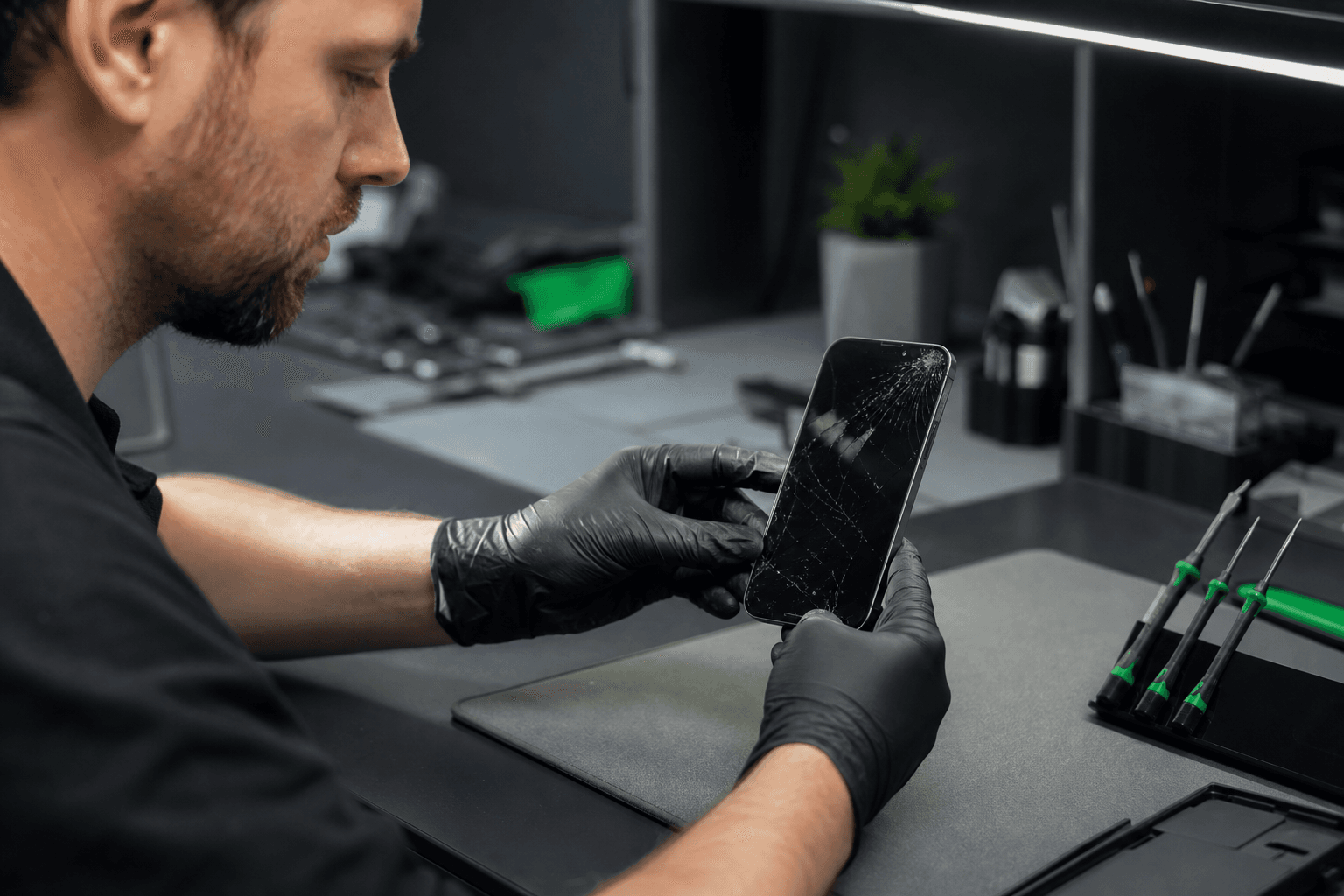
Published by TechBrotherz at TechBrotherz, the walk-in repair Store at 3317 17 Ave SE in Calgary. August 14, 2026, updated October 29, 2026.
No article on this site is paid for or sponsored. For a quote on your own device, call (403) 273-8324.
A screen problem does not automatically mean the complete display assembly has failed. The glass, image panel, touch layer, connectors, battery, operating system, and logic board can produce overlapping symptoms, so collect useful evidence before approving a repair.
Match the Screen Symptom to the Safest Next Step
The quickest way to narrow an iPhone screen problem is to record what you can still see, touch, and control. Use these patterns as a decision guide, not as a final diagnosis.
| Symptom | What it may indicate | Safe next step |
|---|---|---|
| Cracked glass but normal image and touch | Damage to the outer glass, with the display and touch layer still functioning | Back up the phone, avoid pressing the crack, and request an assessment |
| Black spots, dead pixels, or colour patches | Physical damage to the display panel or pressure damage beneath the glass | Photograph the pattern and arrange inspection if it is growing or affecting use |
| One dead touch zone | A damaged touch layer, connection problem, or less commonly a software fault | Test several apps without pressing harder; seek assessment if the same area remains inactive |
| Ghost touch | Screen damage, moisture, an accessory interfering with touch, or software trouble | Remove the case and protector, clean and dry the screen, then stop relying on it if the issue continues |
| Lines, colour streaks, or flickering | Display-panel damage, connector trouble, software behaviour, or another internal fault | Note whether the lines change after a restart; persistent lines need technician-led testing |
| Dim or uneven brightness | Brightness settings, software behaviour, display damage, or power-related trouble | Test brightness settings if possible; arrange assessment if only one region is dim |
| Black screen with sounds or vibration | A display or connection problem, although power and software faults can look similar | Try one normal restart if the phone responds; arrange assessment if the image stays absent |
| Screen lift or separation | Physical damage or a battery-related problem requiring prompt inspection | Stop pressing the screen and seek repair advice |
| Fault appears and disappears | A stressed connection, impact damage, software behaviour, heat, or an intermittent component fault | Record when it happens and whether movement or charging affects it |
For a broader symptom checklist covering ghost touch, dead zones, flicker, colour lines, and dimming, review these iPhone screen replacement signs. That guide helps you recognise damage; this one focuses on interpreting it before approving work.
Safe Checks You Can Do at Home
Home checks can separate an obvious accessory or software problem from a persistent hardware symptom. They cannot confirm which internal component has failed.
- Record the original behaviour. Note when the problem began, whether it followed a drop or liquid exposure, which area is affected, and whether the phone still rings, vibrates, or responds to buttons.
- Remove external interference. Take off a cracked, lifting, wet, or pressing case or screen protector. Disconnect chargers and accessories while testing.
- Clean and dry the surface. Use a soft, dry cloth. Do not press cracked glass, scrape under its edge, or add liquid.
- Test different areas. If touch works, slowly move across a keyboard or drawing area. A repeatable dead zone is more useful evidence than one missed tap.
- Check different brightness levels. Note whether the problem affects the whole display or one region.
- Restart once if the phone responds. A restart can expose a temporary software issue, but it does not repair physical damage.
- Compare the symptom afterward. If it returns, record exactly when instead of repeating the same reset.
A successful restart does not prove the hardware is healthy. Intermittent faults can disappear temporarily.
Which iPhone Diagnostic Method Fits Your Situation?
Different methods answer different questions. Software checks may show that the phone is running, while only physical inspection and functional testing can assess a damaged display or internal connection.
| Method | Useful evidence | Limitations |
|---|---|---|
| Home symptom checks | Whether touch, image, brightness, and fault location change | Cannot confirm the failed component or inspect internal damage |
| Apple Support | Current instructions and support options for the model and situation | This article does not reproduce Apple’s exact diagnostic procedure; support options may differ by device condition |
| Computer-based testing | Connection, recognition, backup, update, or restore clues | Does not prove that the screen, touch layer, connector, or board is faulty |
| Third-party app | Limited touch, sensor, or software information | Cannot reliably confirm a display or board fault; privacy and access considerations apply |
| Technician assessment | Visual inspection, functional testing, symptom interpretation, and a repair recommendation | Timing and test sequence depend on the model, damage, parts, and device condition |
Does an iPhone have a self-diagnostic mode?
There is no single universal self-test that proves every screen fault. A cracked, black, flickering, or touch-disabled screen may require physical assessment. For the current Apple-supported route, use Apple Support instructions for your model and situation.
What does *#33 do on an iPhone?
*#33 is not a screen diagnostic method. It should not be used as evidence that an iPhone display, touch layer, or connector is working.
What is the best app for testing an iPhone?
No app is best for every screen problem. An app can provide limited software or sensor information when the phone works, but it cannot reliably distinguish a failed display from a connector, power, or board fault. Related reading: Screen Protector Selection for Every Phone Type.
What to Do When the Screen Is Black or Cannot Be Used
If the iPhone powers on but shows no image, or touch does not work, ordinary on-screen tests are not practical. Preserve the device state and move to technician-led assessment when navigation is impossible.
- Look for other signs of operation. Note vibration, incoming-call sounds, charging response, computer recognition, and button response.
- Use an existing backup route only if familiar. Record the latest backup status without experimenting with unfamiliar recovery procedures.
- Do not press a lifted or shattered screen. Pressing a separated screen can worsen damage.
- Bring it for inspection. A technician can assess the device without relying on on-screen testing.
How to Interpret Diagnostic Results
The value of a diagnostic is knowing which next step fits the pattern and what remains unconfirmed.
Image is clear, but touch does not work
This points attention toward the touch layer, connector, accessory, or software input handling. If removing the protector and restarting changes nothing, ask for touch-zone testing.
Touch works, but the image is distorted
Lines, black spots, colour patches, flicker, or uneven brightness can indicate display-panel damage, a connector issue, software behaviour, or power trouble. Testing should compare brightness levels and restart behaviour.
Both image and touch are absent
A failed screen assembly is one possibility, but power, connector, software, and deeper hardware faults can look the same. Sounds, vibration, charging behaviour, and impact history help guide assessment.
The fault changes when the phone moves
Movement-sensitive behaviour can involve a stressed display, connector, frame, or board. Do not bend or squeeze the phone to repeat the symptom.
The fault follows impact or liquid exposure
Tell the technician exactly what happened and when. The next step may be screen assessment, connector inspection, or broader hardware diagnosis.
The fault disappears after a restart
A restart makes software troubleshooting reasonable, especially if the symptom stays away. It does not rule out intermittent physical damage, so back up the phone.
What a Professional iPhone Screen Assessment Includes

TechBrotherz offers walk-in phone diagnostics at 3317 17 Ave SE in Calgary. You describe the symptom and device history, and a quote is provided before work begins.
Most repairs take about 30 minutes, although the time depends on the repair and device. Every repair carries a 60-day warranty covering the fitted part and the work done.
Prepare an iPhone for Diagnostics in Calgary
Before visiting, collect these details:
- Exact iPhone model, if possible.
- When the problem started and whether it is constant or intermittent.
- Any drop, impact, liquid exposure, repair, update, or accessory change.
- Affected area, such as one corner, a strip, the keyboard, or the full display.
- Photos of visible cracks, lines, black spots, flicker, or screen lift.
- The cable or accessory if it changes the fault.
- A backup of accessible data. Do not erase the phone unless agreed.
Ask what was tested, what is confirmed, which repair is recommended, the total price, expected timing, and warranty coverage.
Questions iPhone Owners Still Ask About Screen Diagnostics
How do I run an Apple diagnostic test on an iPhone?
Apple’s exact diagnostic instructions can vary by iPhone model and situation. This article does not reproduce Apple’s current procedure. Use Apple Support for the instructions that apply to your device, then arrange physical assessment if the screen is damaged or cannot be operated.
Can Apple Support run a remote diagnostic test?
Use Apple Support to confirm which current support options apply to your iPhone. Do not treat a software or support check as proof that a damaged display, touch layer, connector, or board is healthy.
What should I do if the iPhone screen is too damaged to use?
Stop on-screen testing, preserve any accessible backup, record sounds or vibration, and arrange an in-person assessment. Do not press a lifted or shattered screen back into place.
Can a screen diagnostic tell me whether repair is worthwhile?
It can clarify the likely repair path, expected timing, and quoted price. You can then compare that information with the phone’s age, condition, importance, and replacement options.
Choose the Next Step With the Evidence You Have
If the symptom disappears after safe checks and stays away, back up the phone and monitor it. If cracks, dead zones, ghost touch, lines, flicker, dimness, a black screen, or intermittent failure continues, ask for a diagnosis instead of guessing which part to replace. Calgary readers can bring an iPhone to TechBrotherz for a walk-in iPhone repair assessment at 3317 17 Ave SE.
Related pages
Rather just ask a person?
Call (403) 273-8324 and describe the problem, or walk in to 3317 17 Ave SE in Calgary. Every repair is quoted free before any work starts.