
Blog
Why Is Your iPad Screen Not Responding to Touch? Safe Troubleshooting Steps
Learn how to troubleshoot an iPad screen that is cracked, dark, or not responding to touch, and know when Calgary repair is the safer next step.
iPad screen troubleshooting means narrowing down whether a screen problem comes from an obstruction, software behaviour, cracked glass, the display, the digitizer, or another hardware fault. If your iPad screen is not responding to touch, begin with low-risk checks, but do not assume software can fix physical damage.
Key facts
- Published: July 27, 2026
- Last updated: October 2, 2026
- Reading time: 8 min read
- Questions about your own device: Call (403) 273-8324
Last updated
Why Is Your iPad Screen Not Responding to Touch? Safe Troubleshooting Steps
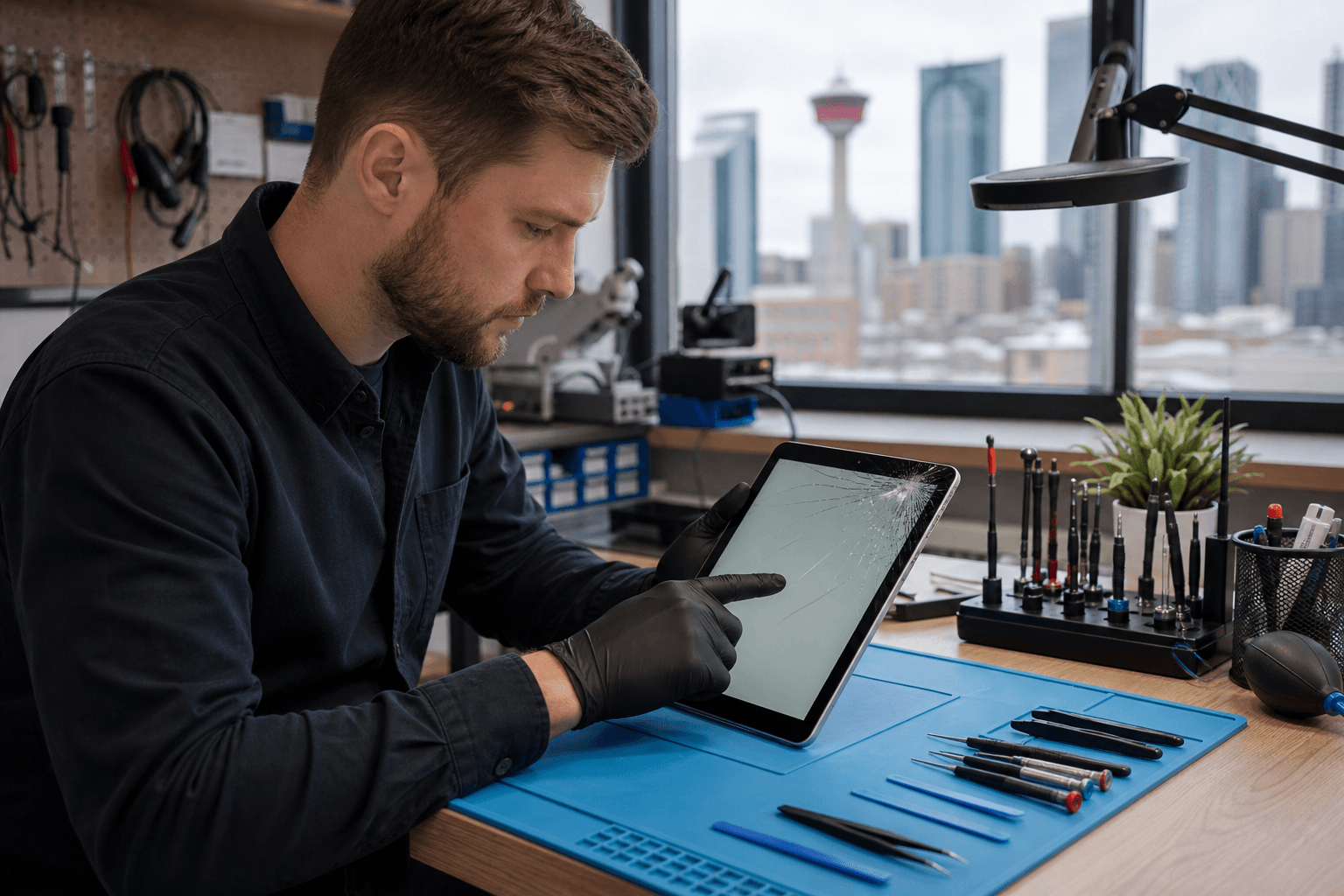
Published by TechBrotherz at TechBrotherz, the walk-in repair Store at 3317 17 Ave SE in Calgary. July 27, 2026, updated October 2, 2026.
No article on this site is paid for or sponsored. For a quote on your own device, call (403) 273-8324.
The key distinction is whether the picture works, touch works, or both have failed. These clues help you describe the issue accurately and decide when professional iPad repair in Calgary is the sensible next step.
Quick summary

- Remove the case or screen protector and inspect the screen without pressing hard.
- Test the picture and touch separately. A clear image with failed touch differs from black areas or lines.
- Back up your iPad if it still responds, and avoid force, unverified heat, and metal tools.
- Stop troubleshooting when touch remains unreliable, the screen is cracked or lifting, or several functions have failed.
- Before requesting a quote, note the exact model, visible damage, display behaviour, touch response, charging status, and any recent impact or liquid exposure.
What iPad screen troubleshooting actually involves
Troubleshooting does not mean diagnosing the exact failed component at home. It means narrowing down symptoms safely so you can decide whether an external obstruction, temporary software problem, or physical repair is the more likely next step. Apple’s support terminology commonly describes this situation as an iPad screen that is not working or does not respond when touched.
The same complaint can have different causes. A thick protector may interfere with touch, while a cracked front may affect only the glass on some iPad models. Black patches, lines, or a completely dark display can point to damage deeper than the outer glass. A technician needs to inspect the device before confirming the cause or quoting the required part.
Match the symptom to the likely problem area

Use this table as a description tool, not a definitive diagnosis. Screen layers and repair options vary by iPad model.
| What you notice | What it may suggest | What to record |
|---|---|---|
| Cracked glass, but picture and touch work normally | Possible outer-glass damage on models with separate layers | Crack location and whether touch works everywhere |
| Black patches, lines, or missing picture areas | Possible display or panel damage | Whether the marks appeared after an impact or are spreading |
| Picture works, but one area ignores touch | Possible digitizer problem or an obstruction | Which area fails and whether the failure is constant |
| Touch works intermittently or activates the wrong area | Possible screen, digitizer, protector, or software issue | When it happens and whether removing the case changes anything |
| Screen is completely dark | Possible display, power, software, or internal hardware fault | Whether the iPad makes sounds, charges, or responds to buttons |
| Flickering or changing brightness | Possible display or connection issue | Whether it occurs constantly or at certain brightness levels |
A cracked screen with a clear picture is not automatically the same repair as a screen with black areas or failed touch. If physical damage is present, compare iPad screen replacement prices by model, while remembering that the exact model and symptoms still need confirmation.
Safe checks to try before requesting repair
1. Remove external obstructions
Take off the case and, if practical, remove a damaged or poorly fitted screen protector. Check whether it is lifting, cracked, trapping debris, or pressing against an edge. Do not peel it away aggressively if it is holding loose glass in place.
2. Inspect and clean the exterior carefully
Look for cracks, lifted edges, black spots, lines, moisture, or fragments. Clean the outside with appropriate care and a soft, suitable cloth. Do not pour liquid onto the iPad or push anything into openings.
3. Test display and touch separately
Ask two questions: can you see a stable picture, and can you use touch across the entire screen? If touch works in one area but not another, note the boundary. If the picture is clear but touch fails everywhere, record that for the repair assessment.
4. Restart only if the iPad responds reliably
A restart may help with temporary software behaviour, but it cannot repair cracked glass or a damaged display layer. Follow the normal restart process if the controls respond. If the iPad is frozen or physically damaged, avoid repeated forceful attempts.
5. Check charging without forcing the port
If the iPad is low on power, try a known-working cable and adapter and check whether the case interferes with the connection. Charging problems can involve the cable, adapter, case, port, software, or battery. Never use a metal tool inside the port.
6. Back up your data if possible
If touch and the display still work well enough, back up important information before handing over the device. If you cannot use the screen, tell the repair provider what access limitations exist. Do not erase the iPad unless you understand the effect on your data and accounts.
What not to do when the screen is damaged
Do not press hard on cracked glass, bend the iPad to test it, or apply unverified heat. Do not force a cable into the charging port or use blades, pins, or other metal tools to remove debris. These actions can worsen the original fault.
Power down the iPad when the screen is lifting, the device has suffered liquid exposure, the glass is shedding fragments, or it becomes unusually hot. Keep loose pieces contained and arrange an assessment instead of repeatedly testing the device.
Glass, display, and digitizer damage are not the same
The front of an iPad can involve separate functional layers. On some models, cracked glass with a working picture and normal touch may involve glass-only damage. On other models, the glass and display are bonded, so the repair approach and cost can differ.
The display produces the picture, while the digitizer detects touch. If you can see the image but cannot swipe or tap, the touch layer may be involved. Black patches, lines, or no picture may indicate display or internal damage. These are clues rather than a diagnosis.
An accurate quote normally depends on the exact model and a description of both visible damage and device behaviour. “Old iPad with a broken screen” may not identify the correct part or repair option.
When troubleshooting should stop
Move from home checks to professional diagnostics when touch remains unreliable after removing the case or protector, the display shows black areas or lines, the glass is cracked or lifting, or the iPad has experienced impact or liquid exposure. Stop sooner if it is hot, smells unusual, has a swollen-looking body, or has several functions failing together.
At that point, further experimentation is unlikely to provide a reliable answer. A proper iPad repair process should include intake, diagnostics, approval before work, repair, post-repair testing, and a warranty handoff.
For comparison, an iPad Air screen repair example shows why the exact model matters. It is not a diagnosis or quote for your device, so confirm the model and required work with the repair provider.
Prepare these details before requesting an iPad repair quote
- Exact iPad model and generation, if known.
- Whether the glass is cracked, lifting, or missing pieces.
- Whether the picture is clear, flickering, lined, partly black, or completely dark.
- Whether touch works everywhere, intermittently, or not at all.
- Whether the iPad charges and whether charging changed after the incident.
- Any recent drop, pressure, liquid exposure, case change, or protector change.
- Whether you have backed up the device and can unlock it for testing.
Before approving work, ask for one clear figure covering parts and labour, expected timing, post-repair testing, and warranty coverage. Clarify whether the proposed work is glass-only replacement, a complete screen assembly, or another repair.
What professional iPad screen repair should include in Calgary
A careful repair begins by confirming the device and documenting the reported fault. The technician should diagnose the screen, touch response, charging, and other relevant functions before explaining the repair option and price. Work should begin only after you approve the plan.
After repair, testing should cover the repaired function and related features. TechBrotherz’s described iPad workflow includes post-repair checks before handoff, and its screen-replacement information refers to testing touch, cameras, buttons, speakers, and charging. Appropriate checks vary by model and repair.
TechBrotherz provides walk-in iPad repair at 3317 17 Ave SE in Calgary. Its website says most repairs take about 30 minutes when required parts are available, but that timing should not be assumed for every iPad screen problem. Repairs include a 60-day warranty, so ask how it applies to the specific work being approved.
Frequently asked questions
Can I still use an iPad with a cracked screen if touch still works?
Possibly, but continued use depends on the condition of the glass and whether the damage is stable. Avoid pressing cracked areas, protect the device from further impact, and back up your data. If the glass lifts, sheds fragments, or the display and touch change, arrange an assessment.
When does an iPad screen that is not responding to touch indicate hardware damage?
Persistent failure across all or part of the screen, especially after an impact or alongside cracks, lines, black patches, or flickering, can indicate hardware damage. Removing an obstruction and restarting may rule out simple causes, but a technician must inspect the iPad to identify the affected part.
What should I ask before approving iPad screen repair in Calgary?
Ask the shop to confirm the exact model, suspected failed component, complete parts-and-labour price, expected timing, post-repair tests, and warranty terms. Also clarify whether your data should be backed up or whether the device must be unlocked for testing.
Conclusion: troubleshoot safely, then choose the right next step
Good iPad screen troubleshooting starts with simple checks and accurate symptom notes. A case or protector may be involved, but cracked glass, failed touch, black areas, lines, flickering, or a dark display can require parts-level diagnosis. Stop experimenting once physical damage or persistent failure is clear.
If you need a local assessment, TechBrotherz offers walk-in iPad repair in Calgary at 3317 17 Ave SE. Most repairs take about 30 minutes when required parts are available, and repairs include a 60-day warranty, with exact timing and work confirmed after inspection.
Related pages
Rather just ask a person?
Call (403) 273-8324 and describe the problem, or walk in to 3317 17 Ave SE in Calgary. Every repair is quoted free before any work starts.