
Blog
Device Diagnostics Checklist: 12 Checks That Matter
Use this device diagnostics checklist to test phones, tablets and computers, record results, protect data and decide when Calgary repair makes sense.
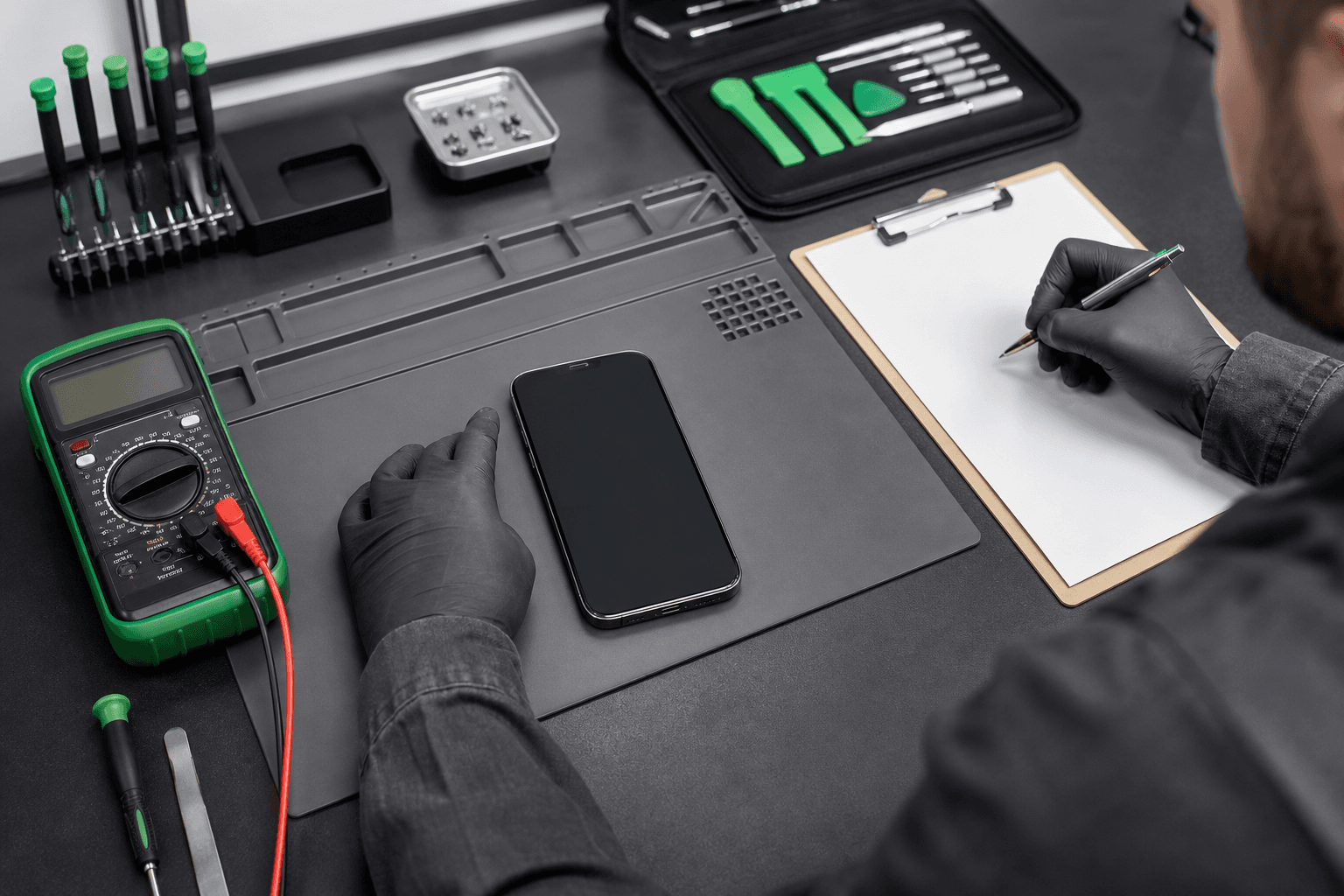
A device diagnostics checklist is a structured record of your device’s identity, symptoms, power, battery, physical condition, display, input, audio, camera, connectivity, storage and software results. Run safe checks first, mark each result Pass, Fail, Monitor or Not tested, and seek professional assessment for swelling, charging problems, boot loops or persistent faults. Related reading: Laptop diagnostics guide for Burlington, seven essential checks .
Key facts
- Published: August 6, 2026
- Last updated: October 31, 2026
- Reading time: 9 min read
- Questions about your own device: Call (403) 273-8324
Last updated
Device Diagnostics Checklist: 12 Checks That Matter
Published by TechBrotherz at TechBrotherz, the walk-in repair Store at 3317 17 Ave SE in Calgary. August 6, 2026, updated October 31, 2026.
No article on this site is paid for or sponsored. For a quote on your own device, call (403) 273-8324.
This workflow works for an iPhone, Android phone, tablet, laptop or desktop computer. It helps you describe the problem clearly, avoid replacing the wrong part and make a repair decision using evidence instead of a vague symptom.
What a Device Diagnostic Actually Means
A device diagnostic combines symptom history, software checks, physical inspection and hands-on functional testing. It is not necessarily one app or scan.
| Diagnostic level | What it can tell you | What it can miss |
|---|---|---|
| Quick user check | Whether the symptom changes with another accessory, restart, setting or app | Internal damage, intermittent faults and component failures |
| Built-in software diagnostic | Selected battery, sensor, storage or system readings | Every physical or intermittent fault |
| Hands-on repair assessment | Whether symptoms match a damaged part, connector, port, battery or software condition | A guaranteed repair outcome before full assessment |
| Post-repair quality check | Whether the repaired and related functions work before pickup | Future damage or unrelated wear |
Prepare the Device and Record the Starting Condition
Record the device as it is now so an intermittent symptom is not forgotten.
- Brand, exact model, colour and storage capacity
- Serial number or IMEI where appropriate. Do not publish these details online.
- Operating-system version and affected application
- What happens, when it started and how often it occurs
- Recent drops, liquid exposure, updates, accessory changes or unusual heat
- Cracks, lifted screens, bent frames, loose ports or missing buttons
- Files, accounts and data that must be preserved
- Pass, Fail, Monitor or Not tested, followed by a short note
Back up important photos, contacts, messages, documents and authenticator information while the device still works. A diagnostic does not automatically mean a factory reset or data wipe. Record what you authorize before handing over the device.
TechBrotherz provides a free quote before work begins. The amount you approve is the amount you pay.
The Device Diagnostics Checklist

Mark Pass when a function works normally, Fail when it does not, Monitor when the behaviour is intermittent or worsening, and Not tested when conditions or permissions prevent a check.
Power and startup
- Power on from a normal button press.
- Confirm the expected logo, lock screen or desktop appears.
- Check for freezing, boot loops or shutdowns.
- Test the charger, power button and normal shutdown command.
Record the exact failure. “Shows the logo for 12 seconds, restarts twice and stays black” is more useful than “does not work.”
Battery and charging
- Test a known-good cable, adapter and outlet.
- Record whether the device shows charging and gains percentage.
- Note percentage jumps, rapid drops and charging interruptions.
- Check battery health if the operating system provides it.
- Observe battery use during a consistent 20-to-30-minute test.
A battery percentage alone does not prove battery health. Compare it with unexpected shutdowns, rapid drain, charging interruptions and performance changes away from a charger.
Physical condition
- Inspect the screen, back, frame, hinges and corners under good light.
- Look for cracks, separation, dents, bent edges or missing screws.
- Check buttons and inspect ports without forcing objects into them.
- For computers, note fan noise, blocked vents, loose cables and external damage.
Display and touch
- Check brightness, flicker, lines, dark areas and colour changes.
- Open a plain image or text screen to inspect uniformity.
- Drag an icon or draw across every touchscreen area.
- Test multi-touch, rotation and automatic brightness where available.
Keep display and touch results separate. A picture can look normal while one digitizer area fails.
Buttons, sensors and input
- Test power, volume, mute, home or function buttons.
- Check fingerprint or face recognition without repeatedly guessing credentials.
- Test orientation, proximity, ambient-light and motion sensors.
- On computers, test the keyboard, trackpad, mouse and function keys.
Audio and microphone
- Play audio through the built-in speaker.
- Use a test call or voice recorder for the microphone.
- Test the earpiece separately from the loudspeaker.
- Compare wired or Bluetooth audio where supported.
Cameras
- Switch between every available lens.
- Test focus on nearby and distant subjects.
- Take a photo and short video in good light.
- Check the flash, front camera and recorded microphone.
Connectivity
- Test Wi-Fi on a network that works for another device.
- Check Bluetooth with a known-good accessory.
- Test mobile calling and data where available.
- For computers, test Ethernet, Wi-Fi, USB and external displays.
Storage and performance
- Record total storage and available space.
- Compare settings, app switching and typing responsiveness.
- Review battery and background-app usage.
- Check pending operating-system updates.
- On computers, record startup time, free drive space, fan activity and error messages.
Leaving roughly 10% to 20% of storage free is a practical guideline, not a universal guarantee. A slow device with plenty of free space points the investigation toward software, thermals, storage, memory or another hardware issue.
For touchscreen devices, a tablet repair checklist can organize symptom checks, data protection, hardware tests and post-repair verification.
Software and security
- Record the software version and update status.
- Check whether the problem affects one app or the whole device.
- Restart once and record whether the symptom returns.
- Review unusual pop-ups, redirects, unknown apps or account alerts.
- Confirm account credentials needed after a reset or repair.
Run Software and Built-In Diagnostics by Device Type
Menu names and available tests vary by manufacturer, model and software version. Pair every software result with a manual test.
Android phones and tablets
Search Settings for “battery,” “device care,” “support,” “diagnostics” or “device information.” Samsung devices may offer checks through Samsung Members, while other manufacturers use different tools. Review battery information, storage, updates and component tests, then compare the results with ordinary use. Android owners can begin with built-in diagnostics and battery checks.
iPhone and iPad
Check Settings for Battery, General, Storage and Software Update information. Diagnostic options differ by model and software version, so manually test display, touch, cameras, microphones, speakers, charging and wireless functions.
Windows computers and laptops
Record the Windows version, free drive space, startup behaviour, recent updates and affected applications. Review storage, battery information, updates and system health. Use Task Manager to identify unusually high processor, memory or disk activity, then test the keyboard, pointing device, display, audio, camera, network, ports and external accessories.
Match the Symptom to the Right Test
| Symptom | Useful checks | Next action |
|---|---|---|
| Rapid battery drain | Battery health, app usage and percentage change during a consistent 20-to-30-minute test | Review software, then request battery or hardware testing if it persists |
| Will not charge | Known-good cable, adapter, outlet and port observation | Seek assessment if several accessories fail |
| Slow performance | Free space, background activity, updates, temperature and app range | Back up data and request diagnosis if it remains slow |
| Display or touch fault | Brightness, colours, touch grid, rotation and affected area | Record the area and identify the fault before approving a part |
| Camera problem | Every lens, focus range, flash, video and front camera | Record the affected mode and seek model-specific assessment |
| Audio or microphone fault | Calls, recordings, media, speaker, earpiece and Bluetooth | Record the failed audio path |
| Random restarts | Battery percentage, temperature, app activity and charging conditions | Back up data and request diagnosis if the pattern continues |
| Connectivity failure | Another network or accessory, then Wi-Fi, Bluetooth, mobile data or wired ports | Record what connected successfully before further testing |
Know When to Stop Home Testing
Home checks are suitable for comparing accessories, recording symptoms, reviewing settings and testing ordinary functions. Seek professional assessment for swelling, charging problems, boot loops or persistent faults.
A loose, bent or corroded charging port can make charging unreliable and requires careful inspection. Review safe checks for iPhone charging-port issues without forcing objects into the port.
Turn the Results Into a Repair Decision

One failed check does not always mean a major repair. A single app failure may be software, while several related hardware failures point toward a deeper assessment.
| Result pattern | Reasonable next step |
|---|---|
| All key functions pass | Monitor the device and retain the record. |
| One function fails but an accessory or setting explains it | Correct the cause and repeat the test. |
| One function fails consistently after basic checks | Request a model-specific diagnosis and quote. |
| Several related functions fail or the device is unstable | Back up data and arrange professional assessment. |
| Repair value is unclear | Compare the confirmed quote with replacement options and the value of your data and setup time. |
TechBrotherz accepts walk-ins at 3317 17 Ave SE in Calgary for iPhone, Samsung Galaxy, Google Pixel, iPad, Android or Windows tablets, laptops and desktop computers. Most phone screen and battery repairs take about 30 minutes. Ask for realistic timing for tablet or computer work before leaving the device.
Ask what failed, which repair addresses it and what will be tested before pickup. Every repair carries a 60-day warranty.
What to Check After a Repair
Repeat the function that originally failed before leaving. For charging, confirm the connection and percentage change. For a screen, test brightness, touch, cameras, the earpiece and nearby buttons or sensors.
- Power on and restart the device.
- Test the repaired function under the original conditions.
- Check charging, battery indication and cable stability.
- Test display, touch, audio, microphone, cameras and wireless functions affected by the repair.
- Confirm data, account access and essential applications remain available.
- Keep the repair scope and warranty information with your diagnostic record.
Frequently Asked Questions
Can my phone run a diagnostic test?
Usually, yes. Android phones commonly provide battery, device-care, support or hardware-test tools, while iPhone options depend on the model and software version. Search Settings for battery, storage, support or diagnostics, then verify results manually.
What are the most common diagnostic tests?
Common checks cover startup, battery, charging, physical damage, display, touch, buttons, sensors, speakers, microphone, cameras, Wi-Fi, Bluetooth, mobile connectivity, storage, performance, updates and security.
How do I run a full computer diagnostic?
Record the software version and symptom, then check power, startup, storage, free space, updates, memory and background activity. Test the keyboard, pointing device, display, audio, camera, network, ports, accessories and applications you use.
What does “device diagnostic” mean?
It means collecting evidence to identify the likely source of a device problem through symptom history, software readings, physical inspection and functional tests. It does not automatically mean a reset or part replacement.
Does running a diagnostic erase my phone or computer?
A basic diagnostic does not automatically erase data. A reset, reinstallation or recovery procedure is different and should be explained and authorized separately. Back up important information first.
How do I know whether a failed test needs immediate repair?
Swelling, charging problems, boot loops and persistent faults are reasons to seek professional assessment. A single non-urgent app problem can be documented and monitored while you determine whether it continues.
Once you have recorded the symptom and test results, bring the device and your notes to TechBrotherz cell phone repair in Calgary for a walk-in diagnosis and free quote before work begins.
Related pages
Rather just ask a person?
Call (403) 273-8324 and describe the problem, or walk in to 3317 17 Ave SE in Calgary. Every repair is quoted free before any work starts.