
Blog
Charging Port Troubleshooting for Phones and Tablets
Charging port troubleshooting for phones and tablets: test cables, adapters and ports safely, spot battery faults, and know when Calgary repair is needed.
Start with a different wall outlet, a known-good cable and a compatible adapter, then inspect the charging port without forcing anything. If the connector is loose, charging works only at an angle, the device shows signs of liquid exposure or unusual heat, or the battery or screen appears swollen, pause the troubleshooting and seek an assessment. Charging that pauses near 80% can also result from device settings or temperature, so it is not automatically a faulty port.
Key facts
- Published: August 16, 2026
- Last updated: October 29, 2026
- Reading time: 7 min read
- Questions about your own device: Call (403) 273-8324
Last updated
Charging Port Troubleshooting for Phones and Tablets
Published by TechBrotherz at TechBrotherz, the walk-in repair Store at 3317 17 Ave SE in Calgary. August 16, 2026, updated October 29, 2026.
No article on this site is paid for or sponsored. For a quote on your own device, call (403) 273-8324.
Start With the Symptom: What Is the Device Doing?
A charging problem can come from the outlet, adapter, cable, software, debris, port, battery or deeper internal hardware. The pattern matters more than the charging icon alone.
| What you notice | What it may suggest | First useful check |
|---|---|---|
| No charging response | Dead outlet, cable, adapter, deeply drained battery or internal fault | Try another outlet, cable and compatible adapter |
| Charges slowly | Underpowered adapter, damaged cable, debris, heat or battery wear | Use a compatible wall adapter and known-good cable |
| Charges intermittently | Loose cable connection, debris, worn cable or damaged port | Remove the case and test without moving the device |
| Charges only at an angle | Debris, worn cable connector or a loose or damaged port | Stop bending the cable and inspect the port with a light |
| Shows charging but percentage does not rise | Weak power source, high device load, heat, battery trouble or software issue | Close demanding apps and try charging while powered off |
| Stops near 80% | Charging-management setting, temperature or software behaviour | Check battery and charging settings before assuming port failure |
| Liquid warning or recent spill | Moisture in the port or related liquid damage | Disconnect power and do not continue charging |
A faulty port becomes more likely when multiple known-good cables and adapters behave the same way, the connector feels loose, the phone disconnects when touched, or charging works only in one position. A cable or adapter is more likely when the same phone charges normally with another accessory.
Safe Checks Before You Inspect the Port
Use this order because it begins with the simplest checks and avoids unnecessary contact with the port. These steps apply broadly to iPhone, Android, Samsung Galaxy, iPad and other tablets, although connector types and charging settings vary by model.
- Test another wall outlet. Plug the adapter directly into a wall outlet instead of a computer, vehicle socket, hub or keyboard.
- Swap the cable. Use a cable that charges another compatible device reliably. Look for fraying, crushed sections, bent connectors or a plug that no longer seats firmly.
- Try a compatible adapter. A low-power or failing adapter may show a charging symbol while adding little or no battery percentage.
- Remove anything blocking the connection. Take off a case if its opening prevents the plug from entering fully. Do not push harder to overcome a poor fit.
- Restart the device. A temporary software or power-management fault can prevent normal charging. Install a pending system update when practical.
- Try charging while powered off. Leave the device connected for 30 to 60 minutes. If it charges while off but not while in use, background activity, heat or software may be contributing.
For Apple tablets, iPad charging troubleshooting covers this progression in more detail. A tablet repair checklist can help you record the model, accessories tested and exact charging behaviour before seeking help.
Inspect the Charging Port Without Making It Worse

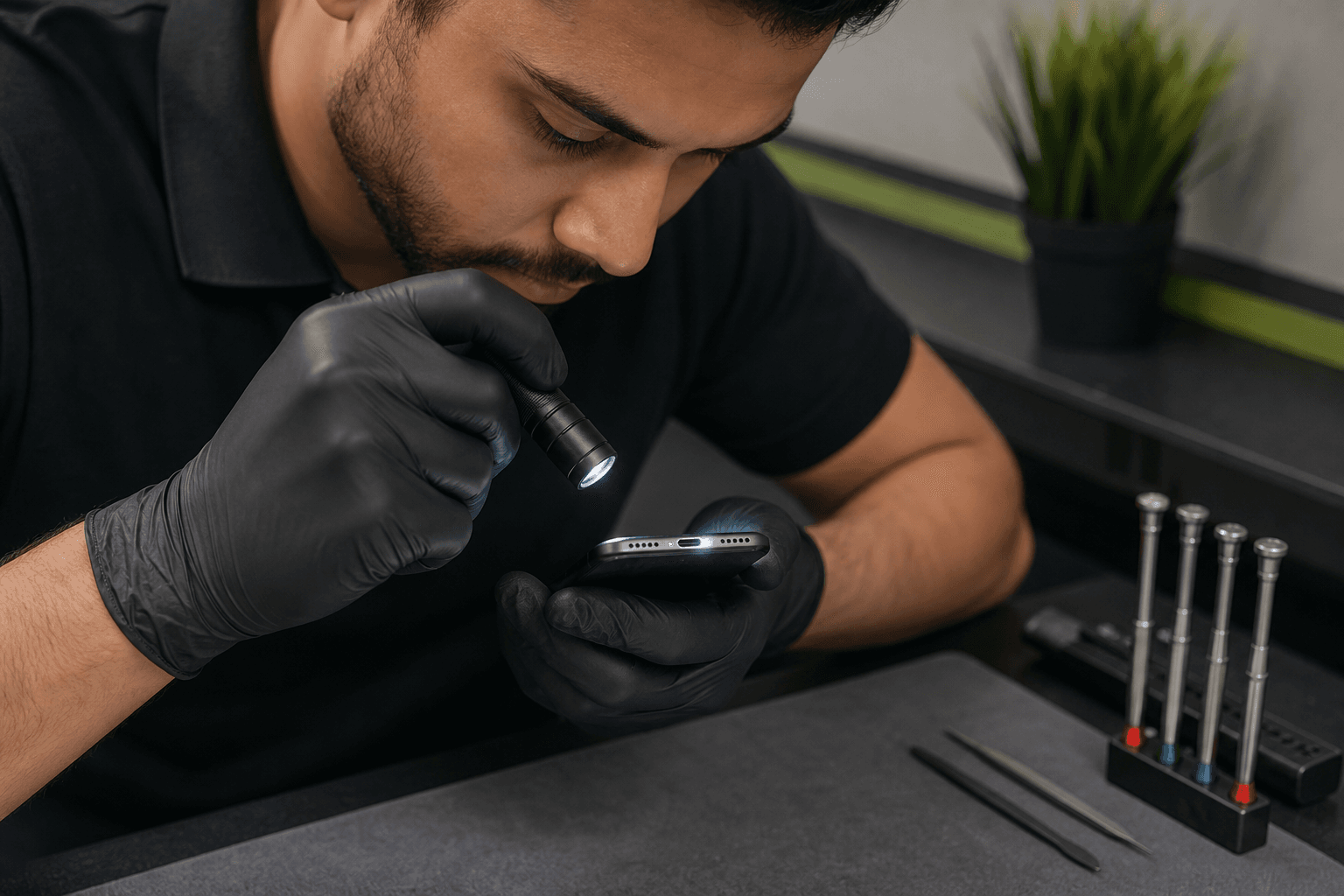
Turn off the device if possible and use a bright light to look into the port. Check for compacted lint, dust, bent contacts, visible corrosion or a connector that appears displaced.
If debris is loose and easy to reach, use a dry, non-metal tool or a soft brush with a light touch. Avoid invasive cleaning, liquid and force. If the debris is compacted, the contacts look bent or the plug does not seat normally, stop inspecting and arrange an assessment.
Android users should pay attention to a USB-C plug that wobbles, disconnects when the phone moves or fails to connect to a computer for data. These symptoms are discussed alongside other Android charging failures. The same principle applies to Lightning, USB-C and tablet ports: a cable should seat securely without pressure or a particular angle.
When to Stop Troubleshooting
Pause troubleshooting if the device has been exposed to liquid, becomes unusually hot, produces sparks or a burning smell, shows corrosion, has bent pins, or has a loose port that moves inside the casing. Also stop if the battery or screen is swelling, separating or bulging.
These signs point to a problem that is not suited to further home inspection. Disconnect the charger, avoid further probing and arrange an assessment instead of trying to straighten or repair internal parts yourself.
Read the Result: Port Fault, Battery Problem or Normal Charging Behaviour?
The result of your safe checks helps narrow the next step, but it cannot confirm a specific failed component without testing. Use these patterns as decision clues, not as a diagnosis.
Charging only at an angle
Charging at one angle usually points to a poor physical connection. Lint may prevent the plug from seating, the cable may be worn, or the port may be loose or damaged. Stop forcing the cable into position and arrange an assessment if the connection remains unreliable.
Slow or intermittent charging
Slow charging can result from an underpowered adapter, damaged cable, debris, heat, heavy use or battery wear. If speed remains poor with a known-good cable and compatible wall adapter, a port, battery or internal power fault deserves assessment.
Charging without gaining percentage
A phone that shows charging but does not gain battery may be using power as quickly as it receives it. Navigation, gaming, video, a hot environment, a weak adapter or battery trouble can contribute. Try a cool, idle or powered-off device with a known-good charger before blaming the port.
Charging stops near 80%
A pause near 80% is not automatically a broken charging port. Battery-protection settings, temperature and software can limit charging temporarily, so check the device’s charging or battery settings and allow it to return to a normal temperature before arranging port repair.
If the device repeatedly fails across tested accessories, disconnects with slight movement, has a visibly loose connector or also fails to transfer data, professional diagnosis is more useful than further cleaning. A battery that drains rapidly or causes unexpected shutdowns may need a battery assessment instead of port work.
What if the phone stopped charging after getting wet?
Disconnect the charger and do not reconnect it while moisture or a liquid warning is present. Avoid further attempts to charge it and arrange an inspection, especially if charging behaviour changed after the spill.
What a Professional Charging-Port Assessment Involves

A professional charging-port assessment starts by identifying the exact device model and reproducing the symptom with known-good accessories. The technician can inspect the port, check battery and power behaviour, and look for related damage before recommending cleaning, port service, another repair or no repair.
Bring the usual cable and adapter, the exact model information and a short description of what changed. Note whether the problem followed a drop, liquid exposure, a new accessory, overheating or a software update. Back up important data first if the device still works, but pause charger use and seek assessment if the device is hot, swollen or affected by liquid.
The normal workflow is intake, diagnosis, an explanation of the proposed repair, quote approval, repair and final quality checks. For iPads, the broader iPad repair process illustrates why testing after repair matters, including charging and related functions.
Repair or Replace the Device? Use Five Practical Tests
A charging-port repair is often worth assessing when the device otherwise meets your needs and the problem is focused on charging. Compare these five factors before approving work or replacing the phone.
- Age and usefulness: An older device with poor performance, limited software support or several failing parts may not justify another repair.
- Overall condition: A port problem on an intact phone is different from one combined with a cracked display, camera fault, water damage or damaged buttons.
- Battery condition: If the battery already drains quickly or the phone shuts down unexpectedly, ask whether battery service should be considered.
- Data importance: Photos, messages and account access can make repair or data-preserving diagnosis more valuable than immediate replacement.
- Available charging alternatives: Some models support another charging method, while others do not. Treat an alternative as temporary convenience, not proof that damage is safe to ignore.
Ask for the diagnosis and complete quote before deciding. A quote that combines parts and labour gives you a clearer comparison with replacing the device, without assuming every charging problem needs a port replacement.
A Sensible Next Step for Calgary Owners
If your phone, iPad or tablet still charges inconsistently after safe accessory tests, stop forcing the connector and arrange an inspection. TechBrotherz provides walk-in phone repair at 3317 17 Ave SE in Calgary, with a free quote before work starts, most repairs taking about 30 minutes, and a 60-day warranty on every repair. Bring the device, its usual charger and the symptoms you recorded to TechBrotherz phone repair without an appointment.
Related pages
Rather just ask a person?
Call (403) 273-8324 and describe the problem, or walk in to 3317 17 Ave SE in Calgary. Every repair is quoted free before any work starts.