
Blog
iPhone Speaker Problems: Calls, Media or Bluetooth?
Before booking an iPhone speaker repair, identify which audio output fails, record the conditions, and use safe checks to give the technician a useful starting point.
“My iPhone speaker is not working” can describe several different problems. The call earpiece, bottom loudspeaker, ringer, alerts, headphones and Bluetooth devices do not all use the same output path. Before arranging repair, identify exactly what fails and under which conditions.
Key facts
- Published: November 5, 2026
- Last updated: November 5, 2026
- Reading time: 6 min read
- Questions about your own device: Call (403) 273-8324
Last updated
iPhone Speaker Problems: Calls, Media or Bluetooth?
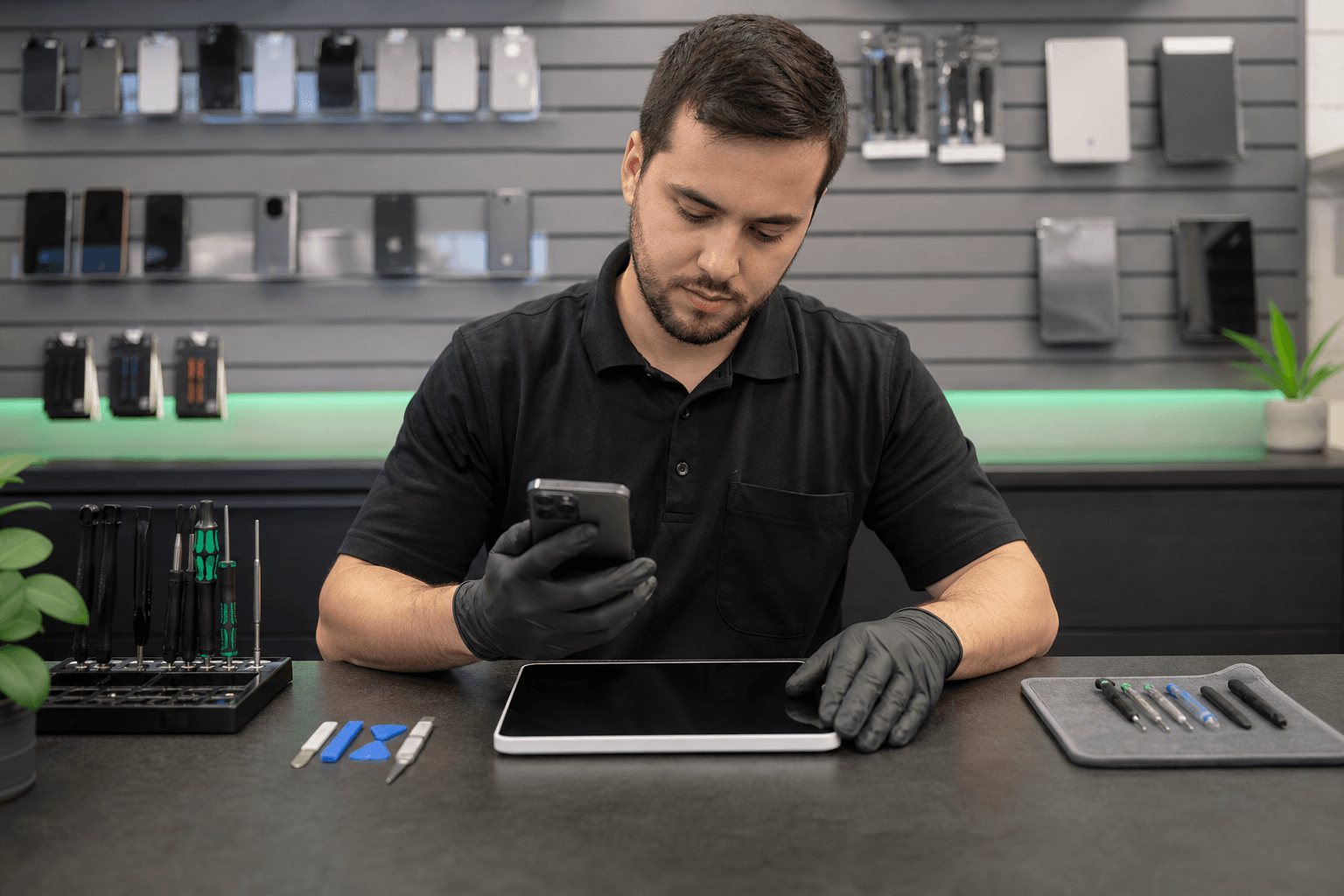
Published by TechBrotherz at TechBrotherz, the walk-in repair Store at 3317 17 Ave SE in Calgary. November 5, 2026.
No article on this site is paid for or sponsored. For a quote on your own device, call (403) 273-8324.
Start with this simple decision: if the issue continues after checking volume, Silent mode or Focus, the case and the speaker openings, record the symptom and arrange an assessment. Apple notes that persistent sound problems may require service, and that call sound can also be affected by network or reception conditions. See Apple’s speaker and sound guidance for the manufacturer’s general checks.
First identify which sound is affected
Do not treat every quiet or silent sound as a loudspeaker failure. Test each relevant output separately and write down what you observe:
- Call earpiece: What to observe: Can you hear the other person when the phone is held to your ear? Why it matters: This separates call-earpiece symptoms from speakerphone or media symptoms.
- Loudspeaker and media: What to observe: Does a video, music track or speakerphone call produce sound from the phone? Why it matters: A media or speakerphone fault may not affect the call earpiece.
- Ringer and alerts: What to observe: Do incoming-call or notification sounds play when expected? Why it matters: Silent mode, Focus and alert settings can change what you hear.
- Headphones or Bluetooth: What to observe: Does sound work through wired headphones or a connected Bluetooth device? Why it matters: Accessory output does not prove that the iPhone’s built-in speaker is working.
Safe checks before seeking service
Use ordinary settings and visual checks only. Avoid opening the phone or trying to force a repair.
- Check the volume in the situation where the problem occurs. A media volume change does not necessarily explain a quiet call, and vice versa.
- Check Silent mode and Focus. These settings can affect ringer and alert behaviour. They do not by themselves explain every media or call symptom.
- Remove or reposition the case temporarily. Confirm that it is not covering an opening or interfering with the way sound leaves the phone.
- Look at the openings. If an opening appears blocked, do not push objects into it and do not use liquids or compressed air as a repair procedure.
- Check the connection context. If headphones or Bluetooth are connected, disconnect them and test the built-in output again. A call can also sound different because of network or reception conditions.
These checks are for observation, not a guaranteed component diagnosis. A phone that passes one test may still have another output or setting-related problem.
Compare the symptom without guessing the part
A symptom can help narrow the assessment, but it does not automatically identify a failed component.
- Only one caller sounds quiet: test another call and note whether the issue follows the person, the location or the phone. Network or reception conditions may be relevant.
- All calls are quiet through the ear speaker: compare a normal call with speakerphone and media playback. Record whether the phone’s other output is normal.
- Media works but calls are quiet: compare the call earpiece with speakerphone. This is useful information for assessment, but it is not proof of a specific part failure.
- Headphones work but the built-in speaker does not: note whether the failure affects ringer, alerts, speakerphone and media, or only one of them.
- The phone is silent everywhere: check the settings and connection context, then record whether the issue began after an impact, liquid exposure or earlier repair.
Make a useful speaker-problem record
A short record can prevent you from relying on memory at the counter. Include:
- the iPhone model, if known;
- the date or approximate point when the issue began;
- whether the phone was dropped, exposed to liquid, unusually warm or repaired previously;
- which outputs fail: call earpiece, speakerphone, media, ringer, alerts, headphones or Bluetooth;
- whether the problem affects every call or only some calls;
- what changed when you removed the case, checked Silent mode or disconnected an accessory;
- whether the phone shows a warning, behaves intermittently or has any other damage.
Hypothetical example: a test record
This is an illustrative example, not a customer result or a confirmed diagnosis.
- Call held to ear: Other person is difficult to hear.
- Same call on speakerphone: Conversation becomes audible.
- Short media playback: Media plays through the built-in loudspeaker.
- Incoming alert: Alert is audible after Silent mode is checked.
- Headphones disconnected: No change to the call-earpiece symptom.
This record shows that the observation changes with the output and context. It does not establish that one particular part must be replaced. A technician still needs to assess the device and confirm the available repair scope.
When to stop testing
If the phone has been dropped or exposed to liquid, mention that before service. Do not continue experimenting if you suspect damage to the iPhone or battery. Apple advises discontinuing use when damage is suspected; its safety information also says not to open, puncture, heat or freeze a damaged device. Battery repairs require trained technicians. See Apple’s important safety information.
If the phone displays a temperature warning, Apple advises turning it off, moving it away from direct sunlight to a cooler environment and allowing it to cool. Do not use a refrigerator or freezer as a troubleshooting method; consult the Apple temperature guidance.
What to ask before approving a repair
TechBrotherz is an independent Calgary walk-in repair store. Its phone service page lists phone repairs including screen, battery, charging-port, camera and button work. For a speaker-related complaint, ask the store to confirm the model-specific scope rather than assuming that a listed category means every audio fault is covered. The phone service page states that quotes cover parts and labour, with the exact price depending on the model and assessed scope; timing depends on the part, fault and workload.
Before work begins, ask:
- What did the assessment reproduce: call-earpiece, loudspeaker, ringer, media or accessory output?
- What repair category is being proposed, and what is included in the written quote?
- Is the required part available for this exact model, and what part grade is being offered?
- What should be tested at pickup, using the original sound complaint?
- What happens if the symptom is different from the suspected fault?
TechBrotherz states that phone diagnostic assessment has no charge, while computer diagnostics are handled separately. Parts grade and availability vary by exact model, so confirm the complete scope before approving work. The published repair warranty is 60 days for the fitted part and workmanship, subject to exclusions such as new accidental or liquid damage, a different fault and work opened or performed elsewhere. Liquid-damaged repairs are specifically not guaranteed. Review the published warranty terms for the conditions that apply.
Prepare for privacy and pickup testing
Back up the iPhone before service where possible. Apple advises never giving another person your account password, device passcode or other security details, and recommends remaining present when entering credentials for support. You can ask how the store will test the sound complaint without sharing unnecessary private information. TechBrotherz’s FAQ also advises remaining present and unlocking the device yourself for testing where feasible; that does not mean every test can be completed while the phone remains locked.
For the next step, bring your symptom record and ask for the current model-specific scope. You can review TechBrotherz phone repair details, then send TechBrotherz your iPhone model and symptom record for a repair assessment. The goal is not to guess the part from one symptom; it is to give the store a reproducible complaint, confirm the proposed work and test the original sound problem before pickup.
Related pages
Rather just ask a person?
Call (403) 273-8324 and describe the problem, or walk in to 3317 17 Ave SE in Calgary. Every repair is quoted free before any work starts.